Multi-tenant deployments
One KDBL Context Lake (K-Lake) deployment can serve many organisations — or many business units — as fully separate tenants. Each tenant has its own sources, users, tokens and index rows, and from 0.1.36 each tenant also has its own AI endpoint, its own sign-in issuer, optionally its own identity provider, and optionally its own token-signing keys.
This page is the step-by-step for a service provider or MSP standing up a shared deployment. It assumes the deployment already has a public MCP address and a working identity provider — the Connect your AI and OAuth and identity providers pages get you there. Each of the steps below takes a few minutes per tenant.
Running the deployment for many customers — partners and platform operators, suspending and deleting tenants, quotas, fair sharing, branding and custom hostnames — is covered in Hosting many customers.
What "isolated" means here
| Boundary | How it is kept |
|---|---|
| Data | Every source, file, user and token belongs to exactly one tenant; a request only ever sees its own tenant's rows. |
| AI endpoint | Each tenant has its own MCP URL and its own sign-in issuer. A token minted for one tenant is refused at every other tenant's endpoint. |
| Sign-in | A tenant can federate to its own identity provider, or share one with other tenants and be told apart by audience or an organisation claim. Its administrators see and change only their own; no tenant can point another at a directory it controls. |
| Keys | A tenant can sign its own tokens. Tokens for that endpoint are then verified against that tenant's keys alone. |
| Clients | An AI client registered under a tenant's endpoint belongs to that tenant and works nowhere else. |
| Suspension | Suspending a tenant refuses its users on every path — console, SSO, API tokens, MCP and download links — and holds its ingest, while keeping its data. Resume reverses it. |
| Deletion | Deleting a tenant ends its endpoint, every token minted for it and every client bound to it, in the same moment. Its data is then removed in the background, irreversibly; see Tenant lifecycle. |
Tenant names (slugs) become path segments and issuer strings, so they are restricted to lowercase letters, digits and hyphens at creation.
One address, many tenants
Every tenant is served from the same public address. The first tenant
connected answers on the bare endpoint — the shape every earlier deployment was
connected with, kept so nobody has to reconnect. Every other tenant gets its own
endpoint under /t/<tenant>/:
| Endpoint | Sign-in issuer | Discovery documents | |
|---|---|---|---|
| First tenant | https://<host>/mcp |
https://<host> |
/.well-known/oauth-protected-resource/mcp/.well-known/oauth-authorization-server |
Tenant acme |
https://<host>/t/acme/mcp |
https://<host>/t/acme |
/.well-known/oauth-protected-resource/t/acme/mcp/.well-known/oauth-authorization-server/t/acme |
A distinct issuer per tenant is what lets K-Lake resolve a token to its tenant:
the token names exactly one. K-Lake's built-in sign-in server presents
/t/<tenant>/authorize, /t/<tenant>/token and /t/<tenant>/register for
each tenant, and a code or refresh token can only be redeemed at the token
endpoint that minted it.
Nothing changes for a single-tenant deployment
If you only ever connect one tenant, it holds the bare /mcp endpoint and
everything on this page is optional. Existing connections keep working
through an upgrade.
Step 1 — Connect each tenant to MCP
Sign in as a cluster administrator, open AI access (MCP) (or press ⌘K / Ctrl+K and type set up AI access), and on the Setup tab expand step 3. Choose which tenant it serves. Every tenant is listed with its state:
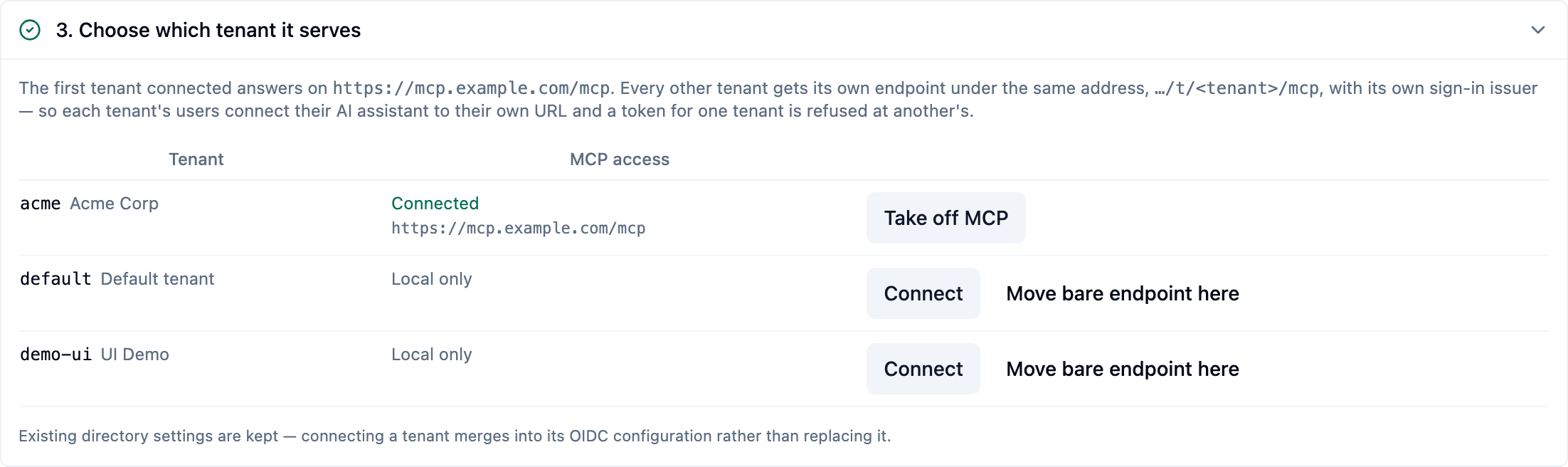
- Connect — gives the tenant an endpoint. While the bare endpoint is
free, the tenant takes it; otherwise the tenant is connected at its own
endpoint,
…/t/<tenant>/mcp, and the row says Connected (own endpoint) with the URL to give that tenant's users. - Move bare endpoint here — hands the bare
/mcpendpoint from its current holder to this tenant. The previous holder is moved to its own endpoint in the same operation, so it stays reachable, but its users must reconnect at the new URL. It confirms first, naming both tenants. - Take off MCP — releases the tenant's endpoint. Its tokens stop validating immediately.
Nothing is typed: the issuer and audience are derived from the endpoint address set in step 2 and merged into the tenant's existing configuration, so directory-correlation settings survive.
# Bare endpoint if it is free, otherwise the tenant's own
curl -X PUT "$KDBL_URL/api/mcp/tenants/acme" \
  -H "Authorization: Bearer $KDBL_ADMIN_TOKEN" \
  -H "Content-Type: application/json" -d '{}'

# Insist on the tenant's own endpoint, /t/acme/mcp
curl -X PUT "$KDBL_URL/api/mcp/tenants/acme" \
  -H "Authorization: Bearer $KDBL_ADMIN_TOKEN" \
  -H "Content-Type: application/json" -d '{"scoped": true}'

# Insist on the bare endpoint; 409 while another tenant holds it
# unless take_over moves it
curl -X PUT "$KDBL_URL/api/mcp/tenants/acme" \
  -H "Authorization: Bearer $KDBL_ADMIN_TOKEN" \
  -H "Content-Type: application/json" -d '{"scoped": false, "take_over": true}'
GET /api/mcp/tenants lists every tenant with its endpoint, whether it
is scoped, and which sign-in leg it uses (federation: tenant |
deployment | none). DELETE /api/mcp/tenants/acme takes it off MCP.
Cluster-admin only.
kdbl-control --api-url "$KDBL_URL" --api-token "$KDBL_ADMIN_TOKEN" \
  mcp tenants                                 # every tenant and its endpoint
kdbl-control --api-url "$KDBL_URL" --api-token "$KDBL_ADMIN_TOKEN" \
  mcp tenant-apply --tenant acme              # connect
kdbl-control --api-url "$KDBL_URL" --api-token "$KDBL_ADMIN_TOKEN" \
  mcp tenant-clear --tenant acme              # take off MCP
Give each tenant's users their URL. AI access (MCP) › Setup shows it per tenant (a tenant's own admin sees theirs under Settings › AI assistants › Endpoint › MCP endpoint), and it is the Base URL for every client on MCP clients.
Step 2 — Give a tenant its own identity provider (optional)
By default every tenant signs in through the deployment's identity provider — the one on AI access (MCP) › Setup › Let people sign in. A tenant that brings its own directory sets it on the Identity provider for MCP card:
- as a cluster administrator, on the tenant's page under Tenants;
- as that tenant's own administrator, on the Sign-in card under Settings › AI assistants (or press ⌘K / Ctrl+K and type identity provider for MCP) — self-service, so a customer can connect their directory without a ticket.
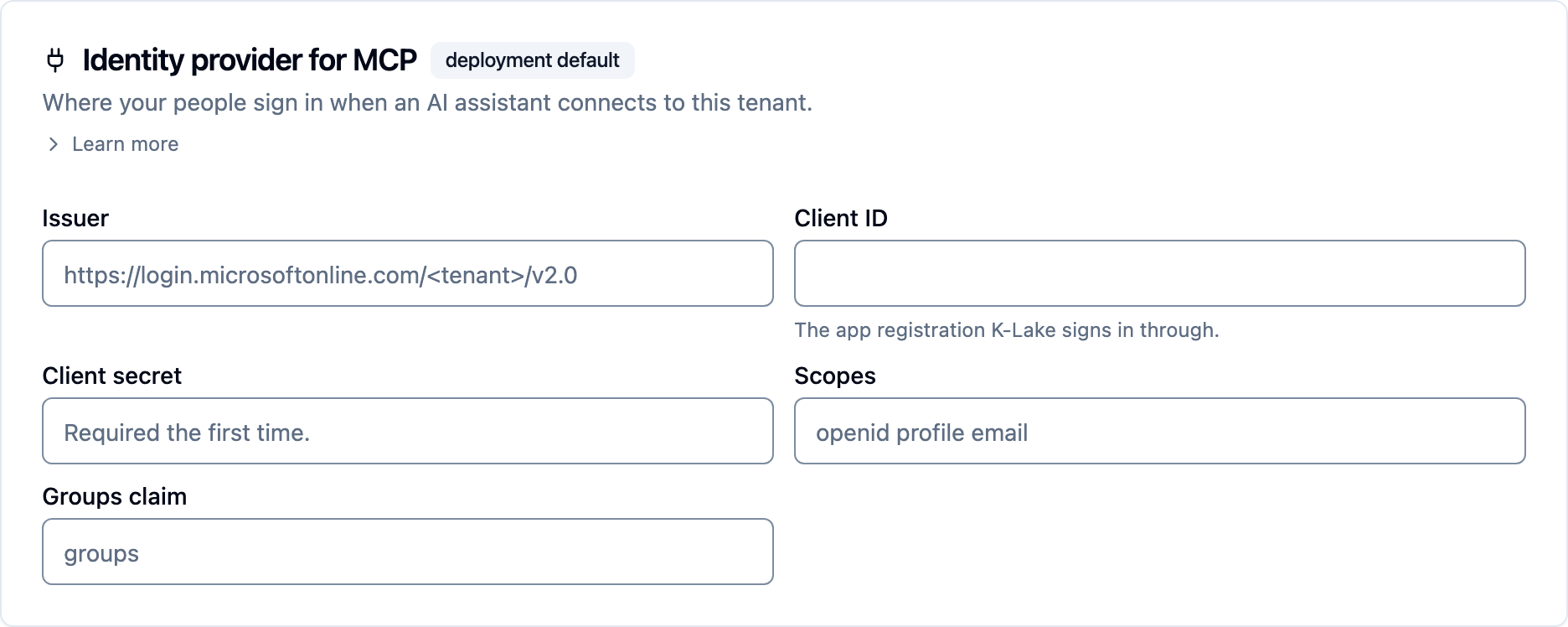
| Field | Value |
|---|---|
| Issuer | The tenant's IdP issuer, exactly as it appears in its tokens — for Entra https://login.microsoftonline.com/<directory-id>/v2.0. |
| Client ID | The app registration K-Lake signs this tenant's users in through. Register it in the tenant's IdP the same way as in Step 1 of the OAuth guide. |
| Client secret | Required the first time. Sealed before it is stored, never shown or returned; leave the field empty on later saves to keep it. |
| Scopes | Default openid profile email. |
| Groups claim | Name of the groups claim in that IdP's token. Default groups. |
The redirect URI to register at the tenant's IdP is the same for every
tenant: https://<host>/oauth/callback. There is no per-tenant callback.
Sign-ins arriving under that tenant's endpoint then go to that tenant's
directory, validated with that tenant's own TLS trust anchors. Click Save
identity provider to save it; the badge changes from deployment default
to own IdP. Use the deployment's provider instead clears it. Through the API: GET/PUT/DELETE
/api/mcp/tenants/:slug/federation (issuer, client_id, write-only
client_secret, optional scopes and groups_claim); a tenant's own
administrator may call it for their own tenant.
Several tenants on one identity provider
A tenant does not need a directory of its own. An MSP that runs one identity
provider — one realm, one directory — for many customers can put several
tenants on the same issuer. K-Lake then tells the tenants apart by the
token's audience (give each tenant its own client in the identity provider
and set that tenant's audience) or, if that is still ambiguous, by an
organisation claim named in the tenant's tenant_claim. A token that
matches none of them is refused. Set a shared issuer on the tenant's
Sign-in (SSO) card or through the API; the rules are described in
Hosting many customers.
Each tenant still has its own K-Lake sign-in issuer and endpoint, as in the table above, so a token minted for one tenant's endpoint is still refused at every other.
Step 3 — Give a tenant its own signing keys (optional)
Tokens for every tenant are signed with the deployment's keys unless a tenant has keys of its own. Generate them on the Signing keys for MCP card: on the tenant's page under Tenants for a cluster administrator, or under on the Sign-in card under Settings › AI assistants for the tenant's own administrator. The badge reads deployment keys until the tenant has its own:
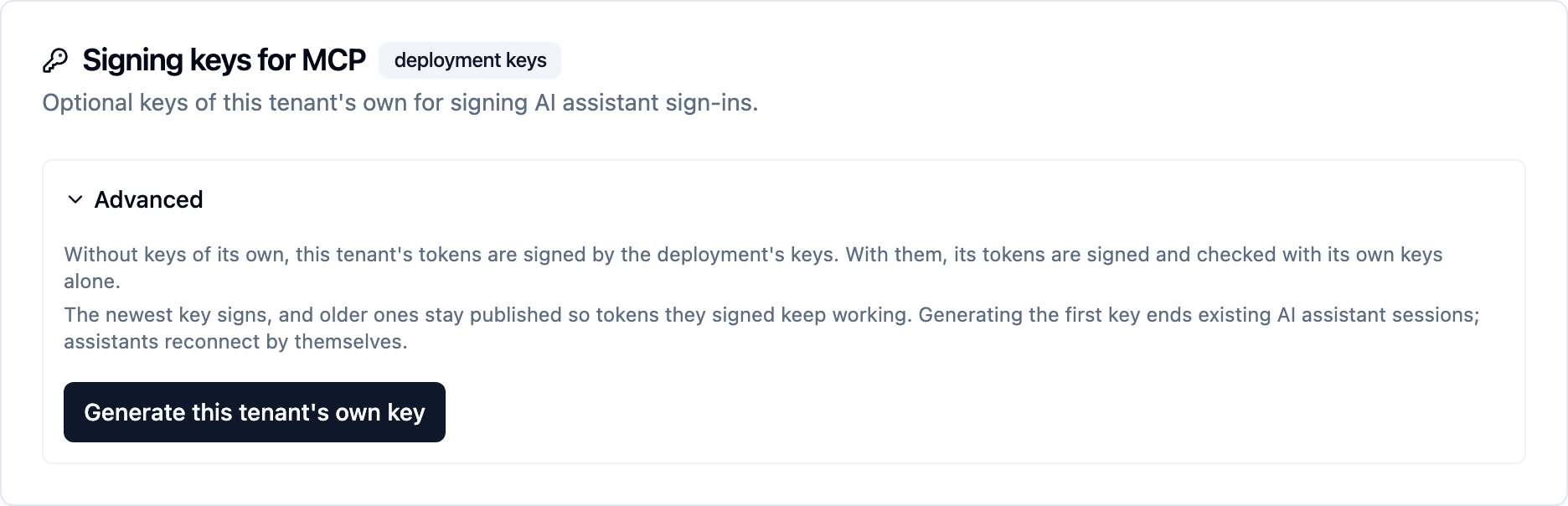
- Generate this tenant's own key (under Advanced) — tokens for this tenant's endpoint are signed by
it and verified against it alone, published at
https://<host>/t/<tenant>/.well-known/jwks.json. Sessions signed by the deployment's keys end at that moment; connected assistants carry on through their refresh tokens rather than prompting everyone to sign in again. - Generate a new key (rotate) — the newest key signs; older ones stay published so tokens they signed keep working until they expire.
- Remove a key — tokens it signed no longer verify. Removing the last key returns the tenant to the deployment's keys.
Through the API: GET/POST /api/mcp/tenants/:slug/keys, DELETE
/api/mcp/tenants/:slug/keys/:kid.
When to bother: a customer contract that requires their tokens to be verifiable against material only they can revoke, or a wish to rotate one tenant without touching the others. For most deployments the shared keys are fine.
Step 4 — Register clients per tenant
Assistants that register themselves (Claude, ChatGPT, Cursor) do so at the tenant's endpoint and need nothing here. Hosts that ask for a client ID and secret — Microsoft 365 Copilot, Copilot Studio, most enterprise agent platforms — are registered under Settings › AI assistants › Sign-in › MCP clients › Register a client (or press ⌘K / Ctrl+K and type MCP clients) with the Tenant endpoint picker set to the tenant. Register a client opens the form under the list of registered clients, and Use Microsoft 365 Copilot preset fills it for Copilot:
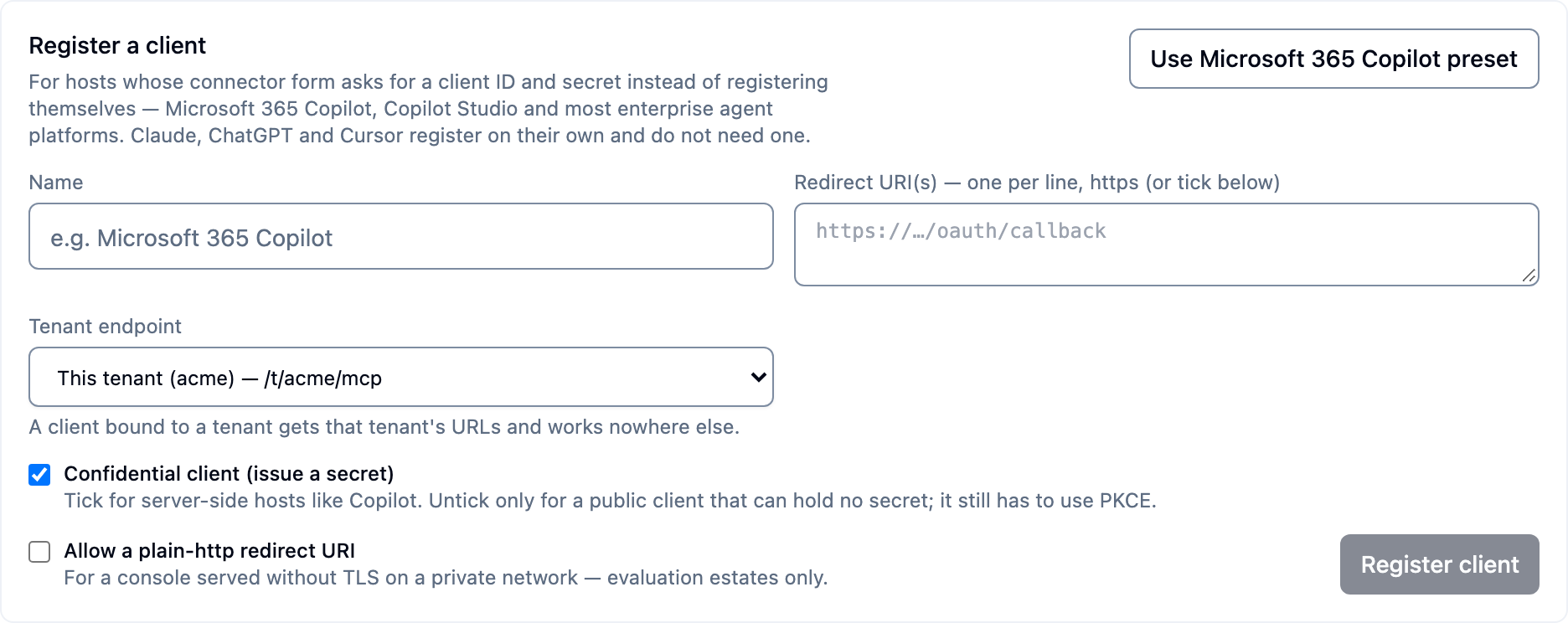
The connector values that come back are for that tenant's endpoint —
https://<host>/t/<tenant>/authorize, …/token — and the client is refused at
every other tenant. The same from the CLI:
kdbl-control --api-url "$KDBL_URL" --api-token "$KDBL_ADMIN_TOKEN" \
  mcp client create --preset copilot --tenant acme
Step 5 — Sign the console in through the same server (optional)
A tenant on MCP can use K-Lake's own sign-in server for the web console too, so its users sign in to the console with the same directory and the same roles. That is a two-value change on the tenant's Sign-in (SSO) card and is walked through on Console sign-in and roles.
Step 6 — Verify
Each tenant advertises itself, unauthenticated, so you can check from anywhere:
HOST=https://mcp.example.com

# The tenant's own sign-in server and resource
curl -s $HOST/.well-known/oauth-authorization-server/t/acme | jq -r .issuer
# → https://mcp.example.com/t/acme
curl -s $HOST/.well-known/oauth-protected-resource/t/acme/mcp | jq -r .resource
# → https://mcp.example.com/t/acme/mcp

# A tokenless call is challenged, and the challenge points at the tenant's document
curl -si -X POST $HOST/t/acme/mcp | grep -i www-authenticate

# The tenant's keys, if it has its own
curl -s $HOST/t/acme/.well-known/jwks.json | jq '.keys | length'
Then connect an assistant at the tenant's URL and watch the sign-in land in
AI access (MCP) › Tokens and in kdbl-control mcp audit, as on the
OAuth guide.
Troubleshooting
| Symptom | Cause | Fix |
|---|---|---|
Connecting a second tenant returns 409 |
You asked for the bare endpoint (scoped: false) while another tenant holds it |
Use the console's Connect (own endpoint), send {} or {"scoped": true}, or take_over deliberately |
A user's assistant connects but every call is 401 |
They connected at another tenant's URL, or a token from the bare endpoint was presented at /t/<tenant>/mcp |
Give them their tenant's URL from AI access (MCP) › Setup and reconnect |
| The tenant's new IdP is ignored — sign-in still goes to the deployment's | Users are connecting at the bare endpoint, which federates to the deployment default | The tenant must be Connected (own endpoint); check federation: tenant in GET /api/mcp/tenants |
| The IdP rejects the sign-in | Redirect URI not registered | Register https://<host>/oauth/callback — one URI for all tenants |
| Everyone in one tenant was signed out at once | Its first own signing key was generated, or a key was removed | Expected. Assistants resume through refresh tokens; anyone without one signs in again |
| A tenant administrator cannot see another tenant's provider | Working as designed | Each tenant's administrators manage only their own; cluster administrators see all |
Saving an issuer on the Sign-in (SSO) card is refused (409) because another tenant uses it |
A tenant on that issuer could not be told apart from another | Do what the message says: give each tenant its own API audience, or tenants sharing an audience a tenant_claim on the same claim with different values — see Hosting many customers |
| Sign-in fails for tenants that share an identity provider | A token matches more than one of them, or none | Give each tenant its own client and audience, or set a tenant_claim that its users' tokens carry |
Every sign-in to one tenant returns 403 tenant suspended or tenant is being deleted |
The tenant was suspended or is being deleted | Resume it, or see Tenant lifecycle |
See also
- Hosting many customers — partners, lifecycle, quotas, fair sharing and branding
- MCP server — the endpoint, discovery and audit reference
- OAuth and identity providers — registering K-Lake in an IdP
- Console sign-in and roles — browser sign-in and read-only users
- Security overview — how tenant isolation is enforced