OAuth and identity providers
This page is the step-by-step for wiring KDBL Context Lake (K-Lake) sign-in to your identity provider, so that a cloud AI assistant can reach your on-prem data as the person asking — and see only what that person is allowed to see.
It is written for two readers who are often different people: the identity admin who owns the IdP tenant (steps 1 and the permission tables), and the K-Lake admin who owns the deployment (steps 2–5). Work through it in order; the whole thing is roughly 45 minutes the first time.
For the network path that makes K-Lake reachable in the first place, see Connect your AI. This page assumes you already have a public MCP URL and picks up from there.
Which sign-in mode do you need?
K-Lake accepts three kinds of caller. Pick the row that matches your client before you configure anything — they need very different amounts of setup.
| Mode | What the caller presents | Setup | Use it for |
|---|---|---|---|
| Personal access token (PAT) | A K-Lake token in an Authorization header |
None beyond minting the token | Desktop/CLI clients on the same network; evaluation |
| Your IdP directly | An access token your IdP minted with aud = the MCP resource URI |
An app + a way to mint resource-scoped tokens | Custom agents and scripts you build yourself |
| K-Lake's OAuth server, federated to your IdP | Nothing — the client discovers, registers and signs the user in | This page | claude.ai, ChatGPT, Copilot 365, Gemini — every cloud assistant |
The cloud assistants only support the third mode. They cannot be given a static header, and they will not accept an IdP you point them at directly — so if your users are connecting from a hosted assistant, this page is not optional.
Why the cloud clients need it
A remote MCP client expects the authorization server to live at the MCP origin: it reads the server's metadata, registers itself dynamically, and starts an OAuth flow there. K-Lake therefore runs its own OAuth 2.1 authorization server at your MCP hostname, and itself federates the actual sign-in to your IdP. Your IdP stays the source of truth for identity; K-Lake never sees a password.
How federated sign-in works
sequenceDiagram
    participant AI as AI assistant
    participant KL as K-Lake (OAuth server)
    participant IdP as Your IdP
    AI->>KL: 1. Discover metadata, register itself
    AI->>KL: 2. Send the user to sign in
    KL->>IdP: 3. Redirect to your IdP
    IdP-->>KL: 4. User signs in, returning groups
    KL-->>AI: 5. Short-lived K-Lake token (audience-bound)
    AI->>KL: 6. Search and read, trimmed to that user
Three consequences worth internalising, because they are what people get wrong:
- You register one app, ever. The assistants register themselves with K-Lake, so there is nothing per-assistant to create in your IdP. Adding ChatGPT alongside Claude needs no IdP change at all.
- The redirect URI belongs to K-Lake, not to the assistant. You will add
https://<your-mcp-host>/oauth/callback— not aclaude.aioropenai.comURL. If a vendor's callback URL ends up in your IdP, something has gone wrong. - Signing in grants no data. Authentication and authorisation are separate gates; step 4 is where access actually happens, and skipping it is the single most common "it connected but finds nothing" report.
One app or two? (this is the confusing part)
K-Lake may talk to your directory in two unrelated ways, and they need different permissions. Customers routinely request the heavier permission set for the lighter job.
| Sign-in app (this page) | Directory-sync app (Directory enrichment) | |
|---|---|---|
| What it does | Signs users in and reads their identity + groups from the token | Reads your directory in the background to map IdP groups to on-prem SIDs |
| Acts as | An OAuth client on behalf of the signing-in user | A background service, no user present |
| Entra permission type | Delegated — openid, profile, email |
Application — Group.Read.All, GroupMember.Read.All, User.Read.All |
| Admin consent | Usually not needed | Always required |
| Needs a redirect URI | Yes | No |
| Needed for | Every deployment using cloud assistants | Only when file ACLs are Windows/AD groups |
You may use one app registration for both — it is legal and slightly less to manage. Two separate registrations is the better default: the sign-in app then holds no standing read access to your directory, so its secret leaking costs you far less.
If you only need users to sign in and grant access by IdP group, you need the sign-in app alone. Directory sync matters when K-Lake must reconcile cloud group membership against NTFS/NFSv4 ACLs captured from a file share.
Before you start
- Your public MCP URL, e.g.
https://mcp.example.com/mcp— the whole flow is keyed to it. - Permission to create an app registration in your IdP (or someone who has it on the call).
- Cluster-admin access to K-Lake (for the tenant configuration in step 3).
- A decision on which groups should reach K-Lake, and whether your IdP will emit them in the token.
Step 1 — Register K-Lake in your IdP
Microsoft Entra ID (validated end-to-end)
Create the registration
- Entra admin centre → Identity → Applications → App registrations → New registration.
- Name it something recognisable (
K-Lake MCP sign-in). Supported account types: Accounts in this organizational directory only, unless you genuinely need guests from other tenants. - Redirect URI: platform Web, value
https://<your-mcp-host>/oauth/callback. The Web platform matters — it makes this a confidential client, which is what K-Lake is. - Register, then copy the Application (client) ID and Directory (tenant) ID from the overview.
Add a client secret
- Certificates & secrets → Client secrets → New client secret. Copy the Value (not the ID) immediately — Entra never shows it again. Note the expiry date; 24 months is the maximum, and an expired secret breaks sign-in with no warning.
Permissions — what to add, and what not to
- Under API permissions, add nothing. The scopes K-Lake requests
(
openid,profile,email) are OIDC sign-in scopes Entra honours without any Microsoft Graph permission grant. TheUser.Readdelegated permission Entra adds to new registrations by default is harmless — keep or remove it. - Admin consent is only needed if your tenant has disabled user consent for applications. If it has, a tenant admin clicks Grant admin consent once and no user is ever prompted again.
| Permission | Type | Needed? | Admin consent |
|---|---|---|---|
openid, profile, email |
Delegated (OIDC) | Requested by K-Lake at sign-in | No |
User.Read |
Delegated | Optional (Entra's default) | No |
Group.Read.All, GroupMember.Read.All, User.Read.All |
Application | No — directory sync only | Yes, if used |
Emit groups in the token
- Token configuration → Add groups claim. Choose Security groups, and tick the ID token box. K-Lake reads groups from the id_token.
- If users belong to many groups, prefer Groups assigned to the application
over Security groups. Past roughly 200 groups Entra stops embedding them and
substitutes a link instead — the token arrives with no usable
groupsclaim, and group-based access silently stops working. Assigning only the groups that should reach K-Lake keeps the token small and the intent explicit.
Set the token version
- Manage → Manifest: set
"requestedAccessTokenVersion": 2. Without it Entra issues v1 tokens whose issuer does not match the v2 issuer K-Lake expects, and every sign-in fails validation.
Values for step 2
KDBL_MCP_OAUTH_FED_ISSUER       = https://login.microsoftonline.com/<tenant-id>/v2.0
KDBL_MCP_OAUTH_FED_CLIENT_ID    = <application (client) id>
KDBL_MCP_OAUTH_FED_SCOPES       = openid profile email
KDBL_MCP_OAUTH_FED_GROUPS_CLAIM = groups
Okta
- Applications → Create App Integration → OIDC → Web Application.
- Sign-in redirect URI =
https://<your-mcp-host>/oauth/callback. Leave sign-out URIs empty. - Grant type Authorization Code (the default). Copy the client ID and secret.
- Assign the app to the users or groups who should be able to sign in — Okta denies anyone unassigned, which looks like a K-Lake error but is not.
- Groups: either request the built-in
groupsscope, or add a groups claim on the authorization server (Security → API → Authorization Servers → default → Claims → Add claim, include in ID token, value type Groups, filter Matches regex.*).
KDBL_MCP_OAUTH_FED_ISSUER       = https://<your-okta-domain>/oauth2/default
KDBL_MCP_OAUTH_FED_SCOPES       = openid profile email groups
KDBL_MCP_OAUTH_FED_GROUPS_CLAIM = groups
Using the org authorization server rather than the default one? Drop the
/oauth2/default suffix. The issuer must match the iss in the token exactly.
Auth0
- Applications → Create Application → Regular Web Application.
- Allowed Callback URLs =
https://<your-mcp-host>/oauth/callback. - Copy the domain, client ID and client secret.
- Auth0 emits no groups by default and requires namespaced custom claims. Add a Login Action:
exports.onExecutePostLogin = async (event, api) => {
  api.idToken.setCustomClaim('https://kdbl/groups', event.authorization?.roles ?? []);
};
KDBL_MCP_OAUTH_FED_ISSUER       = https://<your-tenant>.auth0.com/
KDBL_MCP_OAUTH_FED_SCOPES       = openid profile email
KDBL_MCP_OAUTH_FED_GROUPS_CLAIM = https://kdbl/groups
Keep the trailing slash on the Auth0 issuer — it is part of the iss value
in the token, and dropping it fails validation.
Google Workspace
- Google Cloud console → APIs & Services → Credentials → Create credentials → OAuth client ID → Web application.
- Authorised redirect URI =
https://<your-mcp-host>/oauth/callback. - Configure the OAuth consent screen with user type Internal so only your Workspace users can sign in.
KDBL_MCP_OAUTH_FED_ISSUER = https://accounts.google.com
KDBL_MCP_OAUTH_FED_SCOPES = openid email profile
Google id_tokens carry no group membership. Sign-in works, but group-based access does not — grant access per user, or use Directory enrichment to pull Workspace groups separately.
Any other OIDC provider
K-Lake discovers everything it needs from the provider's
/.well-known/openid-configuration, so any standards-compliant provider works —
Keycloak, Ping, ADFS with OIDC enabled. It needs to be a confidential client
supporting the authorization code grant, with a redirect URI of
https://<your-mcp-host>/oauth/callback and a groups claim in the id_token if
you want group-based access.
Step 2 — Configure K-Lake
From 0.1.24 this is a settings change, not a deployment change. Sign in to
the console as a cluster administrator (or the administrator of a
deployment whose only tenant manages itself), open AI access (MCP) › Setup
(or press ⌘K / Ctrl+K and type set up AI access), and work down the steps. Nothing here needs kubectl, and nothing needs a restart.
The signing key
K-Lake mints its own access tokens and signs them with an ES256 key. The Helm chart generates one on install and preserves it across upgrades, so on a chart deployment there is nothing to do. If AI access (MCP) › Setup › 5. Let people sign in warns that the sign-in service isn't running on this deployment, the key is missing and the chart is not managing it — see Troubleshooting.
Do not regenerate the signing key casually
Every token K-Lake has issued is signed with it. Replacing it signs everyone out at once and every connected assistant has to sign in again.
The redirect URI
Setup › 5. Let people sign in shows the exact redirect URI to register in your IdP, under 1. Add this exact redirect URI to your app registration. It is derived from the endpoint address you set in step 2 of the wizard. Copy it from there rather than typing it — it must match at the IdP character for character, and a mismatch fails at your IdP, with an error that never mentions K-Lake.
The three values
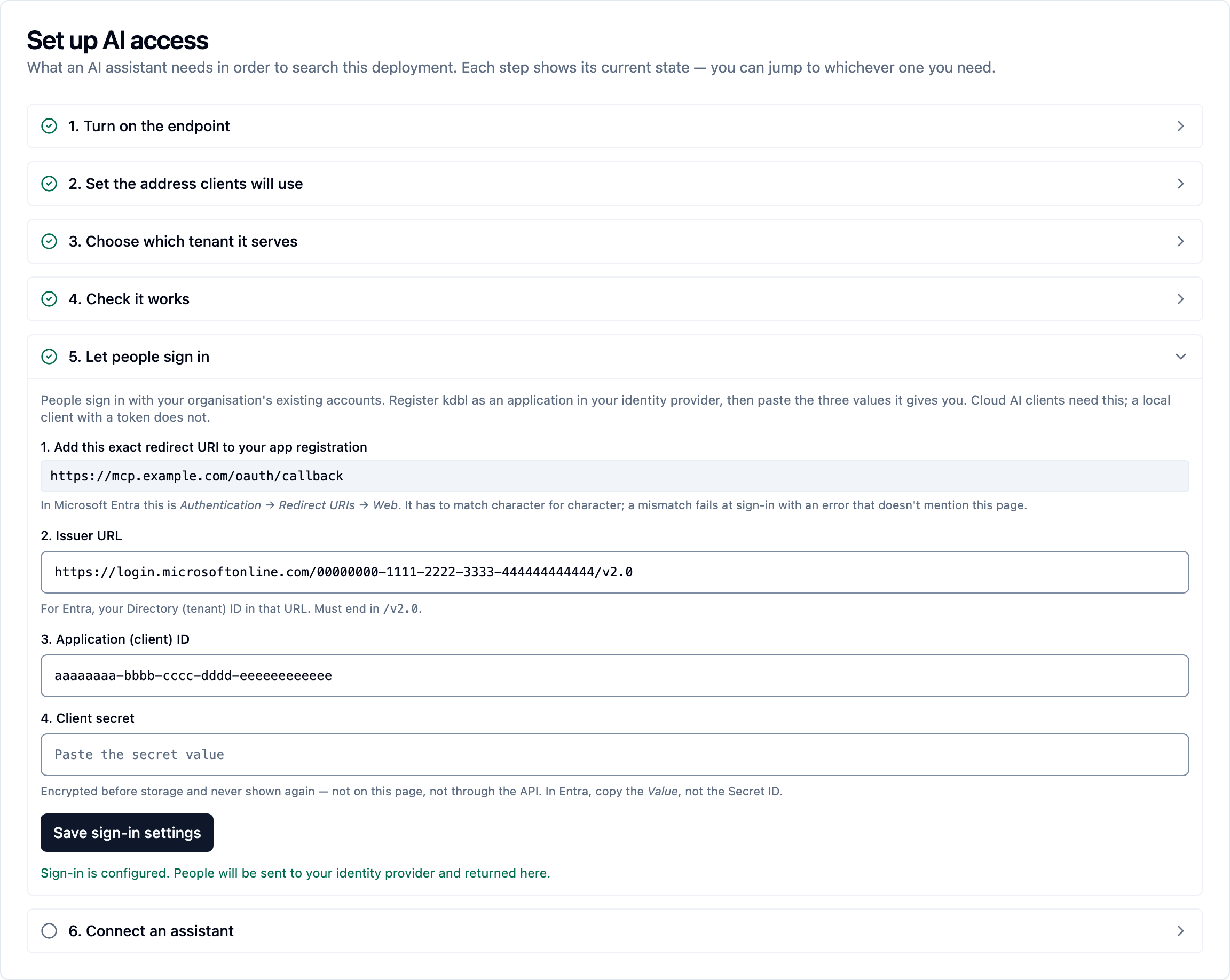
Paste these into the same step and press Save sign-in settings:
| Field | Where it comes from |
|---|---|
| Issuer URL | Step 1. For Entra, https://login.microsoftonline.com/<directory-id>/v2.0 — it must end in /v2.0. |
| Application (client) ID | Step 1. |
| Client secret | Step 1. For Entra this is the secret's Value, not its Secret ID. |
The secret is encrypted before it is stored and is never shown again — not on the page, not through the API. Leaving the field blank when you save keeps the stored secret; typing a new one replaces it.
Then open 4. Check it works and press Run checks. It reports whether an identity provider is connected at all, which is the failure everything else hides: the endpoint can pass every other check while nobody is able to sign in.
Changing the endpoint address takes effect on save
Sign-in re-points to the new address as soon as you save it — no restart, and nothing to run. Run checks confirms the address it is now issuing under.
One consequence worth knowing: access tokens issued under the old address stop validating, because they name an address the deployment no longer answers on. Anyone connected simply signs in again. Your tenants also need to be pointed at the new address: Run checks reports No tenant is connected to …, and Connect in step 3 re-points the tenant.
Configuring it without the console
Everything above is also a single API call, for anyone automating a deployment. It requires a cluster-admin token; a tenant administrator can read this configuration but not change it.
curl -sS -X PUT https://klake.example.com/api/mcp/config \
  -H "Authorization: Bearer $KDBL_CLUSTER_ADMIN_TOKEN" \
  -H 'Content-Type: application/json' \
  -d '{
        "enabled": true,
        "resource_uri": "https://mcp.example.com/mcp",
        "oauth_fed_issuer": "https://login.microsoftonline.com/<directory-id>/v2.0",
        "oauth_fed_client_id": "<application (client) id>",
        "oauth_fed_client_secret": "<the secret Value from step 1>"
      }'
Omit a field to leave it as it is; send null to clear it and fall back to
whatever the deployment sets. GET /api/mcp/config reads the configuration
back, including oauth_redirect_uri — the value to register at your IdP.
Or with the CLI, which reads the secret from stdin so it never appears in your
shell history or in /proc:
printf '%s' "$IDP_SECRET" | kdbl-control mcp set \
  --resource-uri https://mcp.example.com/mcp \
  --idp-issuer https://login.microsoftonline.com/<directory-id>/v2.0 \
  --idp-client-id <application (client) id> \
  --idp-client-secret-stdin

kdbl-control mcp config     # what is set, what is missing, the redirect URI
kdbl-control mcp validate   # check it against reality
Setting it in the deployment instead (still supported)
Environment variables remain the fallback for anything not configured through the API, which is what makes a pre-baked deployment possible. Stored settings win per field.
| Variable | Meaning |
|---|---|
KDBL_MCP_ENABLED |
Master switch. The MCP endpoint ships dark. |
KDBL_MCP_RESOURCE_URI |
Your public https://…/mcp URL. It is the OAuth issuer and the token audience, so it must be exactly what clients call. |
KDBL_MCP_OAUTH_FED_ISSUER |
The IdP issuer from step 1. |
KDBL_MCP_OAUTH_FED_CLIENT_ID |
The IdP application/client id. |
KDBL_MCP_OAUTH_FED_SCOPES |
Space-separated, e.g. openid profile email. |
KDBL_MCP_OAUTH_FED_GROUPS_CLAIM |
Name of the groups claim in the upstream id_token. K-Lake re-stamps it onto its own token as groups, so your tenant's groups_claim stays groups whatever your IdP calls it. |
The client secret is read from the kdbl-mcp-oauth-federation secret, and
the signing key from kdbl-mcp-oauth-signing. Both are set for you by the
chart.
Step 3 — Connect the tenant
The tenant tells K-Lake which tokens to trust. With the federated model, both the issuer and the audience point at K-Lake's own hostname — your IdP sits upstream of it, and is not named here.
Every tenant gets an endpoint
The first tenant connected answers on the bare /mcp endpoint with the
issuer https://<your-mcp-host>; every other tenant gets its own endpoint
and issuer, https://<your-mcp-host>/t/<tenant>. The steps below connect
one tenant; for a shared deployment serving several organisations — each
with its own identity provider and keys if it wants them — follow
Multi-tenant deployments.
This is the easy path, and the one to use. Open AI access (MCP) › Setup › 3. Choose which tenant it serves. The table lists every tenant, whether it is Connected, on its Own identity provider, or Local only, and the action that applies:
- Connect — give the tenant an endpoint: the bare
/mcpwhile it is free, otherwise its own…/t/<tenant>/mcp. - Move bare endpoint here — hand the bare endpoint from the current holder to this tenant. The holder moves to its own endpoint in the same operation, so it stays reachable, but its users reconnect at the new URL. It confirms first, naming both tenants.
- Take off MCP — release the tenant's endpoint entirely.
Nothing is typed. K-Lake derives the issuer and audience from the endpoint address set in step 2 — the two strings most often mistyped are never typed at all — and merges them into the tenant's existing OIDC configuration, so directory correlation settings survive untouched.
Step 4 then confirms it: "MCP serves the <tenant> tenant at
<address>".
For automation. PUT /api/mcp/tenants/:slug derives the values from the
deployment's own configuration and merges into oidc_config:
curl -X PUT "$KDBL_URL/api/mcp/tenants/<tenant-slug>" \
  -H "Authorization: Bearer $KDBL_ADMIN_TOKEN" \
  -H "Content-Type: application/json" -d '{}'
An empty body is the normal case: the bare endpoint if it is free,
otherwise the tenant's own. {"scoped": true} insists on the tenant's own
endpoint; {"scoped": false} insists on the bare one and is refused with
409 while another tenant holds it, unless {"take_over": true} moves it
— the current holder is released in the same transaction. DELETE on the same path takes
a tenant off MCP. GET /api/mcp/tenants lists the estate.
Cluster-admin only: the endpoint is cluster-wide.
Do not use PATCH /api/tenants/:slug for this
That route replaces oidc_config wholesale, so it will erase any
graph, ldap or principal_mappings blocks the tenant has — which
fails later, somewhere else, as files nobody can see. The route above
exists precisely to avoid that.
kdbl-control --api-url "$KDBL_URL" --api-token "$KDBL_ADMIN_TOKEN" \
  mcp tenants                                   # who holds it
kdbl-control --api-url "$KDBL_URL" --api-token "$KDBL_ADMIN_TOKEN" \
  mcp tenant-apply --tenant '<tenant-slug>'     # connect
kdbl-control --api-url "$KDBL_URL" --api-token "$KDBL_ADMIN_TOKEN" \
  mcp tenant-apply --tenant '<slug>' --take-over  # move it here
kdbl-control --api-url "$KDBL_URL" --api-token "$KDBL_ADMIN_TOKEN" \
  mcp tenant-clear --tenant '<slug>'            # take off MCP
A tenant with its own identity provider stays on it — pass
--issuer <their-idp> to tenant-apply, and tenant-clear then removes
only the MCP audience, leaving that tenant's ordinary sign-in intact.
What gets set
For reference, connecting a tenant writes these keys — you should not need to set them by hand:
| Key | Value |
|---|---|
issuer |
https://<your-mcp-host> — origin only, no /mcp |
mcp_audience |
https://<your-mcp-host>/mcp |
groups_claim |
groups |
jit_provision |
true, so a first-time signer gets a user record |
To read back what a tenant currently has:
Step 4 — Grant access to content
Signing in grants nothing. A freshly federated user authenticates successfully and sees an empty result set until a grant exists. Grant to groups so membership drives access and survives people joining and leaving.
kdbl-control --api-url "$KDBL_URL" --api-token "$KDBL_ADMIN_TOKEN" \
  acl grant '<source-id>' 'group:<idp-group-id>' viewer

kdbl-control --api-url "$KDBL_URL" --api-token "$KDBL_ADMIN_TOKEN" \
  acl list '<source-id>'
Roles are viewer, editor, owner. Granting is an upsert, so re-running
with a different role changes it.
Open the source (press ⌘K / Ctrl+K and type # and its name), go to its
Security tab, and use the Access grants card: search for the person
or group in Who, choose a Role (viewer, editor or owner), and press
Grant. The card lists current grants, each with a delete button to
revoke it.
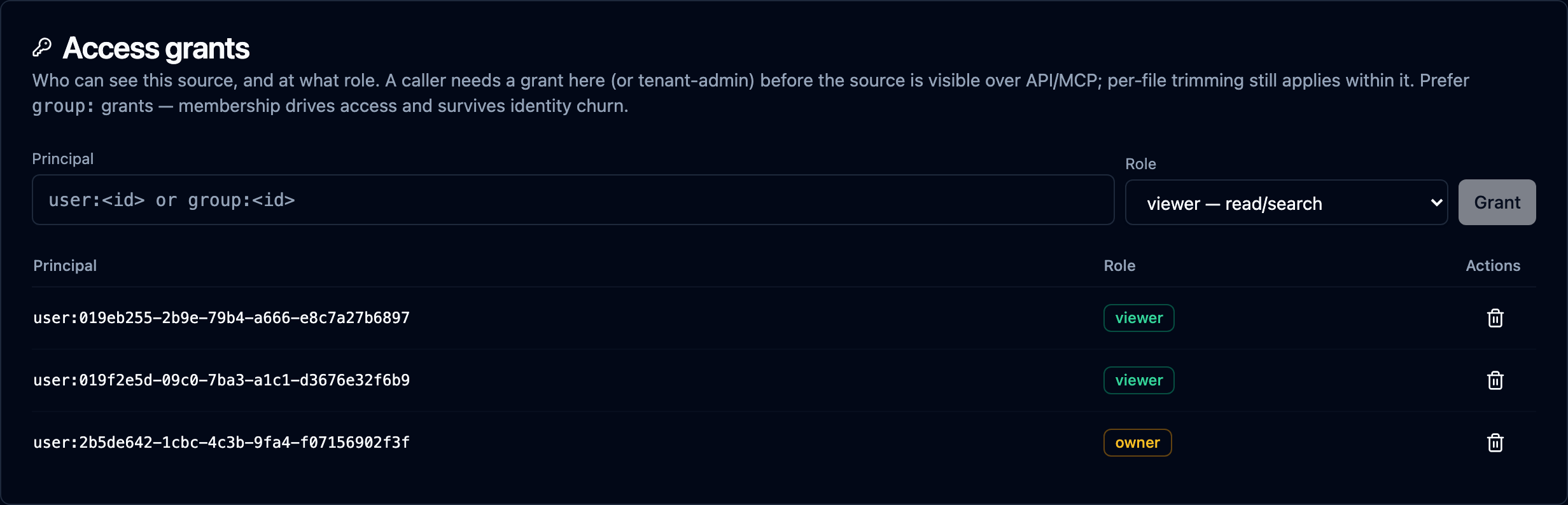
The group id is whatever your IdP puts in the token — an object id in Entra, a
group name in Okta. Whatever appears in the groups claim is what to grant to.
Per-file trimming still applies on top of the grant, so a user with a viewer
role on a source still only sees the files the file system's own ACLs allow
them: see Per-file security trimming.
Step 5 — Verify
Run these from anywhere on the internet — they need no credentials:
HOST=https://mcp.example.com

# The authorization server exists, and advertises itself (not your IdP)
curl -s $HOST/.well-known/oauth-authorization-server | jq -r .issuer
# → https://mcp.example.com

# The resource metadata points at that issuer
curl -s $HOST/.well-known/oauth-protected-resource/mcp | jq

# Unauthenticated POST is challenged, not silently accepted
curl -si -X POST $HOST/mcp | head -2
# → 401 with a WWW-Authenticate header
Then the authenticated end-to-end check:
Finally connect an assistant (MCP clients) and watch the sign-in land in the audit trail:
A successful federated sign-in also shows up in the console under AI access (MCP) › Tokens › OAuth login sessions (press ⌘K / Ctrl+K and type MCP access tokens), as a login session naming the user and the assistant that registered itself. This is the fastest confirmation that federation is working end to end — and where you revoke a session later.
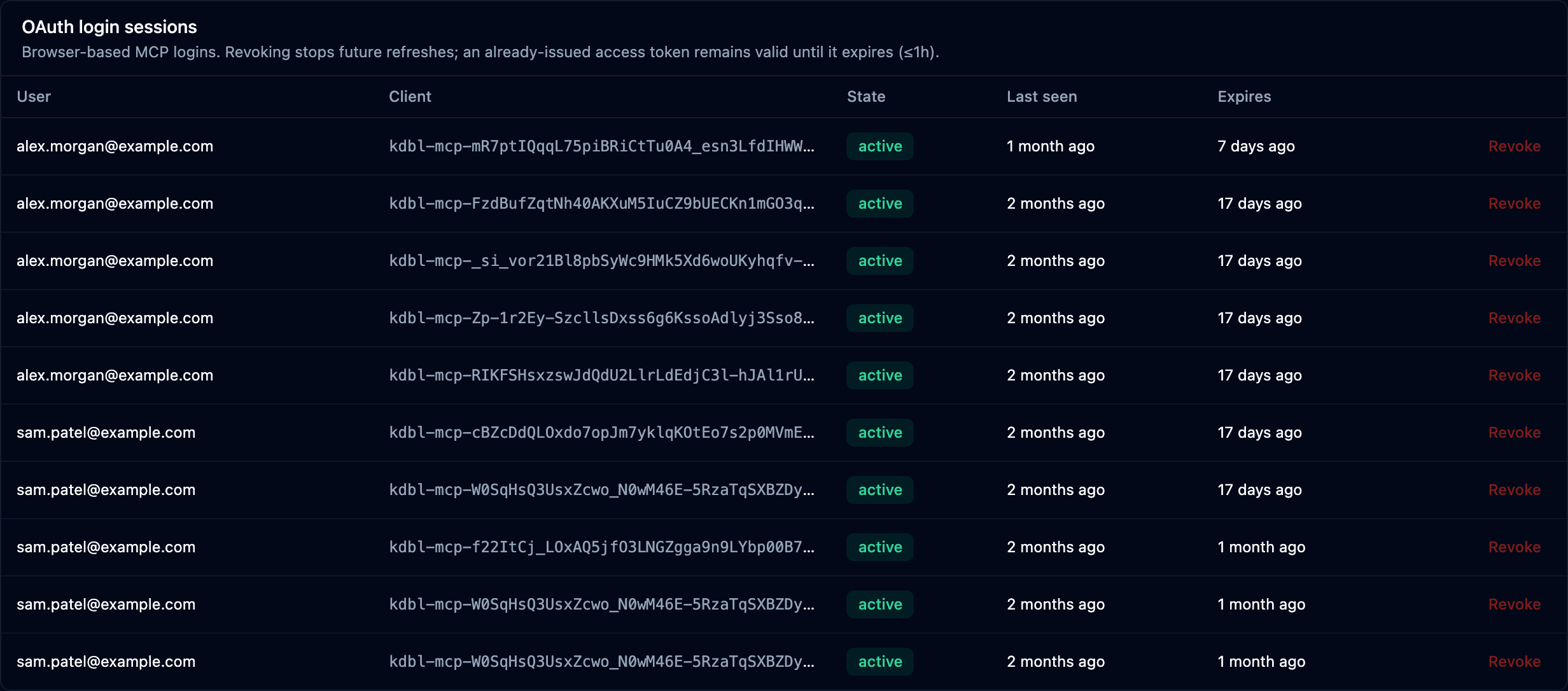
Revoking a session stops future refreshes; an access token already issued stays valid until it expires, which is at most an hour.
Troubleshooting
| Symptom | Cause | Fix |
|---|---|---|
| Client reports it cannot connect; no sign-in prompt appears | No authorization server published — signing key missing | On a chart deployment the key is generated for you; if Setup › 5. Let people sign in says the sign-in service isn't running, check the kdbl-mcp-oauth-signing secret exists and roll the API |
| Sign-in was working, then stopped after the endpoint address changed | Tokens issued under the old address no longer validate, and the tenants may still name it | Users sign in again. If that still fails, re-point the tenant: Run checks reports No tenant is connected to …; press Connect for the tenant in Setup › 3. Choose which tenant it serves |
| The IdP rejects the sign-in before K-Lake is involved | The registered redirect URI does not match | Copy it verbatim from Setup › 5. Let people sign in; it must match character for character |
| Setup shows no client secret stored after you saved one | The master key changed, so the stored secret can no longer be decrypted | Re-enter the client secret. K-Lake refuses to fall back to a deployment value here rather than sign people in against a different provider |
| Sign-in completes, then the client 401s | Token audience does not match | mcp_audience must equal the resource URI, exactly, including scheme and path |
The client 401s with auth.token_missing_audience or auth.token_missing_issuer |
The identity provider issued a token with no aud or no iss claim (Keycloak leaves aud out unless the client has an Audience mapper). Every token must carry both |
Configure the provider to include both. In Keycloak, add an Audience mapper to the client's dedicated scope with Included Custom Audience set to the MCP audience and Add to access token on |
| Every sign-in fails validation (Entra) | v1 tokens — wrong issuer | Set "requestedAccessTokenVersion": 2 in the app manifest |
| Sign-in fails on Auth0 | Issuer trailing slash dropped | Keep https://tenant.auth0.com/ verbatim |
| Okta users get access denied at the IdP | App not assigned to them | Assign the app to the user or group in Okta |
| Connects and lists tools, but every search is empty | No access grant | Step 4 — grant the user's group a role on the source |
| Group-based access works for some users, not others | Entra group overage — token dropped the claim | Switch the groups claim to Groups assigned to the application, or use directory sync |
| Worked yesterday, fails today, nothing changed | IdP client secret expired | Rotate it in the IdP, then paste the new one into AI access (MCP) › Setup › 5. Let people sign in |
| Sign-in works for one tenant's users and 401s for another's | The second tenant's users connected at the first tenant's URL | Each tenant has its own endpoint; give them theirs from AI access (MCP) › Setup — see Multi-tenant deployments |
Keeping it secure
- Rotate the IdP secret on a calendar, before expiry. Paste the new one into AI access (MCP) › Setup › 5. Let people sign in; it takes effect within about thirty seconds and no restart is needed. Sessions already issued keep working.
- Protect the signing key. Anyone holding it can mint K-Lake tokens. Replacing it invalidates every token already issued — which is also the fastest way to cut all MCP access at once.
- Revoke by group. Removing someone from the IdP group removes their access at their next sign-in; revoking the grant removes it for everyone in that group immediately.
- Revoke one person now. AI access (MCP) › Tokens › OAuth login sessions › Revoke ends that session's ability to refresh. Combine it with removing the group membership, or they simply sign in again.
- Watch the audit trail. Every MCP call is recorded with the principal, tool and sources touched — see MCP server for the schema and Monitoring and access control for the console view.
See also
- Connect your AI — the network path and the five-step overview
- MCP clients — per-client setup for Claude, ChatGPT, Copilot, Gemini
- Directory enrichment — the other app registration, and group-to-SID mapping
- Per-file security trimming — what limits results after a grant
- Multi-tenant deployments — per-tenant endpoints, providers and keys
- Console sign-in and roles — browser sign-in to the console, read-only users
- Enablement runbook — the whole deployment in order