MCP monitoring & access control
The web console includes a dedicated AI access (MCP) page, under AI ASSISTANTS in the sidebar (or press ⌘K / Ctrl+K and type AI access). It answers the questions you have once AI clients are connected to your MCP server: who and what is using it right now, what are they reaching, and how do I cut something off? — all without leaving the console.
Which tabs you see depends on how you are signed in:
| Signed in as | Tabs |
|---|---|
| Tenant administrator | Setup, Flow, Connections, Tokens |
| Cluster administrator | Setup, Terminology — activity, connections and tokens belong to a tenant, so sign in as a tenant administrator to see them |
| Warehouse administrator | Flow, Connections, Tokens and a read-only Settings tab; nothing can be changed |
The command palette jumps straight to a tab: type AI activity (Flow), AI connections, MCP access tokens or Set up AI access.
The configuration — the MCP endpoint, its identity provider and signing keys, the registered clients, which sources assistants can search, and the wording of the tools — is under Settings › AI assistants (see Settings › AI assistants). Old links to the page's former Clients and Settings tabs open that section.
If AI access is not configured yet the page opens on Setup; once it is working it opens on Flow.
Setup
The Setup tab is where AI access is switched on and checked. Its Set up AI access card has six steps:
- Turn on the endpoint
- Set the address clients will use
- Choose which tenant it serves
- Check it works
- Let people sign in — the identity provider people sign in with
- Connect an assistant — the connection details to paste into an assistant
Each step shows Done or Not done and opens on its own, rather than forcing you through in order, so you can pick up a half-finished setup at the step that still needs attention.
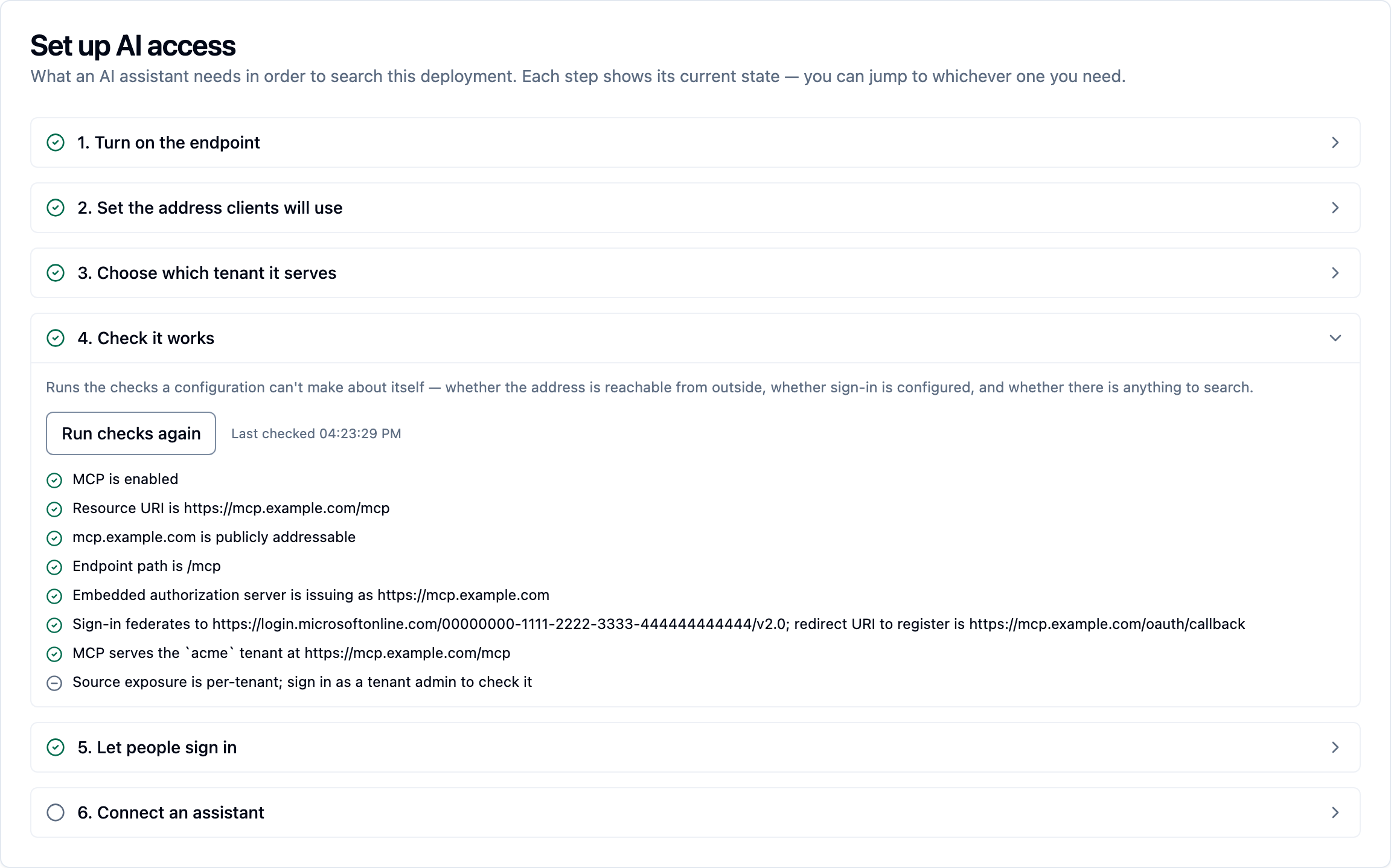
Shown signed in as a cluster administrator, who can change these steps. A tenant administrator sees the same card read-only and can run the checks.
Choosing which tenant it serves
Step 3 is a table of every tenant on the deployment and how it relates to the MCP endpoint — Connected (with the address it answers on), Own identity provider (with its issuer), or Local only.
Every tenant can be served from the same address. The first tenant connected
takes the bare /mcp endpoint; every other tenant gets its own endpoint under
the same address, …/t/<tenant>/mcp, with its own sign-in issuer — so each
tenant's users connect their assistant to their own URL, and a token for one
tenant is refused at another's.
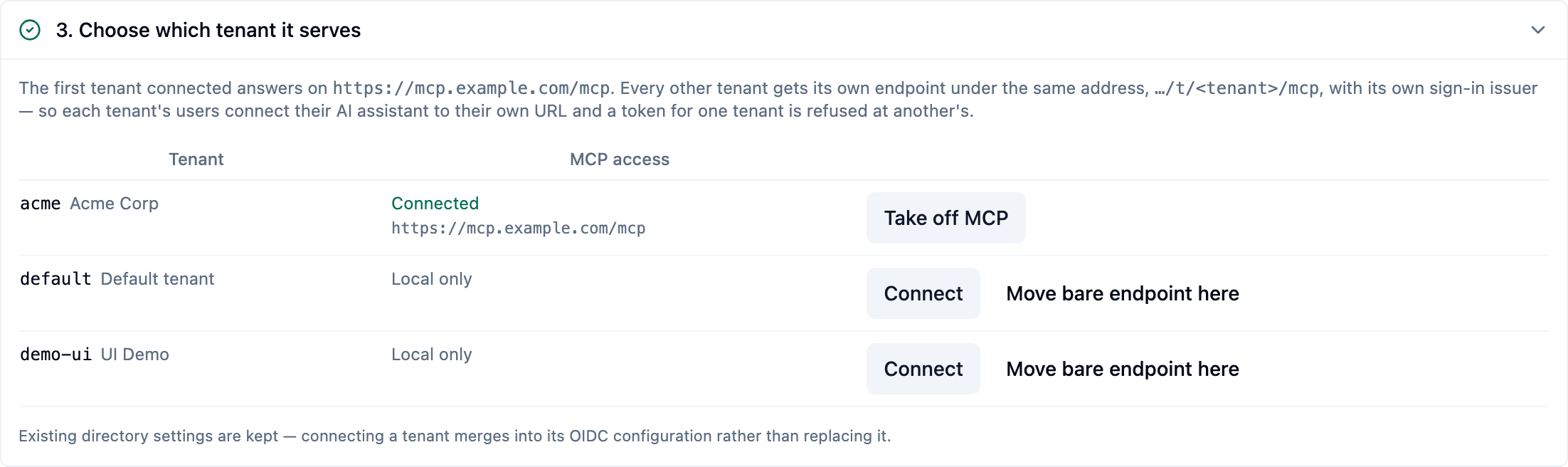
The table carries the action that applies to each row: Connect a tenant (at the bare endpoint while it is free, otherwise at its own), Move bare endpoint here to hand the bare endpoint over from the current holder — who moves to its own endpoint in the same operation, so it stays reachable — or Take off MCP to release it. A move confirms first, naming both tenants, because the previous holder's users must reconnect at their new URL.
You never type an address here. K-Lake derives the issuer and audience from the endpoint address in step 2, and merges them into the tenant's existing configuration so directory settings are preserved. The full multi-tenant sequence — per-tenant identity providers, signing keys and clients — is on Multi-tenant deployments.
Checking it works
Step 4 runs the checks a configuration cannot make about itself: whether the address is reachable from outside, whether sign-in is configured, which tenant is served, and whether there is anything to search. It reports each as a separate line, so a partial setup tells you exactly which part is missing rather than failing as a whole.
The last step offers two ways to connect, because they have different prerequisites. A cloud client (claude.ai, ChatGPT, Copilot Studio) can only authenticate by signing in, so it needs the identity provider step finished first. A local client on your own machine authenticates with a personal access token instead, and works before any identity provider is connected — the quickest way to see grounded answers while you are still evaluating.
The connection details are always your tenant's own address. On a
deployment that hosts several customers, every customer after the first is
served only at its own endpoint, …/t/<tenant>/mcp, so the connector URL and
the ready-made client command show that address, with a note that the
deployment's main address will not accept your users' sign-ins. A tenant that
is not yet connected is told its address will not accept a sign-in until the
deployment's operator connects it. A single-customer deployment shows the main
address, as before.
Remote access
The Remote access card, below the steps on the same tab, shows the health of the tunnel — the outbound-only connection that lets cloud AI assistants reach a deployment without opening an inbound firewall port. It reports each connector separately, because "one of two connectors is live" is worth knowing: access still works, but the redundancy that survives a node restart has gone.
The card's status is one of Connected, Reduced redundancy, Not
connected, Waiting for a token or Not deployed (the tunnel is not part
of this deployment; enable mcp.tunnel in the Helm values, or on a raw-manifest
install apply deploy/k8s/mcp-tunnel.yaml from 0.1.47 or later, which adds the
Service the card reads). Once the tunnel is
deployed, this is also where the tunnel token is added (Add a tunnel
token), rotated (Replace the tunnel token) or removed. The token is
encrypted before it is stored and is never readable back — not by this page and
not through the API. Changing it takes effect within about thirty seconds, with
nothing to redeploy.
Because the endpoint address and the tunnel are shared by every tenant on the deployment, changing them needs the deployment's administrator: a cluster administrator, or the administrator of the deployment's only tenant when that tenant manages itself. Other tenant administrators see the steps read-only, with a banner that says which settings are shared and which are theirs. On a multi-customer deployment the banner names the shared settings — on/off, the public address, allowed origins, remote access, the built-in sign-in server and its default identity provider, and OAuth clients — and points at what each customer controls itself: its tokens (Tokens tab) and, under Settings › AI assistants, per-source visibility, tool wording, and its own identity provider and signing keys. See Hosting many customers.
Access flow
The Flow tab is a live picture of MCP activity for your tenant. It traces each request across four columns — Users → Platforms → Tools → Sources — so you can see, at a glance, which people, through which AI applications, are calling which capabilities against which of your sources.
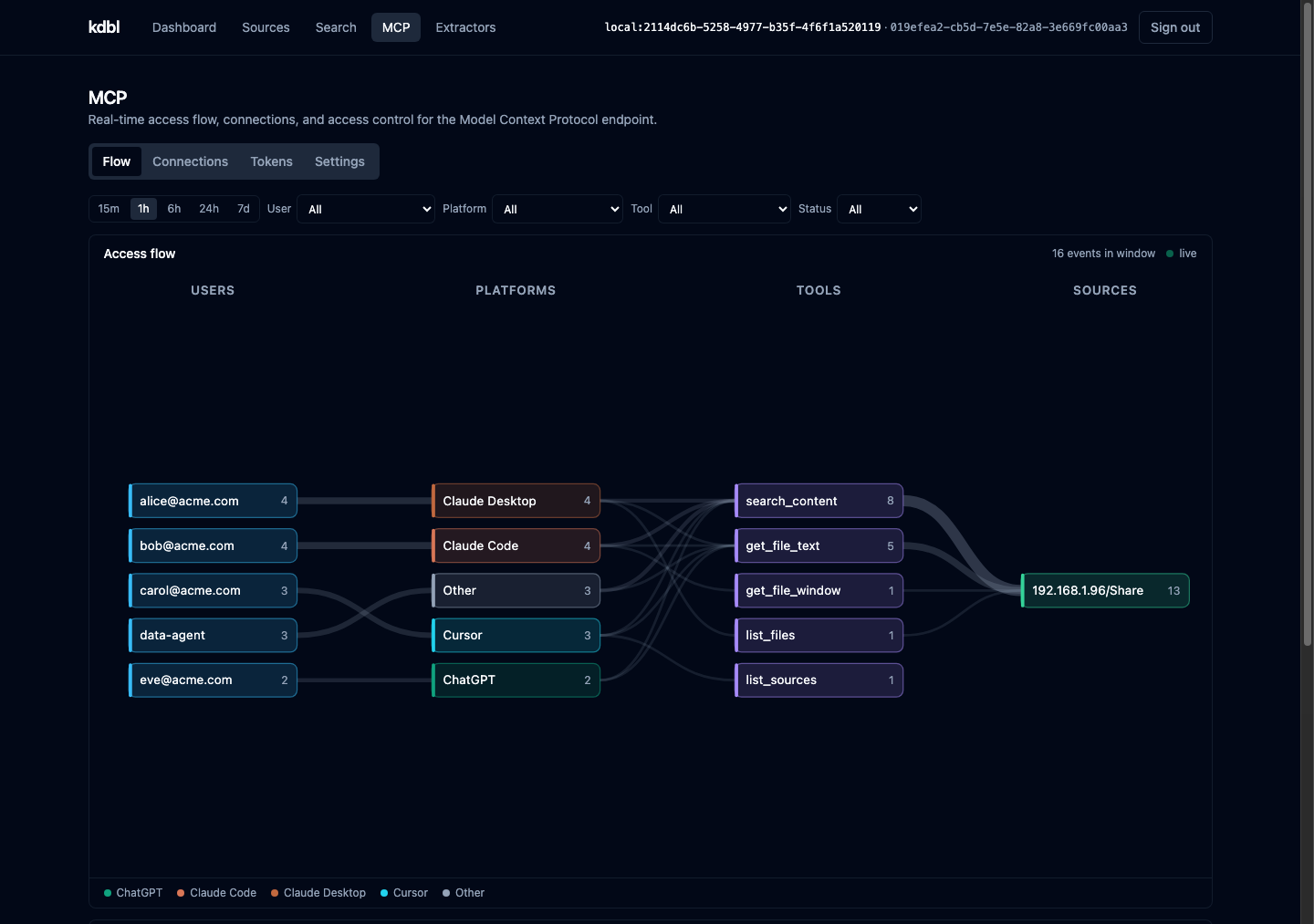
- Live. New activity appears as it happens; a "live" indicator confirms the stream is connected.
- Windowed. Switch the time window (15m, 1h, 6h, 24h or 7d) to move between "what's happening now" and "what happened today."
- Filterable. Narrow the view with the User, Platform, Tool and Status filters to focus an investigation.
- Recent activity under the graph lists the individual calls, newest first.
Because every request is security-trimmed, the flow shows real, authorized access — including denials, which are valuable on their own: a spike of denied calls is an early signal worth looking at.
Tokens by tool
Under the graph, the Tokens by tool card shows how many tokens each MCP tool returned to your assistants, for the last 30 days or all time: a table with each tool's calls, its approximate tokens and its share of everything returned, largest first. Hover a tool in the flow graph to see its figure for the chosen range. The range control is a keyboard-operable radio group: Tab reaches the chosen range, and the arrow keys change it.
- Four characters per token. Tokens are counted at four characters per token, the same convention as the Overview's AI tokens saved card. An assistant's own count may differ by model.
- Tenant-wide and unfiltered. The figures cover every assistant in the tenant. The flow's time window and its User, Platform, Tool and Status filters do not narrow them, and there is no per-user or per-platform breakdown.
- Only successful calls that returned content are counted, so tool listings, denials and errors never appear.
The same figures are available from GET /api/mcp/usage/tools (see
API reference).
Connections
The Connections tab rolls up the clients currently and recently talking to your MCP endpoint, one row per principal: the Platform (AI application), how it authenticated, its session and protocol version, the number of Calls, the Sources it reached, and when it was first and last seen. The same time window and filters as the Flow tab apply. It's the fastest way to confirm an integration is working, or to spot a client you don't recognise.
Tokens
The Tokens tab holds three things:
- Mint an MCP access token — type a Token name (for example
claude-desktop-laptop) and press Mint token. The token is shown once; copy it then. From anywhere in the console, press ⌘K / Ctrl+K and type>mint to jump here. - Personal access tokens — every personal access token in the tenant, with its owner, name, prefix, when it was last used and when it expires.
- OAuth login sessions — the sign-ins AI assistants made through your identity provider, with the user, the client that registered, and when the session was last seen and expires.
Each row has a Revoke action, which takes effect on every API server within five seconds. This is your kill switch when a credential is retired or a device is lost. Revoking a login session stops it refreshing and also cancels the access tokens it already holds. New personal access tokens expire, 365 days after minting by default.
Settings › AI assistants
Open Settings › AI assistants (or press ⌘K / Ctrl+K and type the card's name, for example MCP clients). A tenant administrator sees three cards and a one-line summary, in this order:
| Card | What it holds |
|---|---|
| Endpoint | MCP endpoint — the address your users give their AI assistants, and whether the tenant is connected — and Sources AI assistants can search, which sources are exposed over MCP (below). |
| Sign-in | Identity provider for MCP — where your people sign in when an assistant connects, the deployment's default or one of the tenant's own (see Multi-tenant deployments); MCP clients, the clients registered for hosts that cannot register themselves (below); and Signing keys for MCP, optional keys of the tenant's own for signing assistant sign-ins, under Advanced (see Multi-tenant deployments). |
| Terminology | A one-line summary of the wording assistants get — your own, the deployment's or the built-in one — with Open to go to the Terminology page. |
| Cost | AI token price, what you pay your AI provider per million input tokens, so the dashboard can put a value on the tokens saved. |
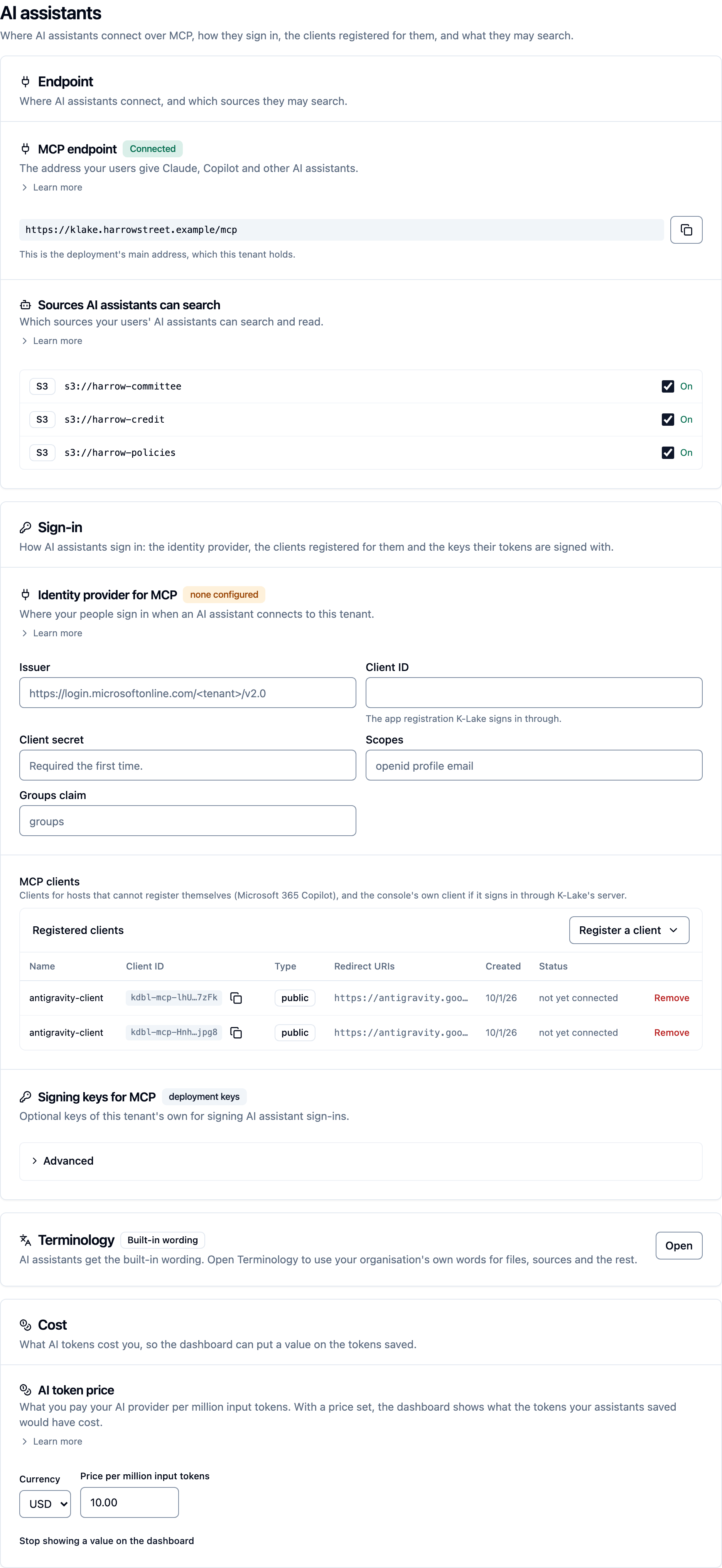
A cluster administrator signed in without a tenant sees only MCP clients here; the deployment-wide default wording is on the Terminology tab of the AI access (MCP) page.
Links to the section's older anchors (#mcp-endpoint, #mcp-settings, #mcp-idp, #clients,
#mcp-keys, #terminology, #token-pricing) still land on the same parts.
MCP clients
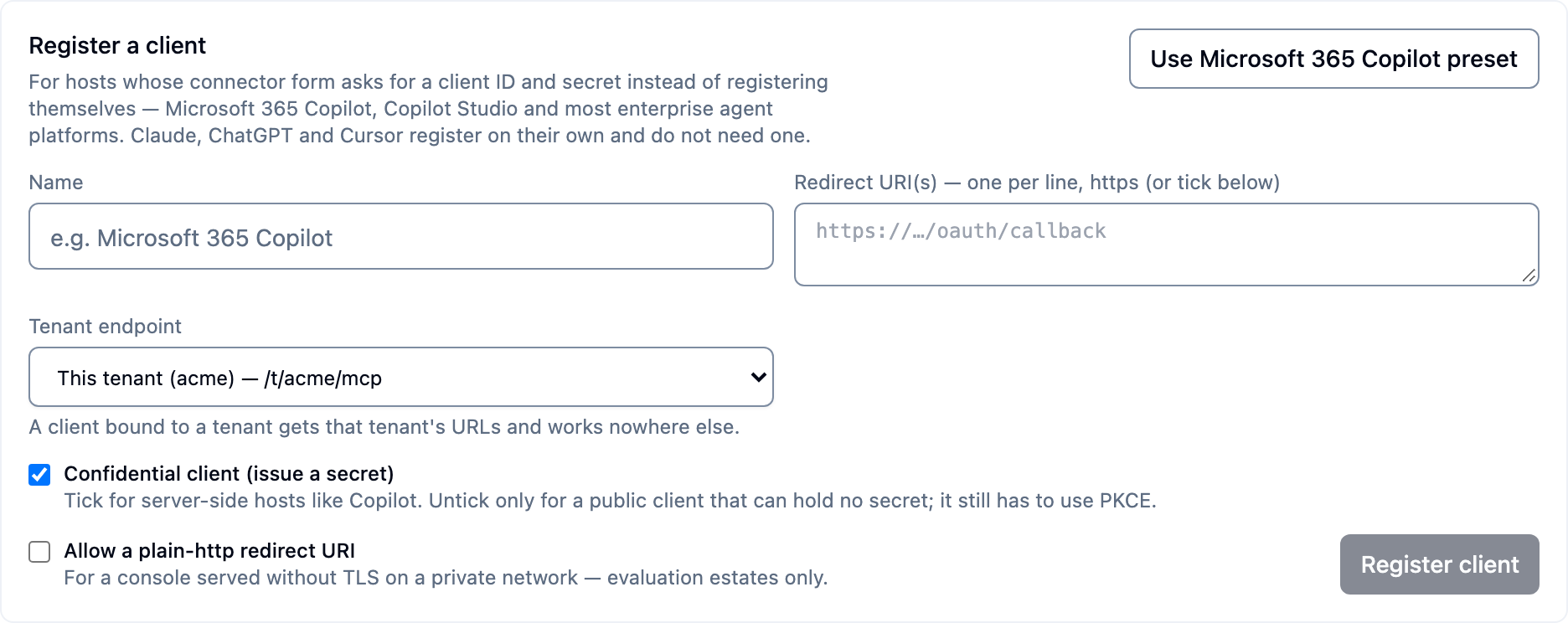
The MCP clients list, on the Sign-in card under Settings › AI assistants, registers the AI hosts that cannot register themselves — Microsoft 365 Copilot, Copilot Studio and most enterprise agent platforms want a client id and secret typed into a connector form. Pick the tenant endpoint the client belongs to, and the connector values that come back are for that tenant's URLs; the client is refused at every other tenant. A cluster administrator sees every client; a tenant administrator who may manage the tenant's sign-in sees and registers the clients of their own tenant's endpoint. The card shows Registered clients first, each client ID as a short chip with a copy button; Register a client opens the form. Fill in Name, the Redirect URI(s) and the Tenant endpoint, leave Confidential client (issue a secret) ticked for a server-side host such as Copilot, and press Register client; Use Microsoft 365 Copilot preset fills the form in for Copilot. New clients appear under Registered clients, each with a Remove action. Claude, ChatGPT and Cursor register themselves and appear there after their first sign-in. The same card registers the console itself as a public client for console sign-in through K-Lake.
Sources AI assistants can search
The Sources AI assistants can search card, under Settings › AI assistants, controls which sources are exposed over MCP. Cataloguing a source in K-Lake doesn't automatically publish it to AI clients — you choose, per source, whether it's reachable through the MCP endpoint. That lets you index broadly for the web console while exposing only a curated subset to assistants. Each source has an On/Off switch that applies at once, with Undo for a moment afterwards.
Terminology
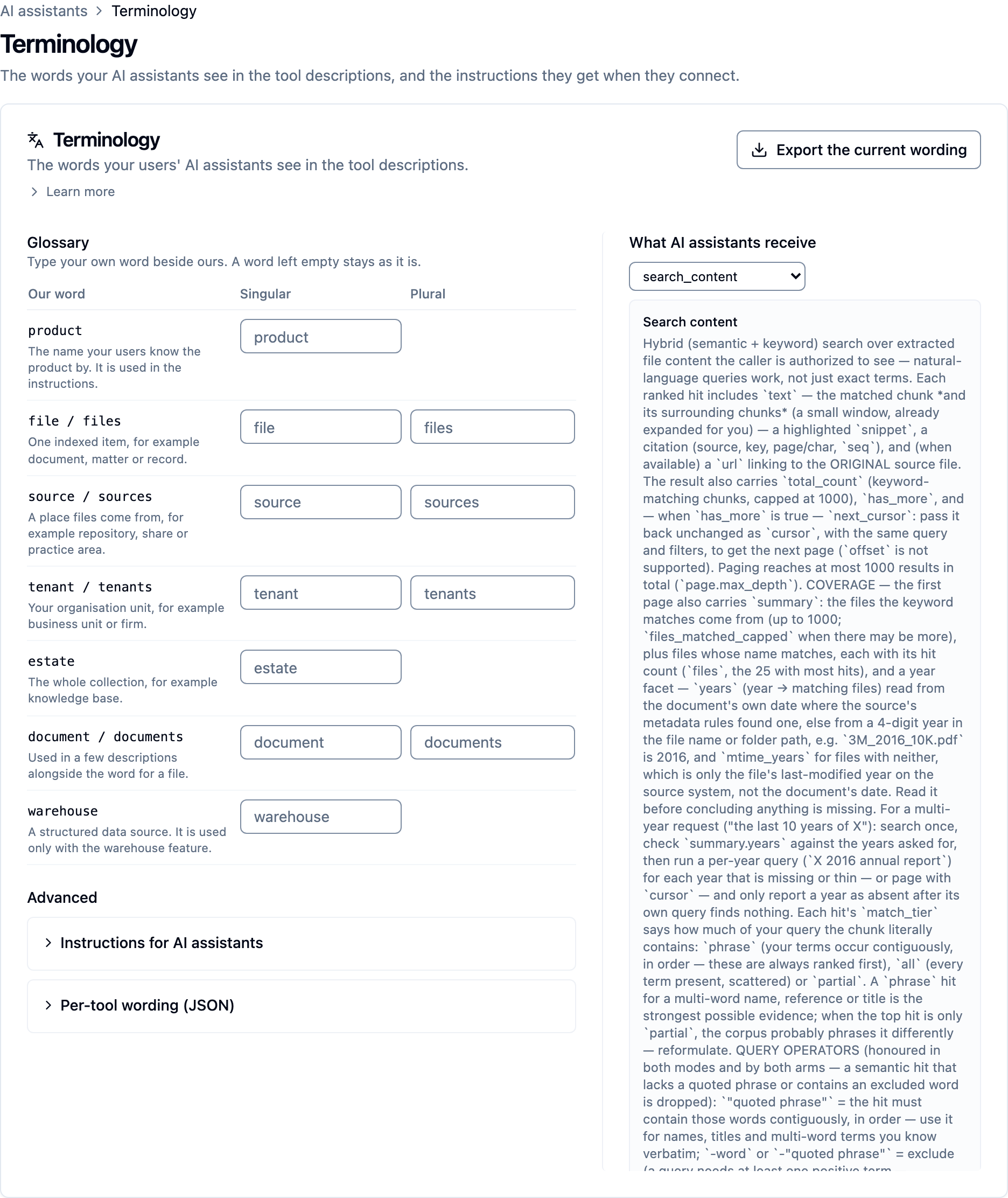
Terminology has a page of its own, /settings/ai-assistants/terminology,
opened from the summary on Settings › AI assistants. It sets the words your
users' AI assistants see in the tool descriptions, and the instructions they get
when they connect:
- Glossary — a table with our word on the left and your Singular and Plural beside it. A word left empty stays as it is.
- Advanced — Instructions for AI assistants and Per-tool wording (JSON), each closed unless it holds a value of your own.
- What AI assistants receive — a preview of a tool's description with your wording applied, as a side panel on a wide screen (a Preview toggle on a narrow one).
Save your changes, Go back to the built-in wording (with Undo), or Export the current wording to edit it elsewhere.
How this relates to the audit log
The Flow and Connections views are the real-time, visual face of the same activity that K-Lake records to its audit trail. Everything an AI client does over MCP — every tool call and every denied attempt — is captured with who, what, when, and where. The console is for live monitoring and quick action; for long-term review, export, or feeding a security service, use the audit log described under MCP server → Audit.
See also
- MCP server — enabling MCP, authentication, and the audit trail
- Connect your AI — pointing a client at your endpoint
- Per-file security trimming — why callers only ever see what they're authorized to see