UI guide
The KDBL Context Lake (K-Lake) web console is your day-to-day surface for managing sources, browsing indexed files, and administering users and tokens.
Signing in
Open the URL your administrator provided. You can authenticate with:
- Personal access token — paste a PAT into the login form
- Single sign-on — type your tenant name and click Sign in with SSO; you are sent to your organisation's sign-in page and back. What you can do afterwards depends on your role: a reader sees Search and Entities; an operator also runs the estate. See Console sign-in and roles.
A successful login lands you on Overview. Readers, who only search, land on Search.
Finding your way around
Every page is in the sidebar on the left, grouped by what you are doing:
| Group | Pages |
|---|---|
| Overview | |
| Find | Search, Entities |
| Data | Sources, Databases, Estate insights, Classification |
| AI assistants | AI access (MCP) |
| Operations | System health, Failed work, Support |
| Admin | Tenants, Settings, Licence |
You see only the pages your role can use: readers get Search and Entities, Databases appears when your licence includes data warehouses, and Tenants is for platform and cluster administrators. On a phone or a narrow window the sidebar is hidden: open it with the Menu button at the top.
The quickest way anywhere is the command palette: press ⌘K on a Mac or Ctrl+K elsewhere (or / outside a text field), or click Search or jump to… at the top of the sidebar, and type what you are after: a page, a Settings card, an action, a source or user by name, or words from a document. See Keyboard shortcuts and the command palette.
To make more room, collapse the sidebar to a row of icons with the button beside the brand at its top, or press [ outside a text field; hover an icon for its page name. The console remembers the choice in this browser.
The foot of the sidebar shows who you are signed in as and your role. Click it for the account menu:
- Documentation — opens this documentation site in a new tab.
- Language › — the console's language (shown when there is more than one; German is a preview).
- Theme — Light, Dark, or System to follow your computer's setting.
- Act as… — for platform operators and partner staff who may work in another tenant (see Acting for another tenant).
- Sign out.
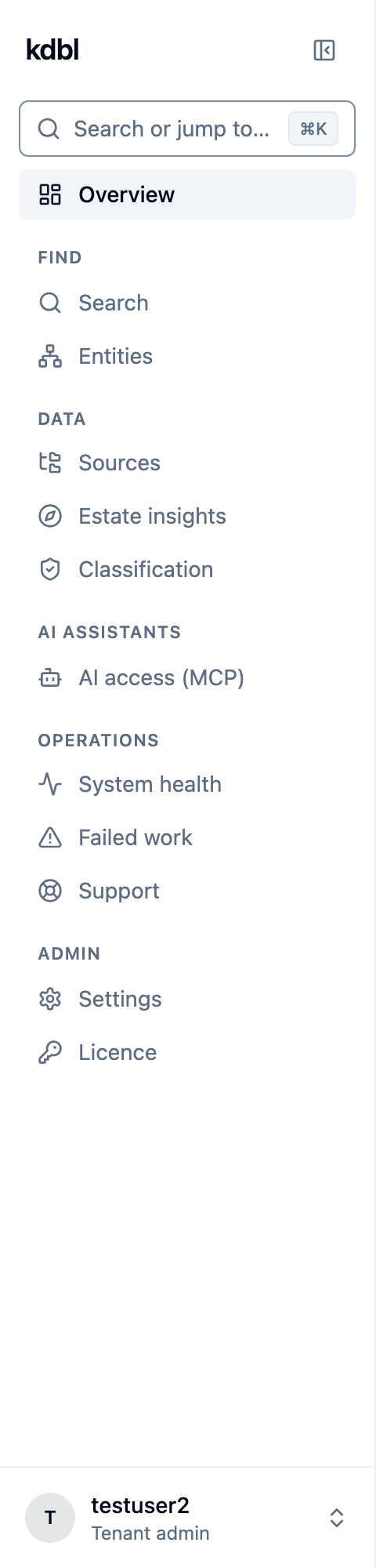
Some pages were renamed when the sidebar arrived. If you are following older instructions: Dashboard is now Overview, Explore is Entities, Warehouses is Databases, Discover is Estate insights, MCP is AI access (MCP), and Fleet is System health, with Failed work as its own entry. Page addresses did not change, so bookmarks keep working.
When a list or panel has nothing in it yet, it says why and offers the action that fills it (an empty Sources page, for example, offers to add your first source). When you delete something, the console asks you to confirm in a dialog; for the things that are hardest to undo, you type the item's name first.
Overview
Top-level view of your tenant's indexing health, and of the value your connected assistants get from it.
- AI tokens saved — how much context your AI assistants did not have to read because K-Lake returned only the passages that answer, for the last 30 days or all time. Once a tenant administrator sets an AI token price on the Cost card under Settings › AI assistants (what you pay per million input tokens, in USD, GBP or EUR), the card also states what the saved tokens would have cost as input to a pay-as-you-go AI service, under the headline and on the naive-search figure. Nothing is converted between currencies, and until a price is set the card shows tokens only. Assistants licensed per seat, such as Microsoft 365 Copilot, do not see it as a lower bill, and the card says so. A cluster administrator's cluster-wide card shows a value only while every tenant with a reading prices its tokens in the same currency. The 30 days / All time choice is a keyboard-operable radio group: Tab reaches the chosen range, and the arrow keys change it. The same control sets the range of the Tokens by tool card on the AI access page (see Tokens by tool).
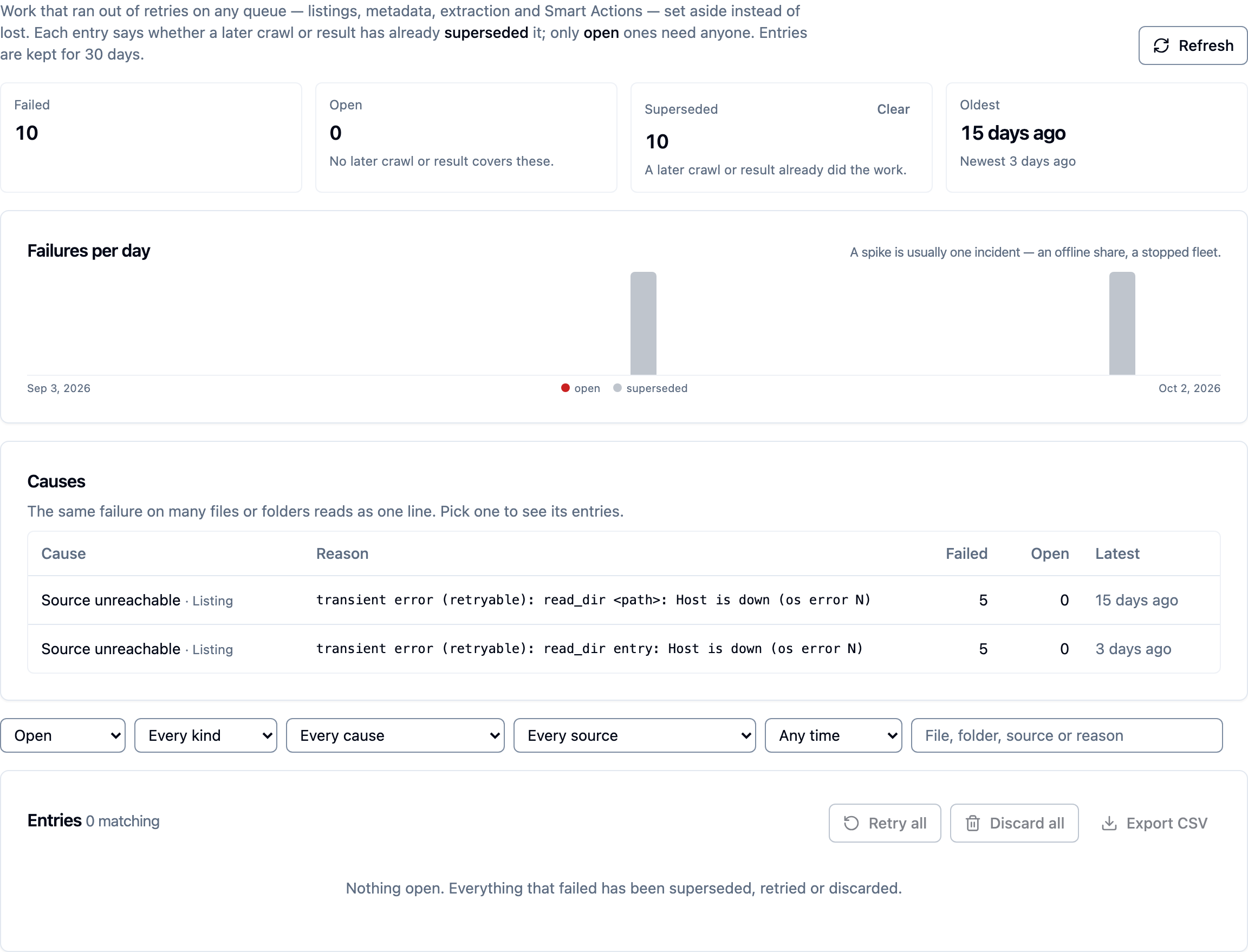
- Queue health — the work queues at a glance. A tile wears a badge whenever its number is above zero: Backlog (work waiting for a worker — normal after a crawl or re-extract, and it drains on its own), Busy (work being done right now — not a problem) or Needs attention (steps that failed on every retry and were set aside). Hover a tile, or tap its info button, for what the number means, why it is flagged and what to do — for failed steps, retry or discard them on the Failed work page once the cause is fixed.
- Failed work — how many failed items are still open, with Investigate to open the Failed work page.
- Sources with errors — shown when a source is reporting an error, with the message and a link straight to it
- Capacity & cost — the storage split across the base, lexical, and hybrid stacks, chunk and embedding counts, and per-mode query latency, so you can see what hybrid search is costing (see Capacity & cost)
- Recent sources — the five most recently indexed, with file count, bytes, and last-indexed time
Use Overview as your starting point for "is everything OK right now?"
System health
The System health page is the "what is running, and is it healthy?" view
for the whole deployment. It was called Extractors, then Fleet, in earlier
releases; the page address is still /fleet. Its Failed work tab, which
has its own entry in the sidebar, lists the work that ran out of retries.
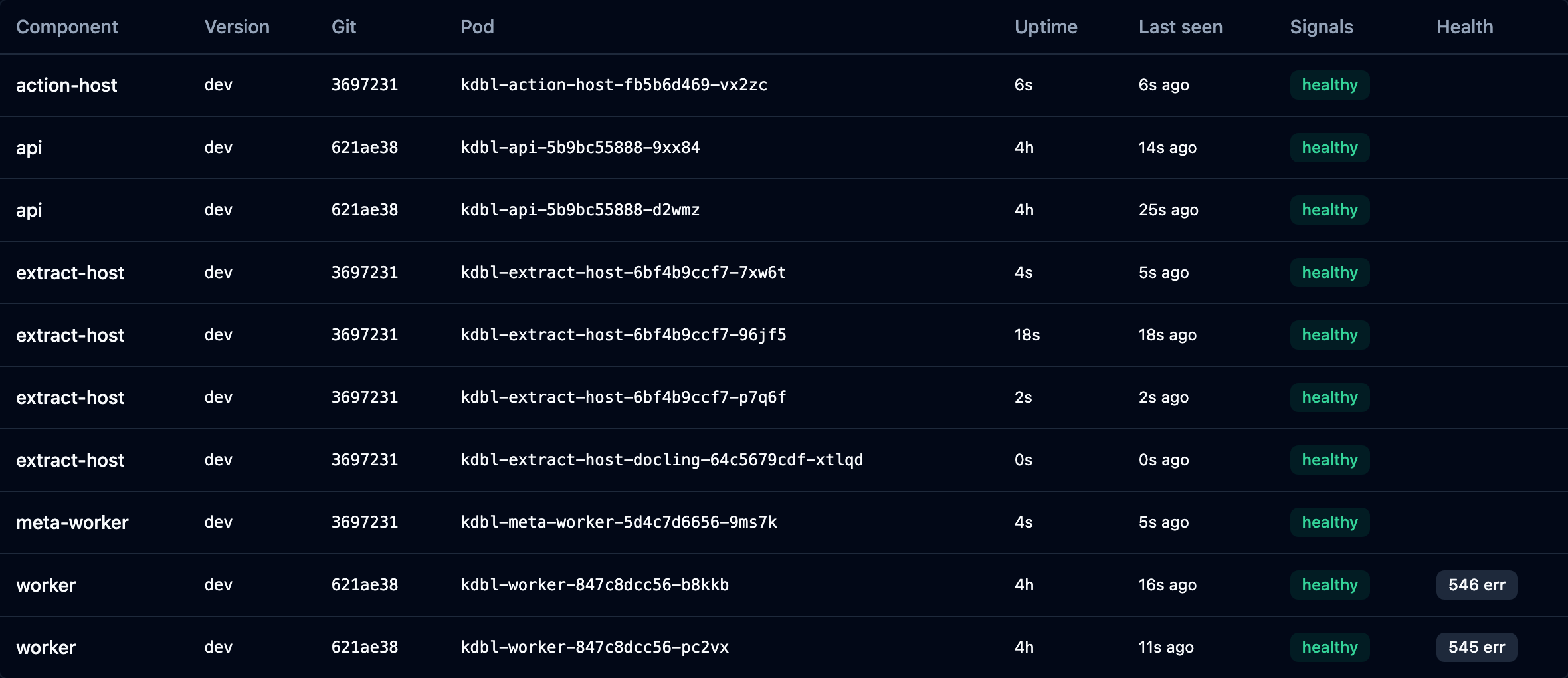
Above it, Maintenance mode shows whether ingestion is running or paused for an upgrade (a cluster administrator pauses it with Pause ingest for upgrade; see Upgrading). The page then leads with Components — one row per running service pod (the API, the crawl and metadata workers, and the extraction and action hosts) showing the version and build each pod is on, how long it has been up, and whether it is healthy. Uptime is the column that distinguishes a pod that has been stable for a fortnight from one that has restarted six times this hour, which is usually the question.
The most common thing this catches is a partial roll: every pod of a consistent deployment reports the same version, so a row that disagrees means an upgrade did not finish.
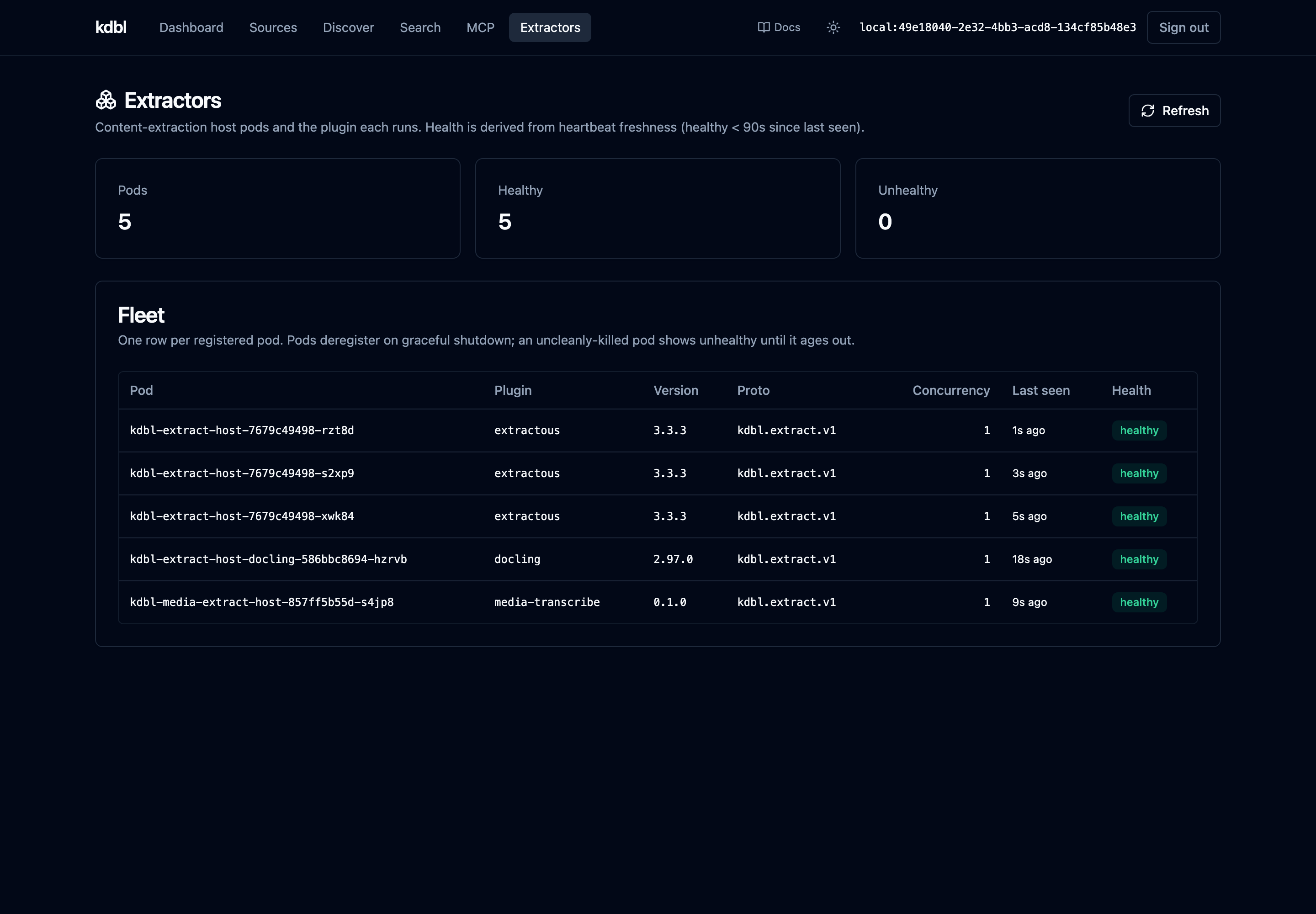
Below Components are:
- Embedding fleet — the embedding services hybrid search uses, and whether each answered.
- Entity enrichment fleet — one row per enrichment endpoint, the plugin and version it runs, and whether it answered its last probe. See Knowledge graph.
- Extractors — one row per extractor pod and the engine it runs (klex, kdoc2, kvision or kmedia — see Sources), with concurrency, last heartbeat and health. Use it to confirm the right engines are deployed and the fleet is up before (or during) a large crawl.
Cluster admins see more. A cluster-admin token adds per-pod operational signals to the Components table — memory pressure and OOM history, a mount that has stopped responding, recent error volume, and configuration drift between pods of the same component. These come from each pod's own self-report and are withheld from tenant-admin tokens entirely.
Cluster admins also see Recent warnings and errors, a collapsed section under the Components table: the warnings and errors each pod logged in the last 24 hours, grouped by message with a count and when each was last logged, errors first. Search queries and document text are never recorded in them. Every diagnostic pack carries the same list, including any rows the page leaves out.
Estate insights (data estate)
Tenant admins get an Estate insights page — a data-estate overview that answers "what data do we have?": estate totals, how much is searchable, composition breakdowns (file type, content type, language, size, age, owner, storage tier, source), and a governance view of exposure signals. See Estate insights.
Entities
The Entities page browses the knowledge graph — the people, organisations, locations and agreements K-Lake found in your documents, and the relations between them.
It offers three views over the same data — Orbit (one entity and its neighbours), Network (structure across many entities), and Documents (the evidence for why two entities are associated) — each paired with a table of the same result, so any answer can be copied into a ticket. Duplicate entities can be merged here, and merges are reversible.
Everything is access-trimmed the same way search is: you see documents you already have access to.
Sources
The sources page lists every source in your tenant. From here you can:
- New source — opens the new-source form. Pick a protocol (S3, Azure Blob, SMB, NFS, OneDrive/SharePoint — SMB then offers a kernel-mount or a userspace backend), fill in connection details, supply credentials. See Sources for protocol details.
- Open a source — click a row to see its detail page.
- Walk the list — each row shows the source ID, protocol, state, last-indexed time, subtree settings and last error. The list is paged: use Previous and Next.
Source detail
Each source's detail page brings together everything you can do with it. The header carries the source ID, its protocol, an enabled/disabled badge, and three buttons — Run crawl, Disable (or Enable, when the source is disabled) and Delete. Disabling pauses crawling and extraction while everything already indexed stays searchable; see Enabling and disabling. Below that, five tabs:
- Overview — files indexed, total bytes and last-indexed time; the stored configuration; Enrichment, where you choose which optional metadata caps to gather (tags, ACLs, xattrs) and queue a backfill if you turn one on after the fact; live Crawl progress and Extraction progress while either is running (files per second with pages per second and the run average beneath it, bytes per second, and an ETA based on the run average); Entity enrichment coverage; and a Redaction summary. At the foot, a collapsed Advanced section holds low-level diagnostics for administrators and support — how crawls were split into work units, and the raw stored configuration with its timestamps. It remembers whether you left it open.
- Configure — Connection settings and Folder to crawl, which limits an S3, Azure Blob, SMB or NFS source to one folder (see Crawling one folder); Smart Actions, the per-source pipeline that runs after each crawl: content extraction (with extension/size/path filters), redaction, webhooks, and more. Add, reorder, enable, and configure steps as a top-to-bottom list — see Smart Actions. Alongside it: which Extractor engine the source uses, Hybrid search, Schedules for recurring crawls, Subtree work units, File version history, and SMB multi-channel.
- Security — Access grants, the card that controls who can see this
source: add a principal (
user:/group:) with a role (viewer/editor/owner), or revoke one. Fully in step with the CLI (kdbl-control acl) and the REST API — see Sources → Access grants. Also here: Per-file security trimming (the trim modeper_file/source_only/open, the fail-closed toggle, and Treat Authenticated Users / BUILTIN\Users as everyone for shares that grant those well-known groups — see security trimming), TLS trust, and the Cloud egress log. - Files — paginated browser of every file K-Lake has indexed for the source. Click a row for full metadata.
- Crawls — recent crawl runs with outcomes, errors, and timings.
File detail
Opens for any file row. Shows path, size, timestamps, content hash (when available), and protocol-specific metadata such as S3 tags or NTFS / NFSv4 ACLs.
When the server has signed downloads enabled, the header carries Open original (inline preview) and Download buttons. K-Lake doesn't store original bytes — clicking re-fetches the file from its source on demand (permissions re-checked, audited). The buttons are hidden when the feature is off.
The Access card at the bottom lets a tenant administrator check access for a user — email, id or principal — and see the trimming decision replayed: visible or hidden, why, the user's identities and what they resolve to, and the file's own grants. It is the first stop for any "they can't see this file" report; see Why can't this user see this file?.
Content search
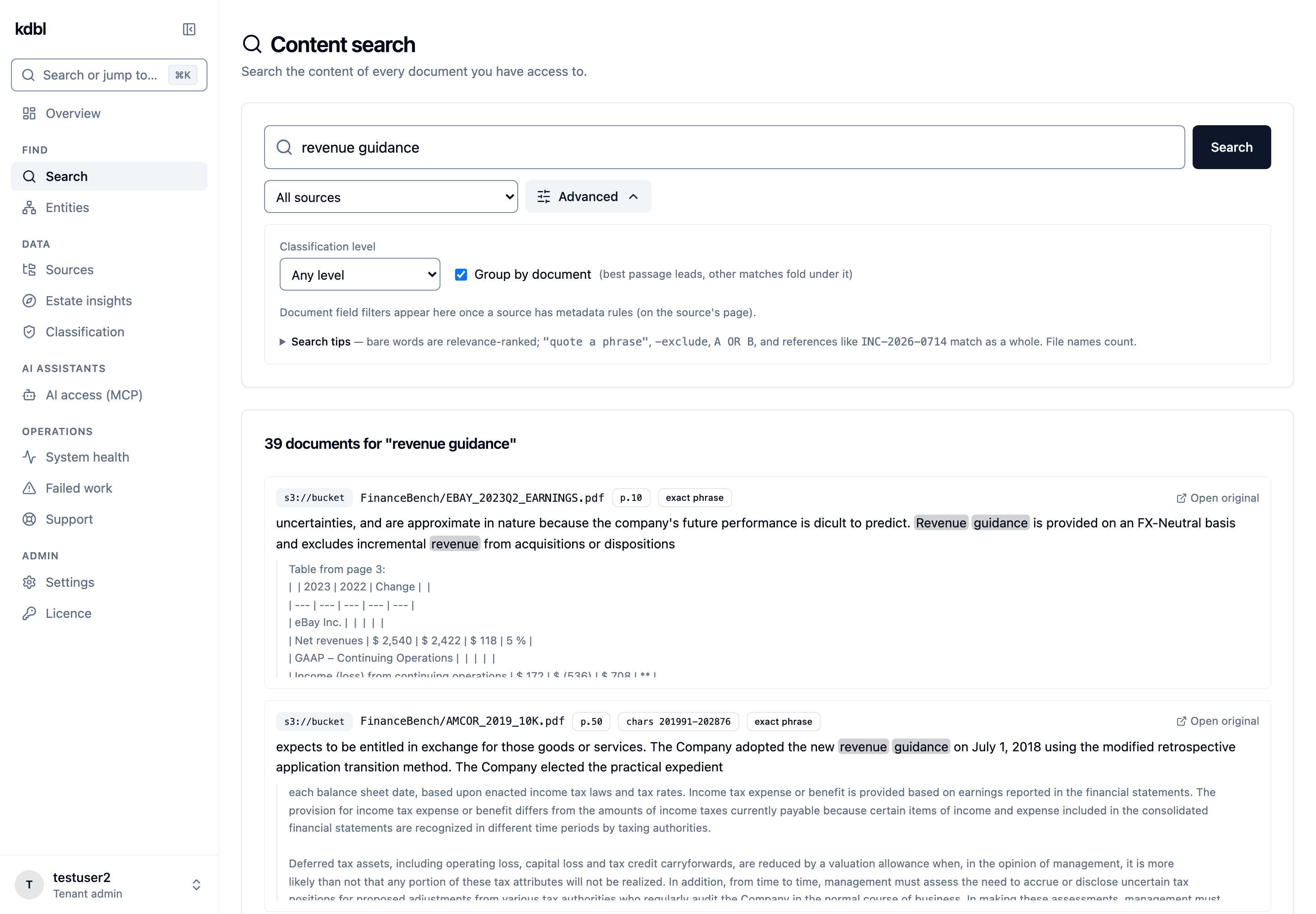
The Search page (headed Content search) searches extracted content — across every source you can see by default, or scoped to a single source. Each hit shows the matched file, an in-document locator (page / char / timestamp), and a highlighted snippet. When signed downloads are enabled, each hit also offers an Open original link so you can open the source file and verify the grounding behind a result.
It is relevance-ranked: every bare word you type contributes to the score and results come back best-first, with a rare term outranking a common one. To narrow the match, "quote a phrase", -exclude a word, use A OR B, or type a reference such as INC-2026-0714, which is matched as a whole; file names count too. The Search tips line under Advanced repeats this, and the quick start has the details.
Advanced opens the rest of the options, such as a classification level, document fields and whether to group hits by document. Every filter in force shows as a chip under the search box; click its cross to remove it. The page address carries the whole search, so you can bookmark or share it.
Once your administrator has enabled identifier-parts search, a word also finds an underscore-joined identifier that contains it (kozijn finds IFC_kozijn_90x114); a passage with the word on its own still ranks higher.
Tokens
Personal access tokens are managed on AI access (MCP) › Tokens, which tenant administrators can reach.
- Mint an MCP access token — name it, then click Mint token. The raw value is shown once on creation; copy it immediately.
- Personal access tokens — every PAT in the tenant, with its owner, name, prefix, last-used time and expiry. Revoke invalidates one immediately.
- OAuth login sessions — the browser-based MCP logins. Revoking one stops future refreshes; an access token already issued stays valid until it expires (an hour at most).
Licence
The Licence page shows what the deployment is entitled to and how close it is to the limits:
- Status — the customer the licence was issued to, and the current enforcement stage.
- Expiry and Capacity — when the licence runs out, and how much of the licensed capacity is in use.
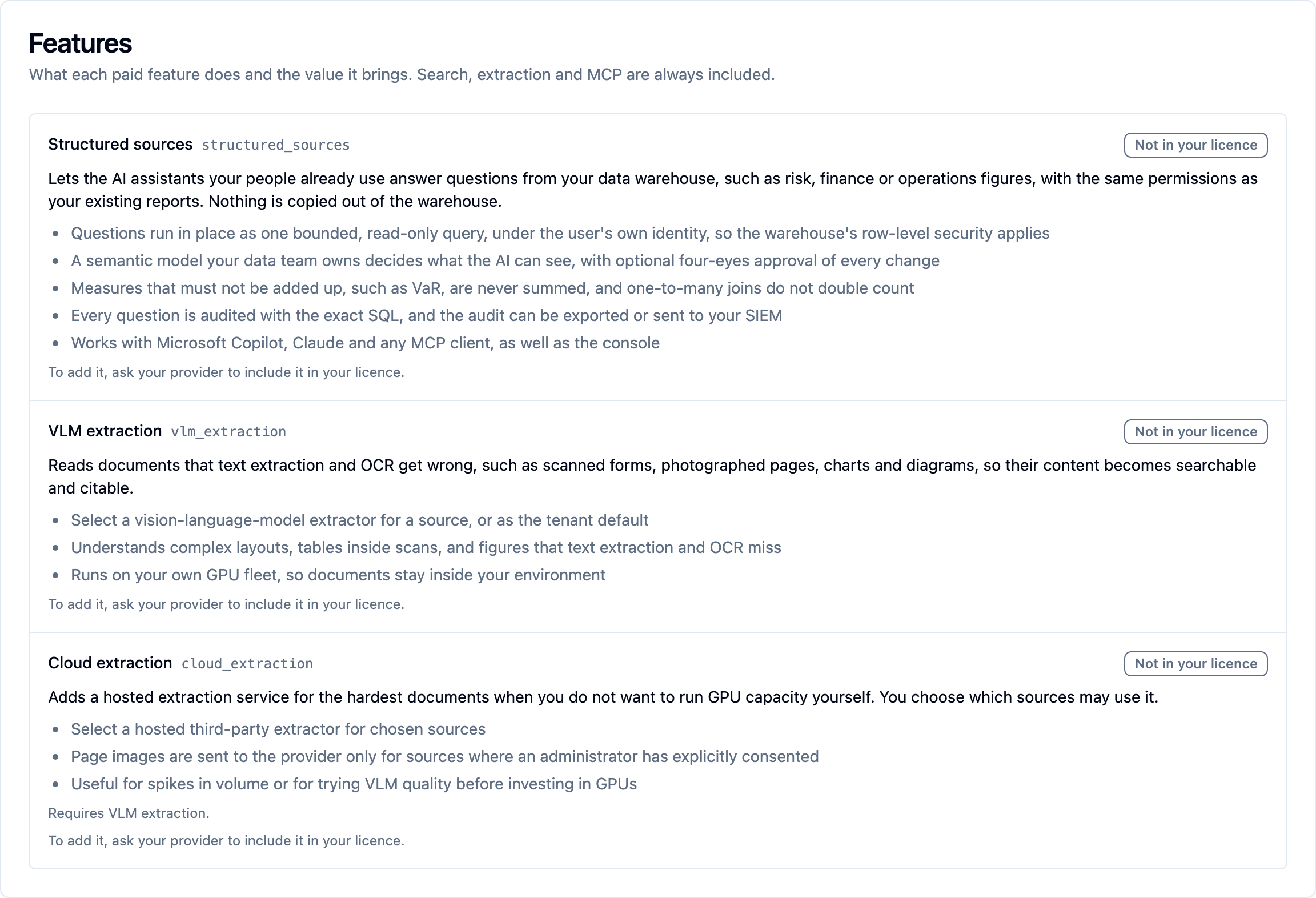
- Features — every paid feature, licensed or not, with what it does and the value it brings, and a badge: Included, Not enabled here (licensed, but switched off for your organisation), Needs … (licensed, but it works only together with another feature that is off), or Not in your licence. A feature you don't have says how to get it, with a support link when your provider has set one. Search, extraction and MCP are always included.
- Apply a new licence (the deployment's administrator: a cluster administrator, or the tenant administrator of a single-customer, self-managed deployment such as a proof of concept) — drop in the licence file you were issued, or browse for it. It is verified before it is stored, so a bad file is rejected rather than accepted and left to fail later.
Tenant administrators have a Licence entry in the sidebar too. On a deployment whose only tenant is theirs and manages itself, they can apply a licence too; otherwise they see the page read-only. On a single-customer deployment they see the whole licence. On a deployment hosting many customers, the licence belongs to the provider, so a tenant administrator sees their own organisation's view instead: their quota and usage, the deployment's stage only when it is holding them up, and the features enabled for them.
See Licensing for what each enforcement stage does.
Tenant administration (admins only)
Tenant administrators see additional pages.
Users — tenant administrators manage their own tenant's users under Settings › People & access › Users and roles; cluster administrators also reach every tenant's users from Tenants. Create a user — optionally as a tenant admin — and the response carries a one-shot initial PAT; delete one and their PATs are revoked with them. Two badges per row are clickable: Role toggles tenant admin, and Access toggles between reader (search and explore only) and operator. See Console sign-in and roles.
AI access (MCP) — your MCP server, across four tabs. Setup is a guided checklist: turn the endpoint on, set the address clients will use, run the checks a configuration cannot make about itself, connect your identity provider so people can sign in, and then connect an assistant. That last step offers two ways in — a cloud client (claude.ai, ChatGPT, Copilot Studio), which can only authenticate by signing in and so needs the identity provider step finished first; and a local client (Claude Code, Claude Desktop), which authenticates with a personal access token and works before any identity provider is connected, carrying that one user's visibility. Flow is the real-time access-flow graph and live event ticker, with the Tokens by tool card below it, Connections rolls up who has connected, and Tokens holds personal access tokens and OAuth login sessions. Which sources the MCP tools can reach, the sign-in clients and the tools' wording are under Settings › AI assistants; they were the MCP page's Settings and Clients tabs in earlier releases. Changing the endpoint address takes effect on save — nothing restarts, though anyone already connected signs in again. Setup is editable by the deployment's administrator (a cluster administrator, or the tenant administrator of a single-customer, self-managed deployment) and read-only for everyone else. A tenant administrator who may manage the tenant's sign-in sees and registers the clients of their own tenant's endpoint under Settings › AI assistants › Sign-in › MCP clients. See MCP monitoring & access control.
Tenants — only visible to cluster administrators. Create tenants and see each one's sign-in state and retention override; open a tenant for its users and its cards:
- Lifecycle — the tenant's status, and Suspend / Resume, the offboarding export and deletion (deletion runs in the background; see Hosting many customers).
- Sign-in (SSO) — the tenant's identity provider for the console (issuer, public client id, API audience, groups claim, admin, operator and warehouse-admin groups, JIT and default role) with a Check issuer button that fetches the issuer's metadata the way the login page will. When the issuer is shared with other tenants, the card lists them and offers a Tenant claim (see several tenants on one identity provider).
- Quota & usage — the tenant's quotas and how much of each it has used.
- Licensed features — which of the licence's paid features this tenant has.
- Retention — the tenant's retention override.
- Warehouse query audit — how long questions asked of the tenant's warehouses are kept, and whether query parameters are recorded (shown when the tenant has data warehouses).
- Hybrid search default, Source policy (what the tenant's sources may borrow from the deployment and which hosts they may reach) and Branding.
- Directory correlation — that tenant's Entra Graph / AD-LDAP / declared-mapping config, with the credentials taken in the same form and a "secret stored / secret pending" badge per block.
- Identity provider for MCP — the provider this tenant's users sign in with when an assistant connects, when it differs from the deployment's — and Signing keys for MCP, the tenant's own token-signing keys.
In the user list, a Warehouses column (when the tenant has data warehouses) toggles the warehouse admin flag. See Console sign-in and roles, directory enrichment and Multi-tenant deployments.
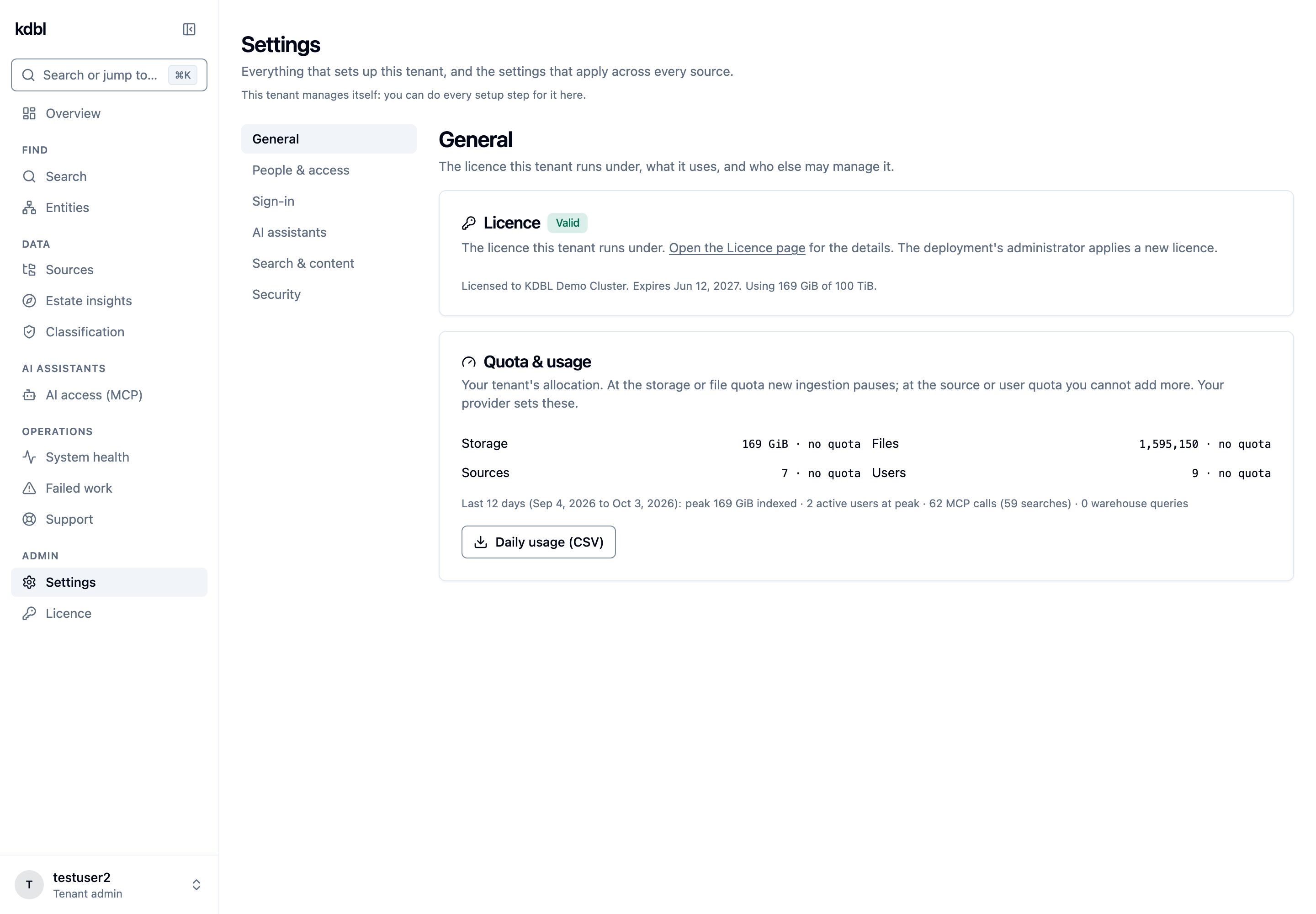
Settings — every tenant-level setup step in one place. It is split into
sections, listed down its left side (a drop-down on a phone), and each section
has its own address, /settings/<section>:
| Section | What is in it |
|---|---|
| General | The licence the tenant runs under, Quota & usage, Partner access, and Branding when the provider allows it |
| People & access | Users and roles, Access to new sources, Citation links |
| Sign-in | Sign-in (SSO) for the console, and Directory correlation |
| AI assistants | Three cards — Endpoint (MCP endpoint and how to connect, Sources AI assistants can search), Sign-in (Identity provider for MCP, MCP clients, Signing keys for MCP), Cost (AI token price) — and a Terminology summary that opens the Terminology page (/settings/ai-assistants/terminology) |
| Search & content | Cloud extraction (when licensed), AI help for database models (when licensed), How sources are searched, Crawl history |
| Security | HTTPS certificate (at /settings/https) and TLS trust anchors (trusted CA certificates) |
What each section holds:
- General — the licence status, and on a deployment whose only tenant is yours, a link to apply a new licence; Quota & usage, your organisation's allocation and metered usage, read-only (the provider sets the quotas); and, on a deployment where a partner manages your tenant, Partner access — how far the partner's staff may go. See Hosting many customers.
- People & access — Users and roles: create users (each gets a one-time personal access token), make them tenant administrators, readers or operators, and warehouse admins where the licence includes warehouses. Access to new sources, with an Apply to N existing sources now button for sources that predate the setting. Citation links — who may open a link to an original file from a search result or an AI answer, and how long a sign-in lasts. See Citation links.
- Sign-in — Sign-in (SSO), how the tenant's users sign in to the console: issuer, public client id, API audience, groups claim, admin, operator and warehouse-admin groups (one group Object ID per line), JIT and default role, with Check issuer. Sign the console in through K-Lake's own server registers the console as a sign-in client and fills in the card for you. In a self-managed tenant the tenant's administrators change it themselves. Where a partner manages the tenant it is read-only for them, until the partner hands it to them under Who can change this tenant's sign-in. A save that would lock administrators out asks you to confirm first. See Setting up sign-in for your admins. Below it, Directory correlation, including the Graph client secret and LDAP bind password (sealed on the server and never shown again; the card shows "secret stored" per block).
- AI assistants — three short cards. Endpoint: the tenant's MCP endpoint and how to connect to it, and Sources AI assistants can search, a switch per source that applies at once with Undo. Sign-in: Identity provider for MCP and Signing keys for MCP, so a tenant's own administrator can connect their directory without a cluster administrator, and MCP clients, the sign-in clients registered for assistants that cannot register themselves (Microsoft 365 Copilot) and the console's own sign-in client. Cost: the AI token price the dashboard values saved tokens at. Between them, a one-line Terminology summary says whether assistants get your own wording, the deployment's or the built-in one, and Open goes to the Terminology page (
/settings/ai-assistants/terminology): the glossary as a table of our word beside your singular and plural; Instructions for AI assistants and Per-tool wording (JSON) under Advanced, each closed unless it holds a value of your own; and What AI assistants receive as a side panel on a wide screen (a Preview toggle on a narrow one). Save, Go back to the built-in wording (with Undo) and Export the current wording work as before. Links to the section's older anchors still land on the same parts. See Settings › AI assistants. - Search & content — Cloud extraction, shown when the licence includes it (see Cloud extraction); AI help for database models, shown when the licence includes
structured_sources_assist: the switch, your AI provider key and an optional gateway, whether example values may be sent, whether Ask is allowed in the Playground, and a daily token budget, all off by default (see AI help and Ask); How sources are searched, whether search looks for meaning as well as keywords unless a source sets its own; and Crawl history, how many days of crawl history are kept. - Security — HTTPS certificate, the console's own certificate, for the deployment's administrator (see Console HTTPS certificate); and TLS trust anchors, the CA certificates the tenant trusts, including those for its directory.
Forms show Save and Discard only once you have changed something. A setting that is a single choice applies as soon as you pick it, with Undo for a moment afterwards. Options most people never need are folded away under Advanced.
Databases — for tenant administrators and warehouse admins, when the licence includes data warehouses: connect a warehouse, build its semantic models (from the catalog with a guided builder, in a structured editor, or by importing one), publish them, try questions, and review the query log. A database's tabs are Connection, Models, Playground and Activity; see Build a model. Query audit, a button at the top of the Databases page, lists every question asked of all the tenant's databases in one log, with CSV export. See Data warehouses.
Acting for another tenant — a platform operator or a partner administrator who may act in more than one tenant chooses the tenant with Act as… in the account menu at the foot of the sidebar (or Act as tenant… in the command palette); the account row then reads Acting for that tenant. Everything they do is done as that tenant's administrator and recorded in the audit log under their own name. See Hosting many customers.
Support — generate a diagnostic pack for a support ticket. The page shows a consent screen first, listing exactly what the pack will contain at the chosen redaction level and what it excludes, before anything is collected. Packs generated here cover K-Lake's own data; the cluster half needs the CLI, which uses your own Kubernetes credentials.
Accessibility and browser support
The console targets recent Chrome, Firefox, Safari, and Edge releases. Keyboard navigation is supported throughout; the file browser uses standard table semantics.