Connect your AI to KDBL Context Lake (K-Lake)¶
Give a cloud AI assistant — Claude, Microsoft Copilot 365, Google Gemini Enterprise, or ChatGPT — secure, governed access to your on-prem K-Lake over the Model Context Protocol (MCP).
No inbound firewall change. K-Lake stays inside your network; a lightweight tunnel dials out to present a stable HTTPS endpoint the AI can reach. Users sign in with your own identity provider (Entra ID / Okta / Auth0 / Google), and every answer is trimmed to what that user is allowed to see.
Claude / Copilot / Gemini ──HTTPS──►  <you>.mcp.kdbl.com        (public, kdbl-managed)
                                          │  outbound-only tunnel
                                          ▼
                                   k-lake MCP gateway  ─►  k-lake (on-prem)
                                          ▲
                              sign-in federated to YOUR IdP
You can connect in three contexts, in increasing order of production-readiness:
- Local evaluation — a desktop/CLI Claude on the same machine, PAT-authenticated
over
localhost. No IdP, no public hostname, nothing to provision. See Evaluate locally first. - kdbl-managed (recommended for production) — a branded
https://<you>.mcp.kdbl.com, turnkey: paste one token and federate sign-in to your IdP. The flow in §1–5 below. - Your own connectivity — bring-your-own Cloudflare, an API gateway you already operate, or a direct firewall mapping. See Connectivity options.
Evaluate locally first (no IdP, no tunnel)¶
Before wiring an IdP and a public hostname, connect a local Claude — Claude
Code (CLI) or the Claude Desktop app, running on the same machine as the stack
(e.g. a POC) — straight to K-Lake with a PAT, over plain localhost.
Fastest way to see grounded answers. It is not for production: a PAT carries that
user's full visibility, and cloud/web clients can't reach localhost.
Cloud clients (claude.ai, ChatGPT web, Copilot, Gemini) live on the internet and cannot reach
localhost— they need a public path from Connectivity options. Only a desktop/CLI client on the same host uses this local path.
1. Enable MCP on the API (it ships dark). Set the master switch and the resource URI to the address the client will actually call:
kubectl -n kdbl set env deploy/kdbl-api \
  KDBL_MCP_ENABLED=true \
  KDBL_MCP_RESOURCE_URI=http://localhost/mcp
kubectl -n kdbl rollout status deploy/kdbl-api
The embedded OAuth server stays dark when no signing keys are mounted — expected
here, and /mcp still authenticates with a PAT. The boot log prints
MCP endpoint enabled.
2. Expose /mcp to the host. The POC ingress proxies only / (UI) and /api/,
not /mcp — add a route so traefik serves it on the host's port 80. This is
stable and, unlike kubectl port-forward, survives pod restarts and laptop sleep:
kubectl -n kdbl apply -f - <<'EOF'
apiVersion: networking.k8s.io/v1
kind: Ingress
metadata: { name: kdbl-mcp, namespace: kdbl }
spec:
  ingressClassName: traefik
  rules:
  - http:
      paths:
      - path: /mcp
        pathType: Prefix
        backend: { service: { name: kdbl-api, port: { number: 80 } } }
EOF
Port-forward alternative:
kubectl -n kdbl port-forward svc/kdbl-api 18080:80, then usehttp://localhost:18080/mcpeverywhere below and setKDBL_MCP_RESOURCE_URIto match. Keep the forward running; on Docker Desktop the apiserver TLS handshake can need a retry to establish (net/http: TLS handshake timeout— retry, the cluster is fine). The ingress route above avoids this.
3. Verify the endpoint accepts your PAT (a tenant-user kdblpat_… — e.g. the one
poc-up.sh / kdbl-control onboard printed):
curl -s -X POST http://localhost/mcp \
  -H "Authorization: Bearer $KDBL_PAT" \
  -H "Content-Type: application/json" \
  -H "Accept: application/json, text/event-stream" \
  -d '{"jsonrpc":"2.0","id":1,"method":"initialize","params":{"protocolVersion":"2025-06-18","capabilities":{},"clientInfo":{"name":"curl","version":"1"}}}'
# → {"result":{...,"serverInfo":{"name":"kdbl-mcp",...}}}
4. Connect your local Claude:
- Claude Code (CLI):
- Claude Desktop (needs Node/
npx): add to~/Library/Application Support/Claude/claude_desktop_config.json, then fully quit and reopen the app:(The{ "mcpServers": { "k-lake": { "command": "npx", "args": ["-y", "mcp-remote", "http://localhost/mcp", "--header", "Authorization:${AUTH_HEADER}"], "env": { "AUTH_HEADER": "Bearer kdblpat_…" } } } }Authorization:${AUTH_HEADER}no-space form plus the env var avoids anmcp-remoteargument-splitting bug.)
Ask: "Use k-lake to search my files for … and quote the source." The tools
(search_content, get_file_text, list_sources, …) return cited results from your
indexed content.
1. Enrollment (kdbl-managed) — we provision your hostname¶
Your KDBL contact runs one command, which provisions a dedicated outbound tunnel + DNS for your branded hostname and returns a tunnel token:
kdbl-control mcp enroll <your-slug>
# → KDBL_MCP_RESOURCE_URI = https://<your-slug>.mcp.kdbl.com/mcp
# → <tunnel token>
(The *.mcp.kdbl.com TLS certificate already covers your hostname — nothing
to request. The tunnel is scoped so only the MCP + sign-in paths are exposed;
the K-Lake admin API is never reachable from the internet.)
You receive: the tunnel token and your KDBL_MCP_RESOURCE_URI.
Off-boarding (operator):
kdbl-control mcp disenroll <your-slug>deletes the tunnel + DNS and cuts access instantly. Idempotent.
One outbound firewall rule is required
"No inbound firewall change" is exact — nothing dials in to your
network. But the tunnel dials out, and it needs outbound TCP and UDP on
port 7844 to Cloudflare's edge (198.41.192.0/24 and 198.41.200.0/24),
on top of the usual 443.
Many enterprise networks allow 443 and block 7844. On those the tunnel connects to nothing and your hostname answers 530 — with everything else configured perfectly. Raise this with your network team before you enroll; it is often a change request with a lead time.
No route to 7844? You are not blocked — options C and D under Connectivity options need no Cloudflare egress at all.
2. Deploy on-prem¶
a. Turn it on¶
Everything below is done in the console, signed in as a cluster
administrator (or as the administrator of the deployment's only tenant, when
it manages itself), at AI access (MCP) › Setup — press ⌘K / Ctrl+K and type
set up AI access to go straight there. Nothing here needs kubectl, and
nothing needs a restart.
Upgrading from 0.1.23 or earlier?
This used to be three kubectl create secret commands, a ConfigMap patch and
two YAML files applied by hand. Those still work, but nothing new requires
them: settings you store through the console take precedence per field, and
the tunnel and gateway are now part of the chart.
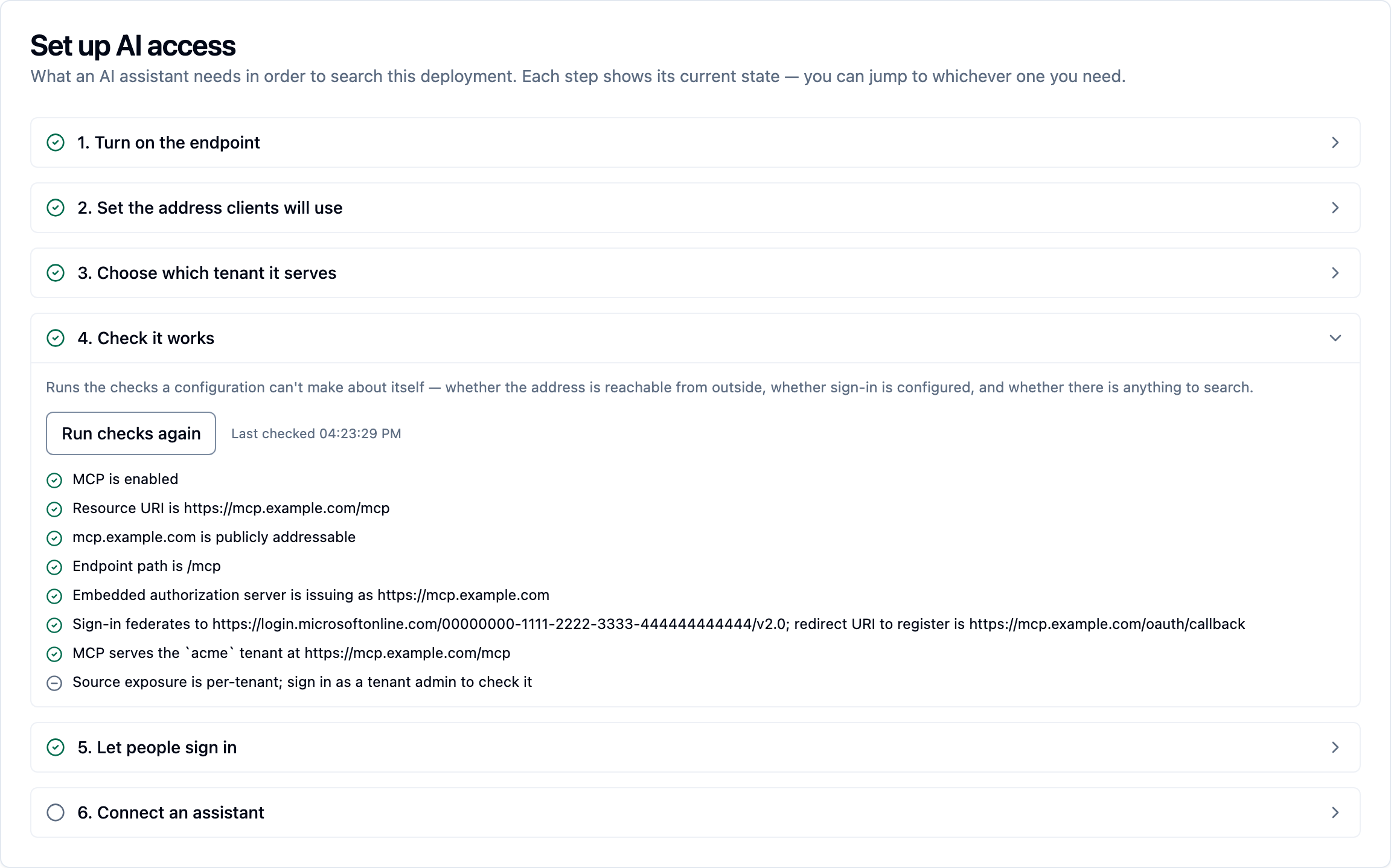
1. Turn on the endpoint. The endpoint ships dark. Press Turn on.
2. Set the address clients will use. Type the public URL clients call, e.g.
https://<your-slug>.mcp.kdbl.com/mcp, in Endpoint address and press
Save. Everything else keys off it, so it must be exactly what clients will
use — scheme, host and path.
3. Choose which tenant it serves. Press Connect on the tenant whose
users will sign in. The first tenant connected answers on the bare /mcp; see
Multi-tenant deployments for more than one.
Remote access. Below the steps, the Remote access card takes the tunnel token from step 1 of this guide: Add a tunnel token, paste it, and press Save token. It is encrypted before it is stored, the connector picks it up within about thirty seconds, and the card then shows the connector's live status. The card says Not deployed until the tunnel is enabled in the chart (b. below). If you are not using the kdbl-managed tunnel, skip this and see Connectivity options.
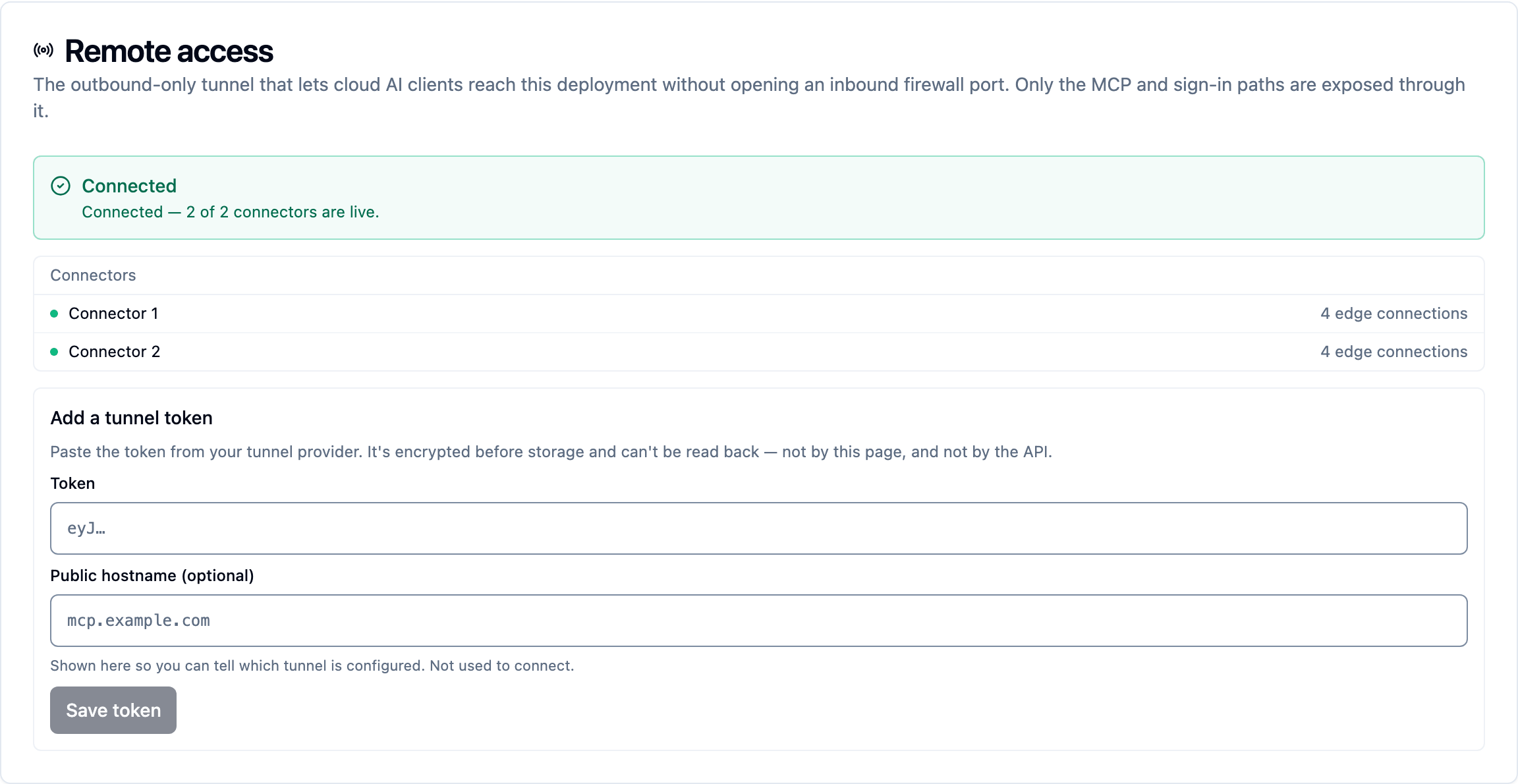
The Remote access card with the tunnel connected (pictured on an earlier release).
4. Check it works. Press Run checks, and again after step 5. It reports what is missing rather than what is present: no identity provider connected, a private address a cloud client cannot reach, no tenant connected at the endpoint address, nothing exposed to search.
5. Let people sign in. The three values from your IdP app registration — Issuer URL, Application (client) ID and Client secret — then Save sign-in settings. Take the redirect URI to register from this step — it is derived from the endpoint address and has to match at the IdP character for character. See OAuth and identity providers for the registration itself.
6. Connect an assistant. Shows the connector URL for a cloud client and a
ready-made claude mcp add command for a local one — see
§4.
b. Deploy the tunnel and gateway¶
From 0.1.24 both are part of the Helm chart. Enable them at install or upgrade:
helm upgrade --install kdbl <chart> --version <your version> \
  -n kdbl --reset-then-reuse-values \
  --set mcp.enabled=true \
  --set mcp.gateway.enabled=true \
  --set mcp.tunnel.enabled=true
Use --reset-then-reuse-values, not --reuse-values — the latter replays old
chart defaults. Pin --version explicitly, or you will silently upgrade the
whole stack while enabling one feature.
On a raw-manifest install (without Helm), apply deploy/k8s/mcp-tunnel.yaml
from your release instead. If it was applied before 0.1.47, re-apply it after
upgrading: the 0.1.47 manifest adds the Service the Remote access card
reads (without it the card says Not deployed while the connectors run)
and moves the connector to cloudflared 2026.9.3.
The tunnel starts and waits: with no token stored it idles rather than crash-looping, so it can be part of a deployment made before you have a hostname. The gateway is an allowlisting proxy exposing only the MCP and sign-in paths, and the tunnel can only reach the gateway.
Your hostname must route to the gateway, never to the K-Lake API
That is what keeps the admin API off the internet. The chart wires this for you; if you are terminating the hostname yourself, this is the one thing to get right.
Once the hostname is public, review Exposing MCP to the internet: the default per-user and per-address limits, failed sign-in throttling, the recommended Cloudflare settings, and the scopes a personal access token needs on MCP (the cluster-admin token is refused there).
c. The signing key¶
K-Lake mints its own access tokens and signs them with an ES256 key. The chart generates one on install and preserves it across upgrades, so on a chart deployment there is nothing to do — and AI access (MCP) › Setup tells you if the sign-in service is not running.
Creating it by hand (raw manifests only)
openssl genpkey -algorithm EC -pkeyopt ec_paramgen_curve:P-256 -out k1.pem
kubectl -n kdbl create secret generic kdbl-mcp-oauth-signing --from-file=k1.pem
The filename stem is the key id, and the file must end .pem — K-Lake
loads every *.pem in that secret and skips anything else, after which the
authorization server ships dark with no error and sign-in simply never works.
Check what you created:
You want to see k1.pem.
d. Verify¶
Start with Run checks in AI access (MCP) › Setup › 4. Check it works. It knows what is configured and what is not, and it answers most of what follows without a shell. The checks below are for when it says something is wrong and you want to see it directly.
Work outwards from the cluster, so each failure points at one thing.
1. Is the authorization server up?
You want two lines, and the second is the one that matters:
MCP endpoint enabled  resource_uri=https://<your-slug>.mcp.kdbl.com/mcp
MCP OAuth authorization server enabled  issuer=…  active_kid=k1  federation=https://login.microsoftonline.com/<tid>/v2.0
federation=(none) at startup only means federation wasn't configured then —
it is picked up at runtime, so check Setup rather than the boot log if you
configured it through the console. No second line at all means the signing key
isn't loading. (Don't pass --tail; these are printed at startup, at the top of
the log.)
2. Is sign-in wired up?
kubectl -n kdbl port-forward deploy/kdbl-api 18080:8080 &
sleep 2
curl -s -o /dev/null -w '%{http_code}\n' \
  'http://localhost:18080/authorize?response_type=code&client_id=probe&redirect_uri=https://example.invalid/cb'
kill %1
400 is the pass: the deliberately bogus probe is being rejected further down a working flow.
3. Is the hostname reachable?
curl -s -o /dev/null -w '%{http_code}\n' https://<your-slug>.mcp.kdbl.com/.well-known/oauth-authorization-server   # 200
curl -s -o /dev/null -w '%{http_code}\n' -X POST https://<your-slug>.mcp.kdbl.com/mcp                              # 401 (needs sign-in)
What each failure means¶
| You see | It means | Where to look |
|---|---|---|
/authorize → 405 |
The authorization server never started, so nothing serves that path | Signing key secret missing, or its file isn't named *.pem |
/authorize → 503 |
Server up, IdP federation not attached | One of issuer / client id / client secret is missing or empty |
/authorize → 400 or a redirect to your IdP |
Working | — |
| Hostname → 530 | Nothing is dialling out to Cloudflare | Tunnel pods not deployed, or outbound 7844 blocked: kubectl -n kdbl logs deploy/kdbl-mcp-tunnel |
| Hostname → 502 | Tunnel is connected, but its route points at nothing | The route must target the MCP gateway service |
| Sign-in redirects to your IdP and the IdP shows an error | The registered redirect URI does not match | Copy it from Setup › 5. Let people sign in — character for character |
| Every client fails right after you changed the endpoint address | Sign-in re-points on save, so tokens issued under the old address no longer validate | Expected — clients sign in again. If they still fail, the tenant still names the old address: Setup › 4. Check it works reports No tenant is connected to …; press Connect for the tenant in step 3 to re-point it |
A 200 from /.well-known/oauth-authorization-server proves less than it looks:
it answers 200 whether or not your IdP is configured, and it is served even when
sign-in cannot work. Use the startup log and the /authorize probe to tell those
apart.
3. Register K-Lake in your IdP (one app)¶
K-Lake acts as an OAuth client to one app registration in your IdP — the AI clients self-register with K-Lake, so there is nothing per-client to set up in your IdP. In every IdP that app needs:
- Redirect / callback URI:
https://<your-slug>.mcp.kdbl.com/oauth/callback(K-Lake's callback — never a vendor's URL) - A client secret, which K-Lake stores in the
kdbl-mcp-oauth-federationsecret - The OIDC sign-in scopes, and — for group-based access — a groups claim in the id_token
That is the whole shape of it. For the portal-by-portal walkthrough, the exact permissions each IdP needs (and the ones it does not), the tenant settings, and how to do all of it from the CLI, the API or the console, see OAuth and identity providers — Entra ID, Okta, Auth0 and Google are each covered end to end.
The permission people over-request
The sign-in app needs delegated OIDC scopes only, and usually no admin
consent. The heavier Microsoft Graph application permissions
(Group.Read.All and friends) belong to the separate directory-sync app, and
only if you need on-prem ACL correlation. See
OAuth and identity providers.
4. Connect each AI client¶
All clients use the same URL and the same flow: they discover K-Lake's OAuth, self-register, show you a K-Lake consent screen, send you to your IdP to sign in, then call the tools. No client IDs or secrets to paste.
Server URL for every client: https://<your-slug>.mcp.kdbl.com/mcp
| Client | Where to add it |
|---|---|
| Claude (Team/Enterprise) | Settings → Connectors → Add custom connector → paste the URL → Connect. |
| ChatGPT (Enterprise/Team) | Settings → Connectors → add an MCP server → paste the URL. |
| Microsoft Copilot 365 | Copilot Studio / agent builder → add an MCP server (tool) → paste the URL. |
| Google Gemini Enterprise | Agentspace / Gemini Enterprise → add an MCP connector → paste the URL. |
On first connect you'll see "Connect to your K-Lake" → Allow access → your IdP sign-in → the assistant lists the K-Lake tools (search / read). Done.
5. Grant access to content (important)¶
Signing in does not by itself grant access to data. A freshly signed-in user authenticates but sees nothing until they're granted access to a source — this is the point: K-Lake is least-privilege by default.
Grant access by IdP group, so membership drives access automatically:
- Have your IdP emit a groups claim (Entra: Token configuration → add
groups; Okta/Auth0/Google: add a groups/roles claim) — set
oidc_config.groups_claimaccordingly. - Grant a group a role on a source (viewer/editor/owner). Members then inherit access; results are still per-file trimmed by the document ACLs on top.
For on-prem file shares whose ACLs are Windows/AD groups, map your IdP group IDs
to the on-prem SIDs (K-Lake's directory sync — kdbl-control directory sync-graph
for Entra). See Per-file security trimming.
Connectivity options (production)¶
For real use, cloud AI clients must reach K-Lake over a public HTTPS endpoint.
That endpoint always terminates at the in-cluster MCP gateway
(kdbl-mcp-gateway.kdbl.svc:80), which serves only /mcp and the sign-in/OAuth
paths — the admin API is never exposed. How you publish it is your choice; the
options trade convenience against how much network infrastructure you own. Sections
1–5 above assume option A; for B–D only the exposure changes — IdP federation
(§3), client setup (§4), and access grants (§5) are identical.
A. kdbl-managed tunnel (recommended; default)¶
An outbound-only Cloudflare tunnel to a branded https://<you>.mcp.kdbl.com that
KDBL provisions and operates (the kdbl-control mcp enroll flow in §1). No inbound
firewall change, no public IP, no certificate to manage — the on-prem side dials
out. Best for almost everyone; choose another option only if policy forbids a
third-party-operated tunnel.
B. Bring-your-own Cloudflare (your org + hostname)¶
Same outbound-tunnel model, but in your Cloudflare Zero Trust org on a hostname
you own. Create a named tunnel, route your hostname →
http://kdbl-mcp-gateway.kdbl.svc:80, run the connector (cloudflared) as a
Deployment in the cluster, and set that hostname as KDBL_MCP_RESOURCE_URI. You own
the DNS, the tunnel credential, and the audit trail; KDBL operates nothing. The
tunnel/gateway are provider-agnostic — ngrok, Tailscale Funnel, or a future
kdbl-operated relay work the same way. Keeps the no-inbound-port property of A.
C. API gateway / reverse proxy you already run¶
If you terminate external traffic at an existing gateway — Azure Application Gateway / APIM, AWS ALB + API Gateway, Cloudflare/Akamai, NGINX/Envoy, Apigee — publish a route there:
- Host/path:
https://<your-host>/mcp→ upstreamkdbl-mcp-gateway.kdbl.svc:80(or thekdbl-apiService directly if you skip the gateway pod). - Forward the
Authorizationheader unchanged, and don't strip theWWW-Authenticate401 challenge — clients need it for OAuth discovery. - Set
KDBL_MCP_RESOURCE_URIto the public URL; add the host's browser origin toKDBL_MCP_ALLOWED_ORIGINSif a browser-based client connects. - Terminate TLS at the gateway. This typically does mean an inbound listener, so pair it with the WAF / allowlist / mTLS your gateway already enforces.
Good when corporate policy requires all ingress to pass a sanctioned gateway with its own WAF, logging, and rate limiting.
D. Direct firewall port-mapping (simplest; highest exposure — use with care)¶
Map an inbound public port straight to the cluster ingress (NAT :443 → the
traefik/MCP gateway, or a published k8s LoadBalancer/NodePort). Fastest to stand
up, but it opens an inbound hole and you own everything in front of it. If you
choose it:
- Terminate real TLS (a valid cert for your host) — never expose
/mcpin cleartext to the internet; bearer tokens ride theAuthorizationheader. - Expose only
/mcp+ the OAuth/sign-in paths. Never publish/api/or any admin route — keep them on a separate, internal-only ingress. The bundled MCP gateway already restricts paths; if you point the rule atkdbl-apidirectly, enforce the path allowlist at the firewall/reverse proxy yourself. - Require OAuth/IdP auth (§3) on an internet-facing port — never PAT auth. A PAT is a long-lived bearer carrying that user's full visibility; a leaked PAT on a public endpoint is a full data breach. IdP tokens are short-lived and audience-bound to your host.
- Restrict the source: allowlist the AI vendor's published egress ranges, put a WAF / rate-limit in front, and alert on the MCP audit log.
- Set
KDBL_MCP_RESOURCE_URIto the publichttps://…/mcpand populateKDBL_MCP_ALLOWED_ORIGINSfor any browser client.
Security trade-off in one line: A and B keep zero inbound ports (outbound dial-out) and are the safe default; C reuses controls you already operate; D is the most exposed — acceptable only with TLS, IdP-only auth, a strict path allowlist, and source restrictions all in place.
Security at a glance¶
- Outbound-only — no inbound ports; the on-prem side dials out.
- Your IdP is the source of truth — K-Lake federates sign-in to it; access tokens are short-lived and audience-bound to your hostname.
- Scoped exposure — only
/mcp+ the sign-in/OAuth paths are public; the admin API is not. - Least privilege — no data access without an explicit (group) grant, and per-file ACL trimming on every result.
- Per-tenant isolation — your hostname, tunnel, and token are yours alone; revoking the tunnel cuts access instantly.
See also the MCP server reference for the full auth model, env vars, and audit, and Connecting AI clients for per-client setup.