Keyboard shortcuts and the command palette
The command palette is the fastest way around the KDBL Context Lake (K-Lake) console. One box finds any page, any Settings section or card, an action such as adding a source, a source or user by name, and the best-matching documents, without you having to know where something lives in the sidebar.
Opening the palette
| How | Where it works |
|---|---|
| ⌘K on a Mac, Ctrl+K on Windows and Linux | Anywhere in the console, including inside a text field. Press it again to close the palette. |
| / | Anywhere outside a text field |
| ? | Anywhere outside a text field. Opens the palette on its list of shortcuts and help (see The help list). |
| The Search or jump to… button at the top of the sidebar | Desktop. The button shows the shortcut for your keyboard. |
| The search icon in the top bar | Phone or narrow window, where the sidebar is hidden behind Menu |
Inside the palette, ↑ and ↓ move through the results, Enter opens the highlighted one, and Esc goes back a step or closes the palette.
What it finds
Start typing and the palette lists everything that matches, grouped:
- Pages — every page in the sidebar, and the AI access (MCP) tabs (Set up AI access, AI activity, AI connections, MCP access tokens).
- Settings — each Settings section (General, People & access, Sign-in, AI assistants, Search & content, Security) and the cards inside them, such as Sign-in (SSO), Branding, MCP clients or HTTPS certificate. Picking a card opens its section and scrolls to it.
- Actions — Add a source, Mint an MCP access token, Change theme…, Change language… (when the console has more than one language), Act as tenant… (for those who may act for another tenant) and Sign out.
- Sources, Databases, Tenants and Users whose name matches what you typed.
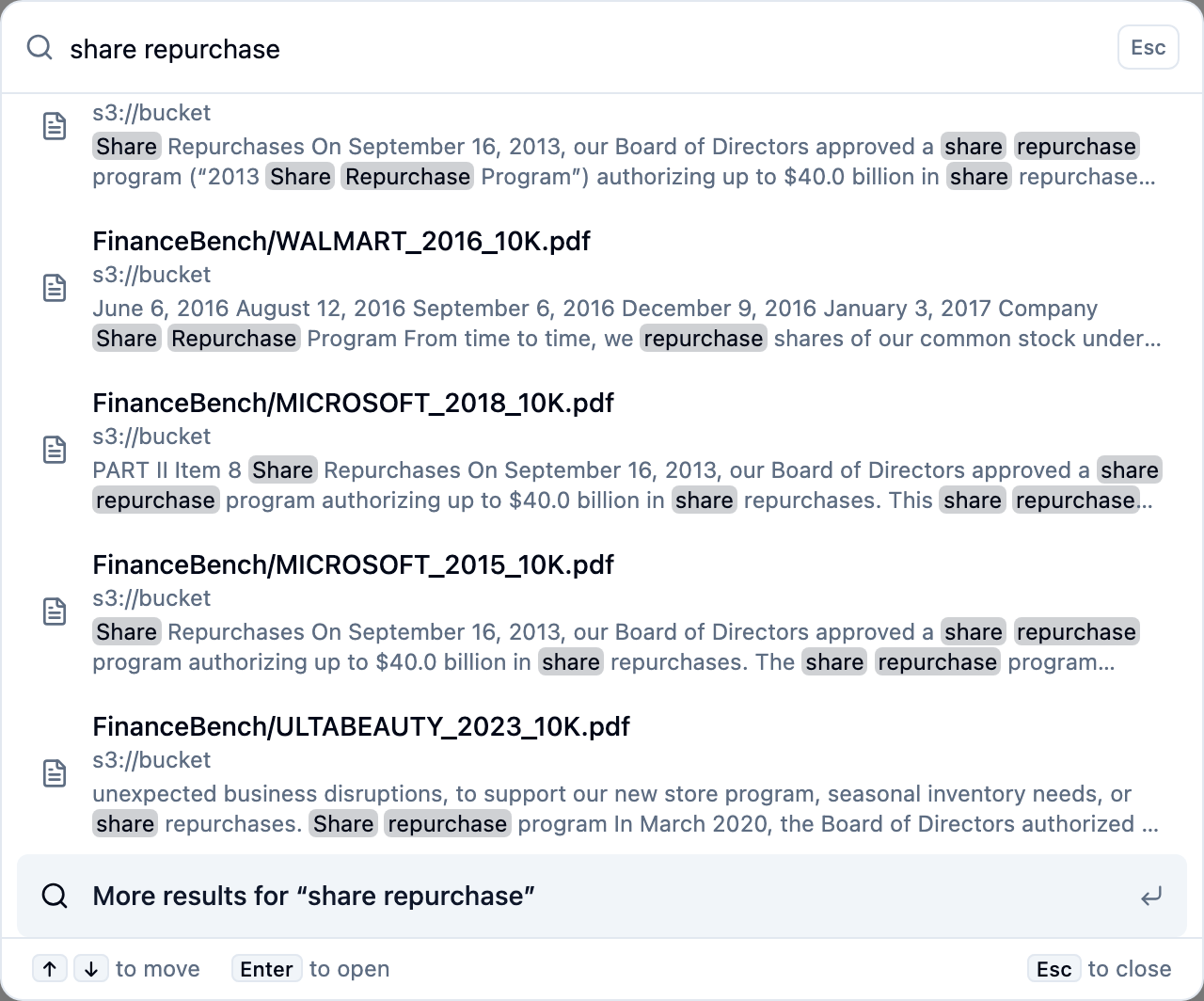
- Documents — once you have typed two or more characters, the top five documents for your words, each with its source and a highlighted snippet. The last row, More results for "…", opens the Search page with your query so you can filter and page through everything.
You do not need the exact name. Matching ignores case and accents, word starts
count (sys hea finds System health), and common words for a place work as
well as its name: SSO, OIDC or Entra find Sign-in (SSO), LDAP finds
Directory correlation, white-label finds Branding. Old page names still
work too, so if you are following older instructions, Fleet finds System
health, Discover finds Estate insights, Warehouses finds
Databases and Dashboard finds Overview.
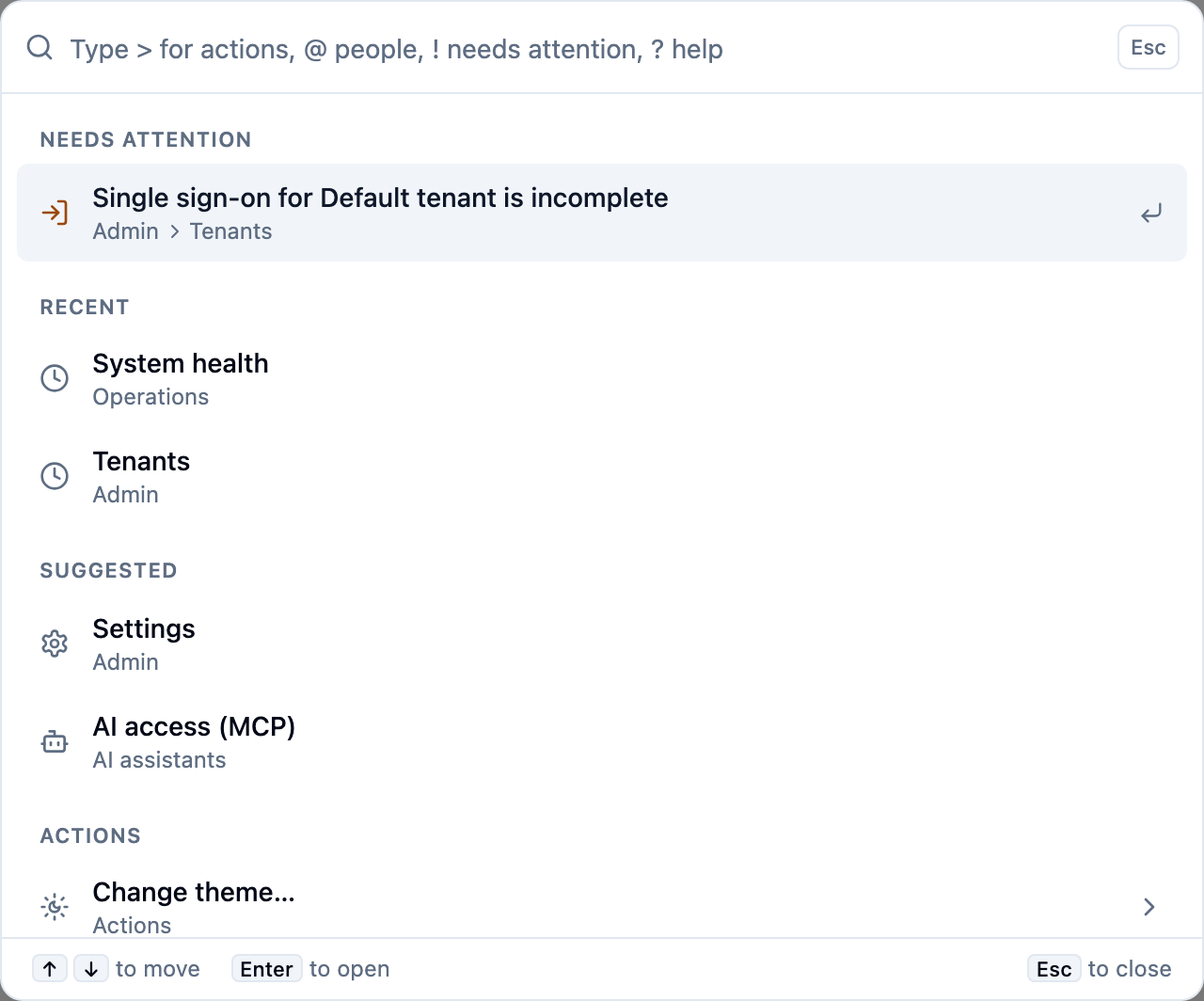
With nothing typed, the palette shows, in order: actions for the page you are on (see This page), anything that Needs attention, your Recent picks (the last five, remembered in this browser), Suggested pages, and Actions.
Narrowing with a prefix
Type one of these characters first to show only one kind of result. The prefix turns into a label in the search box; press Backspace in the empty box, or Esc, to remove it.
| Prefix | Shows only | Example |
|---|---|---|
> |
Actions | >theme for Change theme… and the Light, Dark and System choices |
@ |
People: your tenant's users (for a cluster administrator, the tenants) | @alice to find Alice; picking her opens Settings › People & access › Users and roles |
# |
Sources and databases | #meridian to jump straight to that source |
! |
What needs attention | ! on its own lists failed work that is still open, sources reporting errors, a console certificate close to expiry, licence or quota warnings, and single sign-on that is saved but cannot be used yet |
? |
Keyboard shortcuts and help | ? on its own shows the list below |
A prefix counts only as the very first character. To search for text that
starts with one of these characters, type a space first (#1).
You see only the prefixes you can use: @ needs a tenant administrator or a
cluster administrator, # needs access to Sources or Databases, and ! is not
offered to readers.
This page
On some pages the palette offers actions for what you are looking at, under This page, at the top of the list:
| Page | Actions |
|---|---|
| A source | Crawl now… (moves to the page's Run crawl button, so you press it yourself), Enable or disable… (moves to the page's Enable or Disable button), Open the Security tab, Open the Configure tab, Copy source ID |
| A file | Open original (when signed downloads are on), Copy file path, Copy source ID |
| A database | Open playground |
None of these runs anything destructive by itself.
The help list
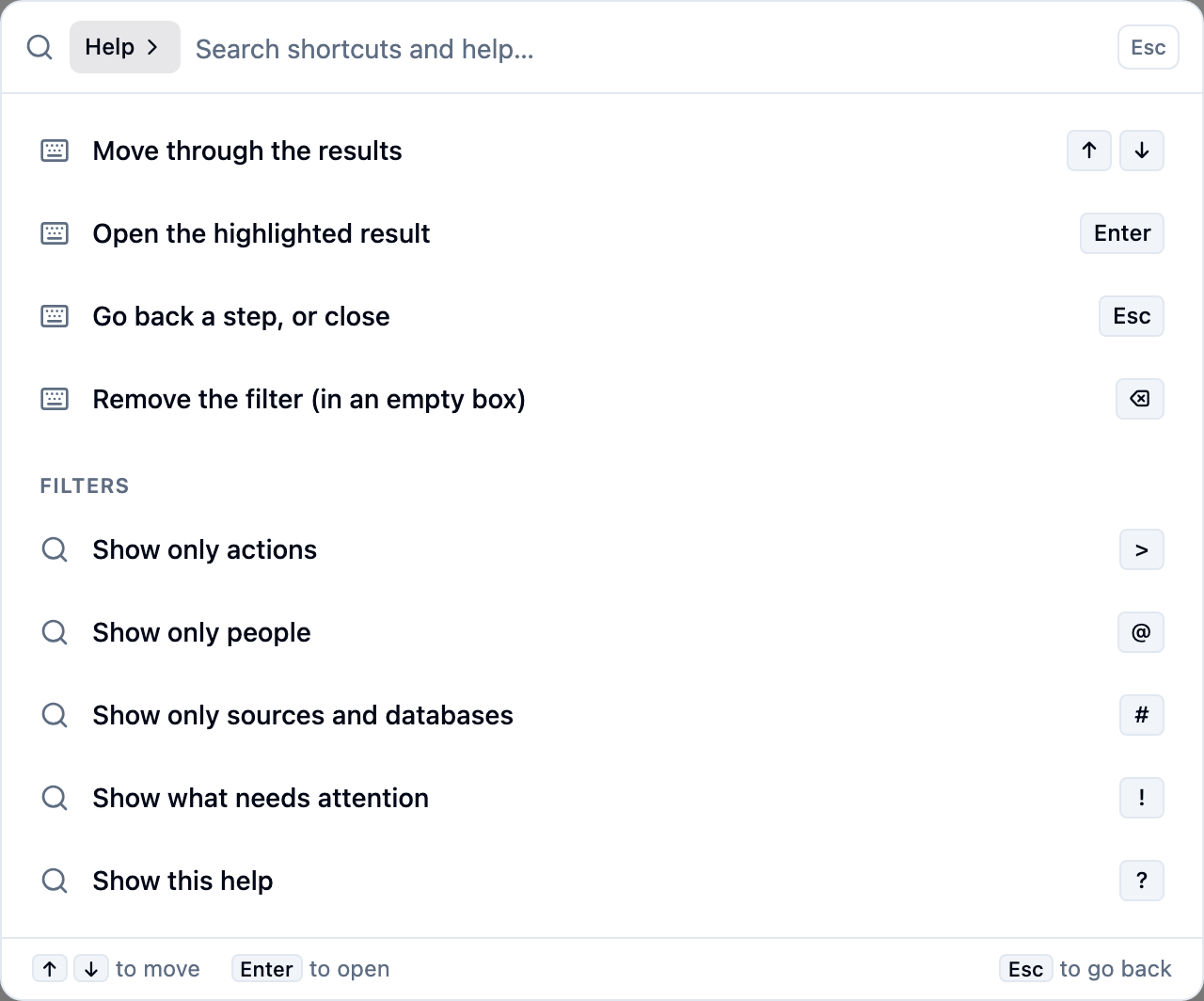
Press ? outside a text field, or type ? in the palette, for the
list of shortcuts and prefixes. Each prefix row can be picked to switch to that
filter. Below them are links to this documentation (they open in a new tab).
Other shortcuts
| Key | What it does |
|---|---|
| [ | Collapse the sidebar to a row of icons, or expand it again. Works outside a text field on a desktop-width window; the console remembers your choice in this browser. The button beside the brand at the top of the sidebar does the same. |
| Esc | In the palette: leaves a sub-list (such as Change theme…) or removes a prefix filter; at the top level, closes the palette. |
| Backspace | In the palette's empty search box: removes the prefix filter, or leaves a sub-list. |
What you see depends on your role
The palette follows the same rules as the sidebar and Settings: it never offers a page, card or action your role cannot open. A reader, for example, finds Search, Entities and documents but not Sources or Settings; a cluster administrator finds Tenants but not documents, because document search belongs to a tenant. Names and documents are trimmed to what you are allowed to see, exactly as they are on the Search page. See Console sign-in and roles.