Console sign-in and roles
This page sets up single sign-on to the KDBL Context Lake (K-Lake) web console for a tenant, and decides what signed-in people are allowed to do there. It is the answer to two requests that arrive together: "our people should sign in with their work accounts" and "most of them should only be able to search and explore, not run the estate".
It is separate from AI-assistant sign-in over MCP, which is covered by OAuth and identity providers. The two can share one identity provider — and one sign-in server — but they are configured in different places because they protect different surfaces. Allow about twenty minutes.
What you get
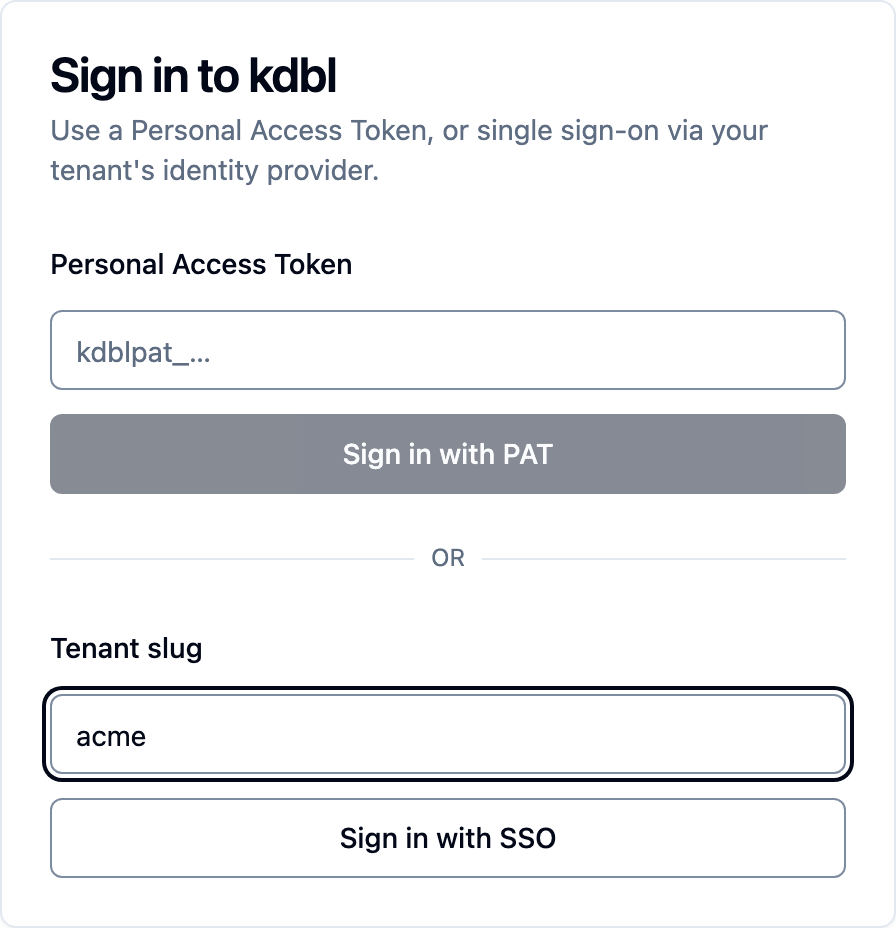
- Users open the console, type their tenant name in Tenant slug, click Sign in with SSO, and are sent to their organisation's sign-in page. At a hostname mapped to the tenant the login page skips the tenant name and goes straight to that sign-in page. No K-Lake password exists.
- A first-time signer gets a user record automatically (JIT provisioning), with
the tenant's default role —
readerunless you change it. - Readers can search and explore, open files and manage their own tokens, and nothing else. Operators can do everything a tenant user could before roles existed. Tenant administrators additionally manage users, settings and MCP.
- Directory groups can promote people: members of an operator group are operators on every sign-in, members of an admin group are tenant administrators, and leaving the group takes it away again.
How it works
The login page asks K-Lake for the tenant's sign-in configuration, reads the issuer's own metadata to find where to send the user, and runs a standard authorization-code flow with PKCE from the browser. The console therefore needs a public client (one that holds no secret) registered at the issuer, with the console's callback address as a redirect URI. Tokens are matched to the tenant by issuer, so two tenants cannot share one issuer.
There are two places that issuer can be:
| Route | Issuer | When to use it |
|---|---|---|
| A. Your identity provider directly | Okta, Keycloak, Microsoft Entra ID (with an API scope), or another provider that issues JWT access tokens with an audience you choose | The tenant is not on MCP, or you want the console independent of it |
| B. K-Lake's own sign-in server | https://<mcp-host> or https://<mcp-host>/t/<tenant> |
The tenant is on MCP, or its directory is Auth0; users sign in to the console and to assistants through the same server, with the same directory and roles |
Pick one and follow its section. Both end at the same Sign-in (SSO) card.
The Sign-in (SSO) card
Cluster administrators find it on Tenants, by opening the tenant (or press
⌘K / Ctrl+K and type the tenant's name). On a deployment
hosting many customers, platform operators and partner staff acting
in a tenant (account menu › Act as…) find it under that tenant's
Settings › Sign-in and can change it — partner staff only when the
tenant's partner access is admin or admin_and_content; their changes are
audited under their own name.
The tenant's own administrators find it under Settings › Sign-in (or press ⌘K / Ctrl+K and type sign-in). In a self-managed tenant, one that no partner or platform operator runs (a proof of concept, or your own install), they can change it themselves, with no cluster-admin token. In a tenant a partner manages it is read-only for them, until the partner hands it to them under Who can change this tenant's sign-in. See who can see and change a tenant's sign-in, and Setting up sign-in for your admins for a complete walkthrough with Entra ID.
The badge beside the card's title says whether sign-in can start:
| Badge | Meaning |
|---|---|
| Ready | Issuer, client ID and API audience are all set. People can sign in. |
| Incomplete | An issuer is saved, but something else is missing. The badge's tooltip names what, and the login page says SSO is not set up until it is filled in. |
| not configured | No issuer yet. |
The Tenants list shows the same state in its OIDC column.
Save sign-in settings appears once you change something. A save that would lock administrators out opens a warning, This change could lock administrators out, and goes ahead only on Save anyway. That happens when your own session would end, when you would lose the administrator role, or when no administrator could sign in afterwards. Keep a personal access token for one administrator: it works whatever the sign-in settings say. The card edits only the sign-in fields and leaves the tenant's directory-correlation and MCP settings untouched.
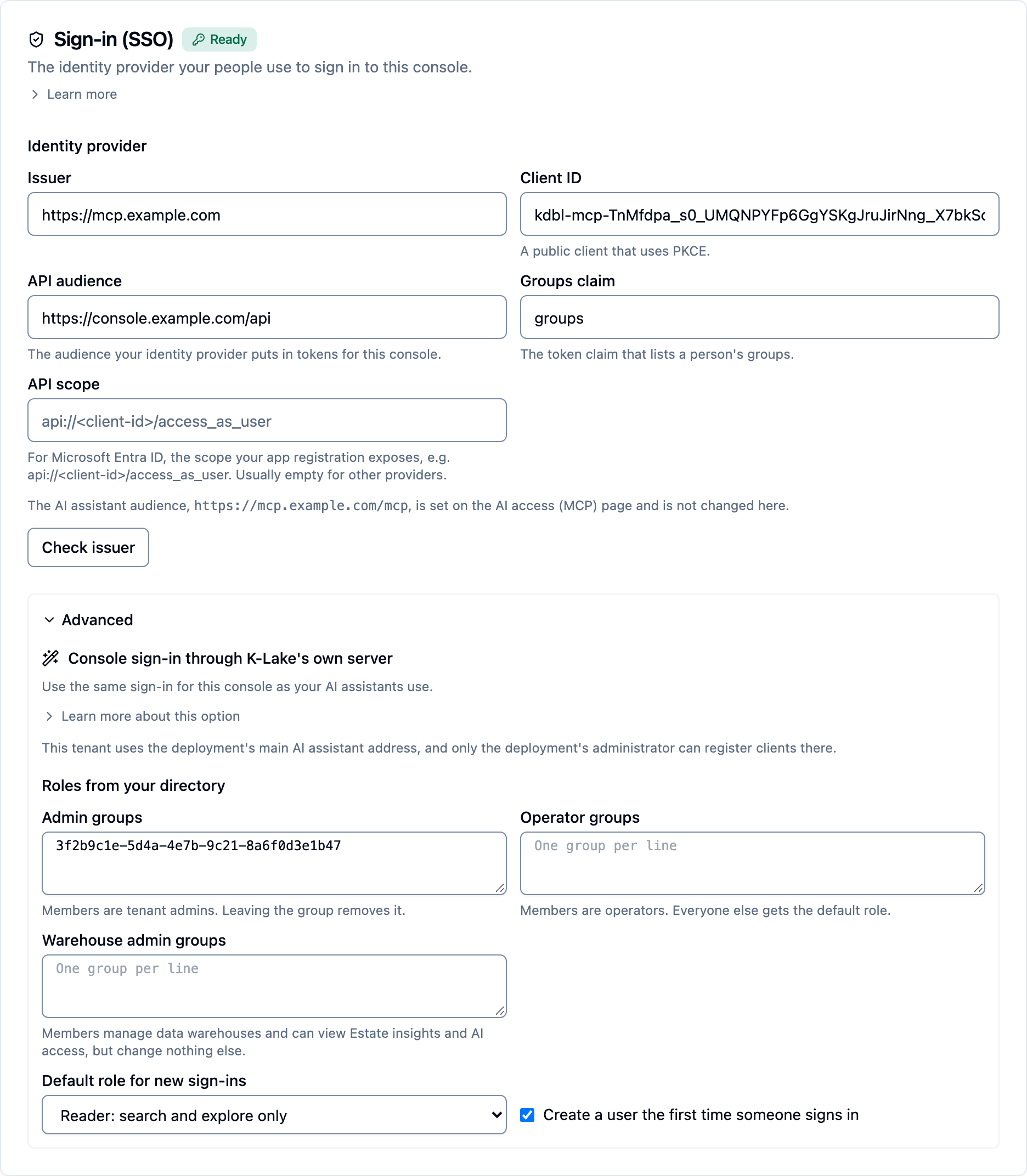
| Field | Meaning |
|---|---|
| Issuer | Where users sign in. Must be an http(s) URL. It may be one other tenants already use only when every tenant on it can still be told apart — by its own API audience, or by a Tenant claim; the card lists the other tenants and shows the Tenant claim fields. See several tenants on one identity provider. |
| Client ID | The public client (one that uses PKCE) registered at the issuer with https://<console>/authn/callback as a redirect URI. Learn more on the card shows the exact callback for this deployment. |
| API audience | The aud claim tokens for the console must carry. K-Lake accepts a token for the console only when it names this value. |
| Groups claim | Name of the groups claim in the token. Default groups. |
| API scope | Only for Microsoft Entra ID used directly: the scope your app registration exposes, such as api://<client-id>/access_as_user. Usually empty for other providers. |
| Admin groups / Operator groups (under Advanced › Roles from your directory) | One group per line, in the form the token carries (an object ID for Entra, a name for Okta). See Roles. |
| Warehouse admin groups | Members are warehouse admins on every sign-in; leaving the group revokes it. Same format. |
| Default role for new sign-ins | Reader: search and explore only or Operator: can also run sources, for people in neither list. |
| Create a user the first time someone signs in | Just-in-time provisioning. Off means only pre-created users can sign in. |
Check issuer fetches the issuer's metadata exactly as the login page will and reports the authorization endpoint it found, or why it could not. When the issuer answers but sign-in still lacks a setting, it says so and names the missing settings. The check uses the saved settings, not unsaved changes, so run it after every save.
The same card is GET/PATCH /api/tenants/:slug/sso (absent keys are left
alone, an empty string or empty list clears one), POST
/api/tenants/:slug/sso/shared-issuer (a dry run of the shared-issuer check)
and POST /api/tenants/:slug/sso/check.
Route A — sign in with your identity provider directly
The console signs in as a public (single-page) client and then presents
the access token it receives to the K-Lake API. That token must therefore
be a JWT whose audience is a value you control, and it must carry an issuer
(iss) and an audience (aud): K-Lake refuses a token that leaves either
out. Okta does this as it is; Keycloak needs an Audience mapper (below);
Microsoft Entra ID needs an API scope of your own, so that it issues the
token for your app rather than for Microsoft Graph.
Auth0: use route B
Auth0 issues an opaque access token unless an audience is requested, which K-Lake cannot validate. Tenants on Auth0 use route B: K-Lake's own sign-in server federates to Auth0 as a confidential client and mints the console's token itself.
Entra ID directly is for console-only estates
A tenant has one issuer. With Entra as the console's issuer, AI assistants connecting to this tenant over MCP must also bring Entra tokens, and most assistants expect K-Lake's own sign-in server. If your people use AI assistants, use route B.
1. Register the console in your IdP
- Applications → Create App Integration → OIDC → Single-Page Application.
- Sign-in redirect URI =
https://<console-host>/authn/callback; grant type Authorization Code with PKCE. - Assign the app to the users or groups who may sign in.
- On the authorization server (Security → API → Authorization
Servers → default), add a
groupsclaim to the access token, and note the server's Audience —api://defaultunless you changed it. That is the API audience. - Issuer:
https://<your-okta-domain>/oauth2/default.
One app registration is both the console's client and the API it signs in to.
- App registrations → New registration, single tenant. Under
Redirect URI choose Single-page application (SPA) and enter
https://<console-host>/authn/callback. It must be https: Entra accepts http redirect URIs only forlocalhost. Add no client secret. - Expose an API: keep the default Application ID URI
api://<application (client) id>, then Add a scope namedaccess_as_user(who can consent: Admins and users). - API permissions → Add a permission → My APIs, tick
access_as_user, then Grant admin consent. - Manifest: set
requestedAccessTokenVersionto2. Without it the token's issuer ishttps://sts.windows.net/<tenant id>/, which does not match the issuer below. - Token configuration → Add groups claim: Security groups, and Group ID for the Access token. Then Add optional claim → Access → email.
- On the card: Issuer
https://login.microsoftonline.com/<directory (tenant) id>/v2.0; Client ID and API audience both the application (client) ID (api://<application (client) id>is accepted as the same audience); API scopeapi://<application (client) id>/access_as_user.
While the issuer is an Entra address the card shows these steps as a reminder, and Check issuer warns when no API scope is saved or the console is on plain http. Setting up sign-in for your admins has the full walkthrough.
- Create a client with Client authentication off (public), Standard
flow on, PKCE method
S256, and valid redirect URIhttps://<console-host>/authn/callback. - Add an Audience mapper to the client's dedicated scope that adds a
value of your choosing —
klake-api, say — to the access token, with Add to access token on. That is the API audience. Without it Keycloak leavesaudout and K-Lake refuses the token. - Add a Group Membership mapper named
groups, with Full group path off, so the token carries plain group names. - Issuer:
https://<keycloak-host>/realms/<realm>.
A public client using the authorization-code grant with PKCE, redirect URI
https://<console-host>/authn/callback, and a JWT access token that
carries iss and an aud you choose. If the provider issues that token
only when a scope of its own is requested, put the scope in API
scope. Add a groups claim to the token if you want group-driven roles.
K-Lake reads everything else from the provider's discovery document.
2. Fill in the card
Open Settings › Sign-in › Sign-in (SSO) (or press ⌘K / Ctrl+K and type
sign-in). Enter the issuer, client ID and API audience from step 1, the
groups claim if the provider calls it something other than groups, and the
API scope if step 1 gave you one. Click Save sign-in settings, then
Check issuer. The badge turns Ready.
3. Grant access and test
Signing in grants no data. Give the users' groups a role on the sources they should see (Grant access to content), then open the console in a private window, enter the tenant name, and sign in.
Route B — sign in through K-Lake's own server
For a tenant that is connected to MCP, K-Lake's sign-in server already federates to the right directory. Two values put the console on it.
1. Register the console as a client of the tenant's endpoint
The quickest way: on the tenant's Sign-in (SSO) card, open
Advanced and, under Console sign-in through K-Lake's own server, click
Sign the console in through K-Lake's own server. It registers the console
as a public PKCE client of the tenant's endpoint, with this console's own
address plus /authn/callback as the redirect URI. It then fills in the
issuer, the client ID and an API audience for you to review and save, so you
can skip to step 2. Run it from the address people
use: after a move to HTTPS or a new hostname, run it again, because the old
redirect URI stops matching.
The button is missing in two cases, and the card says which: the tenant is not connected to AI assistants yet (connect it first), or the tenant holds the deployment's main AI assistant address, where only the deployment's administrator can register clients. In the second case a cluster administrator runs it from Tenants, on the tenant's page.
By hand: Settings › AI assistants › Sign-in › MCP clients › Register a client (or press ⌘K / Ctrl+K and type MCP clients), as a cluster administrator, or as a tenant administrator who may manage the tenant's sign-in:
- Name:
K-Lake console. - Redirect URI:
https://<console-host>/authn/callback. - Tenant endpoint: the tenant — or Bare /mcp if it holds the bare endpoint.
- Untick Confidential client: the console is a public client and uses PKCE.
- Allow a plain-http redirect URI: only for an evaluation estate whose console has no TLS. Each use is logged.
Or from the CLI:
kdbl-control --api-url "$KDBL_URL" --api-token "$KDBL_ADMIN_TOKEN" \
  mcp client create --name 'K-Lake console' --tenant acme \
  --redirect-uri https://klake.example.com/authn/callback
Copy the client ID that comes back.
2. Fill in the card
- Issuer: already set when the tenant was connected to MCP — leave it.
- Client ID: from step 1.
- API audience: a URI of your choosing that names the console's API,
https://<console-host>/apiby convention. The login page asks the sign-in server for a token with this audience; a token for the console is refused at the MCP endpoint, and an assistant's token is refused at the console, so the two stay separate.
Click Save sign-in settings, then Check issuer. The check reports the sign-in server's authorization endpoint and, until both values are in, lists what is still missing; the badge turns Ready once they are.
3. Test
Open the console in a private window, enter the tenant name under Tenant slug, and click Sign in with SSO. The sign-in server sends the user to the directory the tenant federates to — its own identity provider if it has one, otherwise the deployment's.
Roles: reader, operator, tenant admin
Every tenant user has a role, reader or operator, alongside the
separate tenant-admin flag.
| Reader | Operator | Tenant admin | |
|---|---|---|---|
| Search and Entities | ✓ | ✓ | ✓ |
| Browse sources and files, open originals | ✓ (read) | ✓ | ✓ |
| Own personal access tokens | ✓ | ✓ | ✓ |
| Run crawls, add and configure sources, System health, Estate insights | — | ✓ | ✓ |
| Users, Settings, AI access (MCP), directory correlation | — | — | ✓ |
A warehouse admin — a separate flag — adds the data warehouses (the Databases page), and read-only Estate insights and AI access (MCP), to whichever role the user has.
Security trimming applies to readers exactly as to everyone else: a reader sees only the sources they hold a grant on and only the files their own permissions allow. Everything a reader is not allowed to do returns operator role required from the API, and the console hides those pages.
How a role is decided on each sign-in:
- In an admin group → tenant admin.
- Otherwise in an operator group → operator.
- Otherwise → the tenant's default role on first sign-in.
- A role set by hand is never overruled by the directory.
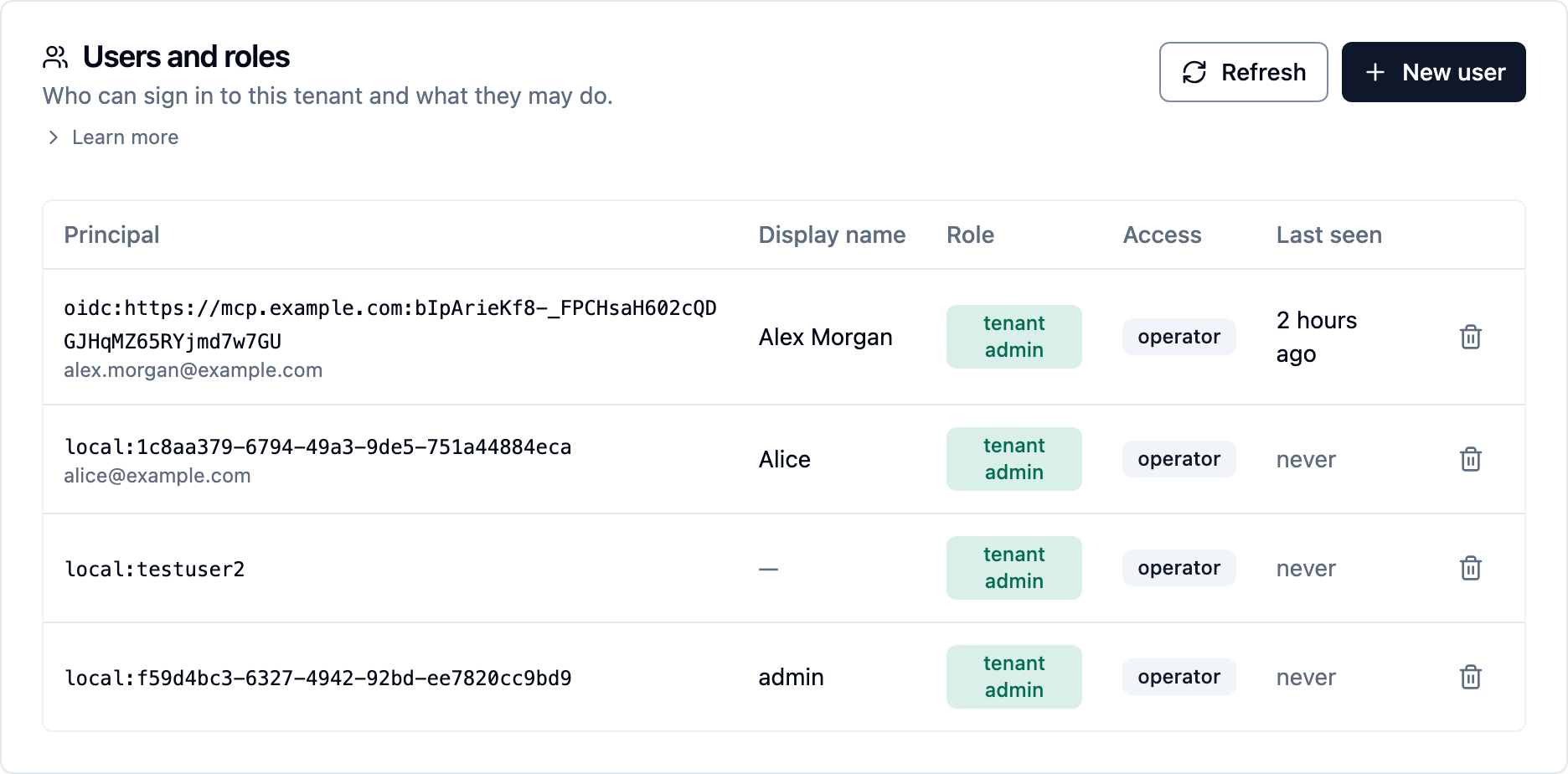
Change a role by hand on the Users and roles card: Settings › People & access for a tenant administrator (or press ⌘K / Ctrl+K and type users), or the tenant's page under Tenants for a cluster administrator. Click a user's Access badge to switch between reader and operator, and their Role badge to make them a tenant admin or remove it.
Through the API, PATCH /api/users/:id {"role": "reader"}; users created with
POST /api/users are operators unless the body says otherwise, and
GET /api/users/me reports the caller's own role. Users that existed before
roles were introduced are operators, so nothing changed for them on upgrade.
The usual shape
Default role reader, one operator group for the team that runs sources, one admin group for the platform owners. Everyone else who signs in can search and explore, and nothing they do can change the estate.
Warehouse admin
Warehouse admin is a flag on a user, alongside their role, like the tenant-admin flag. It lets a data team run the tenant's data warehouses without broader admin rights. A warehouse admin:
- administers every warehouse in the tenant — connections, credentials, the semantic model, publishing and approvals, syncs, accuracy runs and the query log;
- can read, but not change, the Estate insights and AI access (MCP) pages;
- cannot change sources, crawls, extraction, classification, users, or sign-in and identity-provider settings.
A reader who is a warehouse admin is the right account for a warehouse team or a pipeline. Grant the flag in any of three ways:
- Console — on the Users and roles card (Settings › People & access, or the tenant's page under Tenants), the Warehouses column toggles it.
- Directory — list groups under Warehouse admin groups on the Sign-in
(SSO) card (
warehouse_admin_groupsinPATCH /api/tenants/:slug/sso). Membership grants it on every sign-in, and leaving the group revokes it. - CLI or API —
kdbl-control users warehouse-admin --user <email>(add--removeto take it away), orPATCH /api/users/:id {"is_warehouse_admin": true}.
The Warehouses column and the Databases page appear only where the licence includes data warehouses for the tenant.
Troubleshooting
| Symptom | Cause | Fix |
|---|---|---|
| Login page says Tenant "x" has no SSO configured | The tenant has no issuer, or the card is Incomplete | Fill in what the badge names; a tenant needs an issuer, client ID and API audience |
400 tenant oidc_config missing client_id |
Issuer set, client ID not | Register the public client and put its ID on the card; Check issuer lists what is missing |
The login page hangs or errors before redirecting; the API returns 503 |
The issuer's metadata could not be fetched | Check issuer shows the failure. Typical causes: the issuer is unreachable from the K-Lake servers, or its certificate is not trusted — add the CA under Settings › Security › TLS trust anchors |
| The IdP rejects the sign-in before the console is involved | Redirect URI mismatch, or the client is confidential | Register https://<console-host>/authn/callback on a public (single-page) client; take the exact callback from the card |
Sign-in completes, then every page is 401 |
Audience mismatch | The API audience on the card must equal the aud the IdP puts in the token (route A) or the value the console requested (route B) |
Sign-in is refused with auth.token_missing_audience or auth.token_missing_issuer |
The IdP issues tokens without aud or iss (Keycloak without an Audience mapper) |
Add an Audience mapper for the API audience; see Setting up sign-in |
| Entra directly: the login page reports a token error, or every request after sign-in is refused | No API scope, so Entra issued a Microsoft Graph token; or the token is version 1 | Set API scope to api://<client-id>/access_as_user, and requestedAccessTokenVersion to 2 |
Saving the card returns 409 |
Another tenant already uses that issuer | One issuer per tenant. On route B, give the tenant its own MCP endpoint so it has its own issuer |
| The user signs in but sees no sources | No access grant | Grant their group a role on the sources; see Why can't this user see this file? |
| A user is a reader who should be an operator | Not in an operator group; default role is reader | Add the group to Operator groups, or click their Access badge on Users and roles |
Route B on an evaluation estate: the IdP refuses the http:// callback |
Plain-http redirect not allowed | Register the client with Allow a plain-http redirect URI |
See also
- Multi-tenant deployments — per-tenant endpoints, providers and keys
- OAuth and identity providers — assistant sign-in over MCP
- Web console — what each page does
- REST API — the users and tenant sign-in routes