Citation links
Every search result and every AI assistant answer that cites a document carries an "open original" link. Readers click it to check the source. A tenant administrator decides who can open those links.
Whatever you choose, two things always hold:
- Every link expires. A link is short-lived and names one file.
- The file is checked when the link is opened. If the reader is no longer allowed to see the file, they get "not found", even with a valid link.
Every download, and every refused download, is recorded in the audit log.
Choose who can open a link
In the console, open Settings › People & access › Citation links (or press ⌘K / Ctrl+K and type citation) and pick one of three modes.
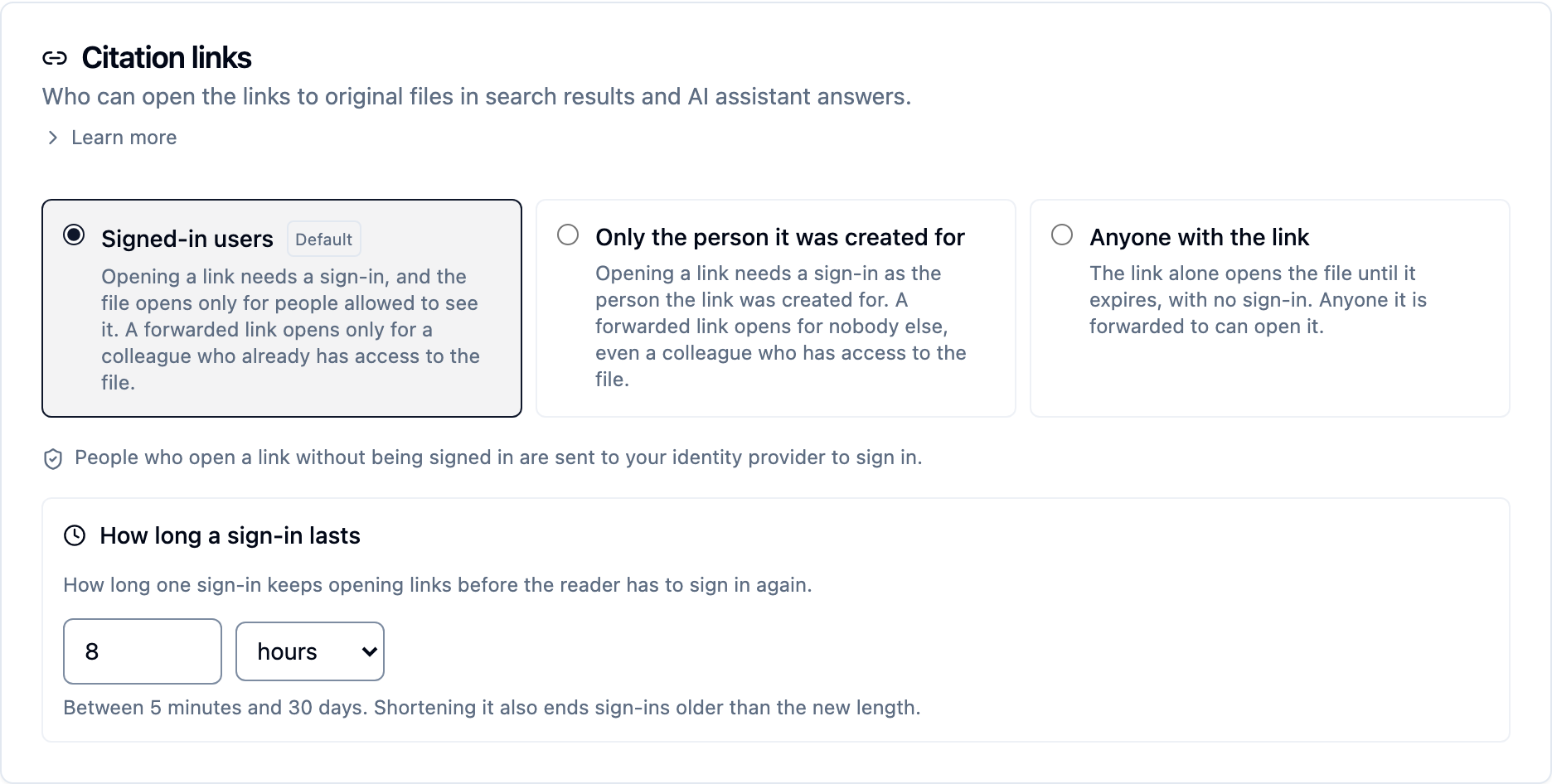
| Mode | Opening a link needs | A forwarded link |
|---|---|---|
Signed-in users (signed_in) |
The reader signs in to your organisation. The file opens only if they are allowed to see it. | Opens only for a colleague who already has access to the file. |
Only the person it was created for (match_user) |
The reader signs in as the person the link was created for. | Opens for nobody else, even a colleague who has access to the file. |
Anyone with the link (anyone_with_link) |
Nothing. The link alone opens the file until it expires. | Opens for whoever has it. |
The default
If you haven't picked a mode, the tenant follows its identity provider:
- Once an identity provider is connected, links need a sign-in (Signed-in users).
- Until then, links work for anyone with the link. Without an identity provider, a link opened from an AI assistant has nowhere to send its reader to sign in.
So connecting an identity provider turns sign-in on for citation links automatically. A mode an administrator picks explicitly always stands.
Evaluation deployments
A proof-of-concept deployment sets Anyone with the link so that citations open straight away during an evaluation. Choose a stricter mode before real users rely on it.
What a reader sees
sequenceDiagram
    participant R as Reader
    participant K as K-Lake
    participant I as Your identity provider
    R->>K: Clicks "open original" in an answer
    alt Sign-in needed and no current sign-in
        K->>I: Sends the reader to sign in
        I-->>K: Reader signed in
    end
    K->>K: Checks the link and the reader's access to the file
    alt Allowed
        K-->>R: The original file
    else Not allowed
        K-->>R: Refused, and the refusal is audited
    end
When a sign-in is needed, the reader is sent to your identity provider, the same one they use to connect an AI assistant. They then come straight back to the file. If your tenant has no identity provider, a reader who is signed in to the K-Lake console in the same browser can open links.
How long a sign-in lasts
One sign-in keeps opening links for the sign-in lifetime. The default is 8 hours, and you can set anything from 5 minutes to 30 days under How long a sign-in lasts on the same card. Shortening it also ends sign-ins that are already older than the new limit. The setting applies only once links need a sign-in.
From the command line or the API
A tenant administrator (or a cluster administrator) can do the same with the CLI:
kdbl-control tenant download-links --slug acme                   # show the mode in force
kdbl-control tenant download-links --slug acme --set match_user
kdbl-control tenant download-links --slug acme --set default     # follow the identity provider
kdbl-control tenant download-links --slug acme --session-ttl 4h  # 30m, 8h, 7d or default
The REST equivalents are GET and PUT /api/tenants/:slug/download-links. See
the REST API reference.