Console HTTPS certificate
The KDBL Context Lake (K-Lake) web console can install and renew its own HTTPS certificate. You don't need kubectl, a Kubernetes Secret or a chart change for each renewal. Open Settings › Security, and on the HTTPS certificate card click Manage (or press ⌘K / Ctrl+K and type HTTPS). Generate a certificate request for your certificate authority, and import what the CA returns. You can also import a certificate and key you already hold.
A cluster administrator's Settings opens on Security because the console's address decides the sign-in redirect URIs you register next (see Setting up sign-in for your admins). The HTTPS certificate card there shows the state at a glance: HTTPS active with the name and issuer, or Plain HTTP.
Who sees it
The certificate belongs to the whole deployment, so the page is for the deployment's administrator:
- a cluster administrator (the token, or a platform operator in the platform scope); or
- the tenant administrator of a deployment whose only tenant manages itself, such as a proof of concept or your own single-customer install.
On a deployment that hosts several tenants or customers, tenant administrators don't see it.
Get a certificate from your CA
- Open the console at the name people will use, for example
http://klake.example.internal/. The request form starts from that name. -
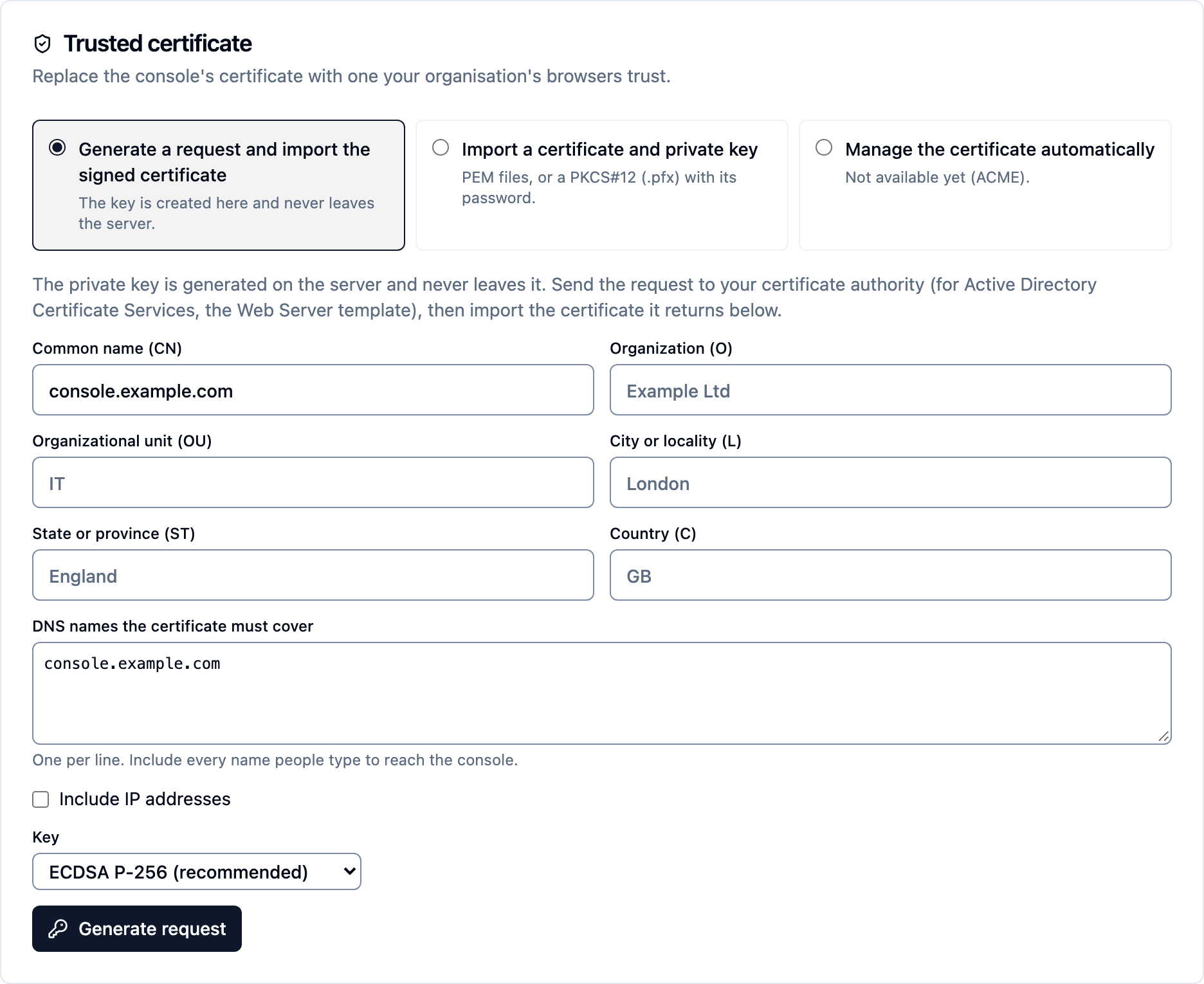
Generate a request. Under Trusted certificate, keep Generate a request and import the signed certificate selected. Check the Common name (CN) and the DNS names the certificate must cover (add every name people type to reach the console). Tick Include IP addresses if people use the server's address, and fill in the organization fields your CA expects. The key is ECDSA P-256 (recommended) unless you choose RSA 2048 or 3072. Click Generate request. The private key is created on the server and never leaves it. Download CSR, or Copy CSR.
-
Have your CA sign it. With Active Directory Certificate Services, submit it with the Web Server template, for example:
or use the CA's web enrolment page. The certificate on its own (Base 64 or DER
.cer) or the whole chain (.p7b) are both accepted.A public CA works too, for a name in a public DNS zone: for example Let's Encrypt with DNS validation (a TXT record), which needs no inbound access to the console. Submit the CSR from this page (with certbot,
--csr) so the key stays on the server. Public CAs never put an IP address in a certificate, so leave Include IP addresses off. -
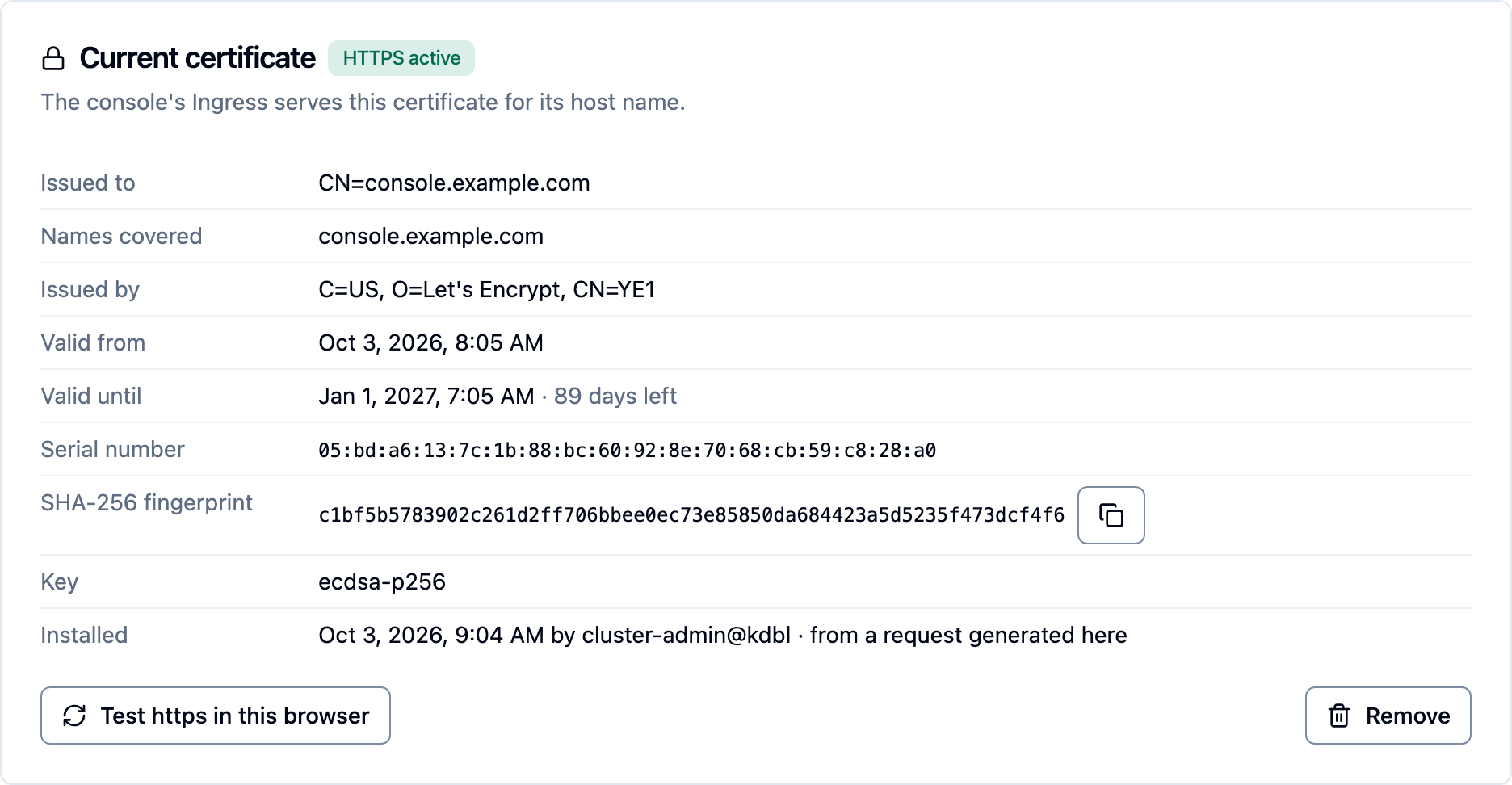
Import the signed certificate on the same page, under Import the signed certificate, once your CA returns it (the pending request waits for you; generating a new one replaces it). Within a few seconds the Current certificate card shows HTTPS active.
- Open
https://klake.example.internal/and click Test https in this browser. Your browser must trust your CA; for an internal CA it usually does through group policy.
If you already have a certificate and key, choose Import a certificate and
private key instead of steps 2 to 4. It takes PEM files (the certificate
with its intermediates, and an unencrypted key) or a PKCS#12 (.pfx) file
with its password.
Manage the certificate automatically (ACME) is not available yet. Public
ACME authorities can't issue certificates for internal names such as
.local, and most internal CAs don't support ACME, so renewal from a public
CA is a new request each time.
What is checked
Every import is checked before it is used. The certificate must match the key, must not have expired, and must not itself be a CA certificate. Each link in the chain must also be signed by the next. Three things are accepted with a warning:
- a certificate from an internal CA, with a reminder that browsers must trust it;
- a certificate that doesn't cover the name you're using;
- a chain with a missing intermediate.
Current certificate shows who it was issued to, the names it covers, the issuer, the validity period and days left, the serial number and the SHA-256 fingerprint, and whether HTTPS is active.
After installing: update single sign-on
Once people use HTTPS, console sign-in redirects to
https://<console host>/authn/callback. The HTTPS certificate page checks
this for you: it says Sign-in already uses https when the console's
sign-in client lists that address, or Update sign-in for https with the
steps when it does not (Details shows which client). Every place that
registers the console's redirect URI must list that address:
- Signing in through K-Lake's own server: open the console at its HTTPS address, go to Settings › Sign-in › Sign-in (SSO), open Advanced, click Sign the console in through K-Lake's own server again, and save. The client it registers appears under Settings › AI assistants › Sign-in › MCP clients; once everyone signs in over https, remove the old one there.
- An external identity provider (Entra ID, Okta, Keycloak): add the same URI to the app registration.
Until you update them, single sign-on over HTTPS fails with a redirect-URI mismatch. Personal-access-token sign-in is unaffected, and plain HTTP keeps working in the meantime.
The MCP address does not change
The certificate is for the console. It does not change where AI assistants reach MCP. AI access (MCP) › Setup shows the address they use:
- A K-Lake remote-access address (for example
https://<you>.mcp.kdbl.com/mcp): change nothing. Pointing MCP at the console's hostname would break every Claude and Copilot connection. Their tokens would no longer match, and every connector would have to be registered again. - The console's own host (for example
http://<server>/mcp, with no remote-access address): if you want MCP on HTTPS too, change it tohttps://<console host>/mcpunder AI access (MCP) › Setup. This changes the token audience, so every AI client connected to the old address must be reconnected.
Force HTTPS
Force HTTPS redirects plain HTTP to HTTPS. Click Redirect http to
https on the Force HTTPS card; it applies at once, and the badge turns
On. You can only switch it on from a browser that is already on
https://: that proves the certificate works before plain HTTP stops, so
nobody is locked out by a certificate their browser doesn't trust. Scripts
and API clients that call http:// are redirected too. Allow plain http
again turns it off.
Renewal and expiry
To renew, generate a new request, have it signed, and import it. No restart is
needed. K-Lake warns 30 days and again 7 days before the certificate expires,
in three places: on the page, as a banner on every admin page, and through two
alerts, KdblConsoleCertificateExpiring (warning) and
KdblConsoleCertificateExpiringSoon (critical). See
Telemetry. Remove puts the console back on plain HTTP and
turns Force HTTPS off.
Every change is recorded in the admin audit log.
Turning the page on
A proof of concept always has the page on. On other installs, turn it on with
the chart value console.tls.managed=true; until then the page says the
certificate is not applied automatically on this deployment. Leave it off where a platform team
or cert-manager owns certificates: the page can then store a certificate, but
says it isn't applied. How the certificate reaches browsers is set by
console.tls.serving. See
Production deployment.